To upgrade a Release 22.6 or earlier NFM-P client delegate server
Purpose
The following steps describe how to upgrade the Release 22.6 or earlier NFM-P software on a client delegate server station in a standalone or redundant NFM-P deployment.
Note: The main server to which the client delegate server connects must be upgraded and running when you perform this procedure.
Note: You require the following user privileges on the client delegate server station:
Steps
1 |
Close each remote client GUI session that the client delegate server hosts. |
2 |
Log in to the client delegate server station. |
3 |
Close the local client GUI, if it is open. |
4 |
Double-click on the NSP NFM-P Client desktop icon. A form like the following is displayed. Figure 15-6: Do you want to run this application?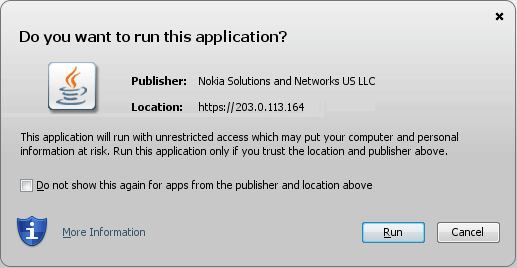
|
5 |
Click Run. The panel shown in Figure 15-7, Updating... is displayed. Figure 15-7: Updating...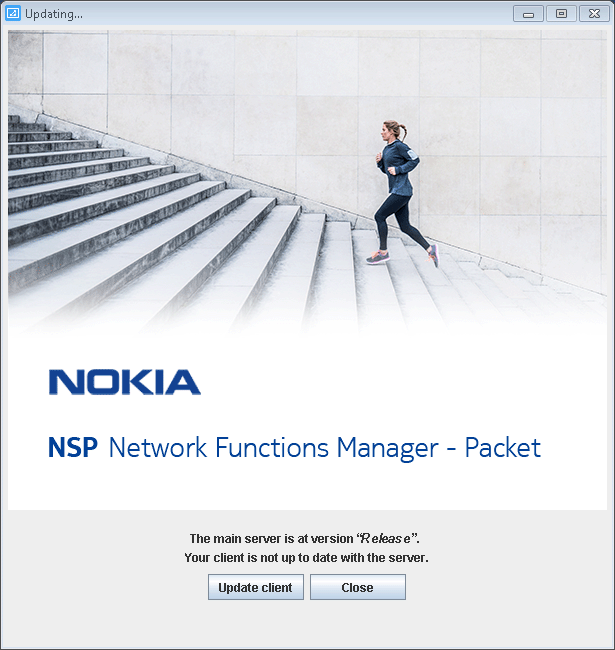
|
6 |
Click Update client. The client delegate server upgrade begins, and the panel shown in Figure 15-8, Updating... is displayed. The panel uses separate bars to indicate the overall and current task progress. Figure 15-8: Updating...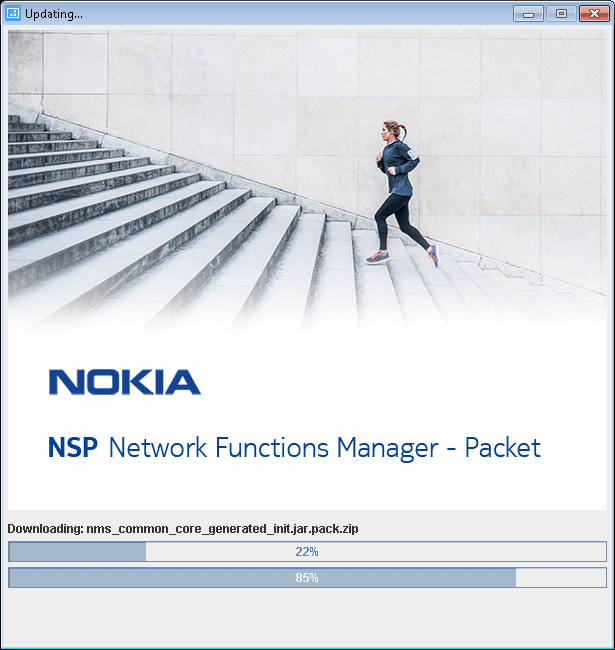
|
7 |
If you are not currently logged in, the splash screen shown in Figure 15-9, Waiting for user authentication opens, and the NSP sign-in page is displayed. Enter the required login credentials on the NSP sign-in page and click SIGN IN. The NSP UI is displayed, and the client GUI opens. Figure 15-9: Waiting for user authentication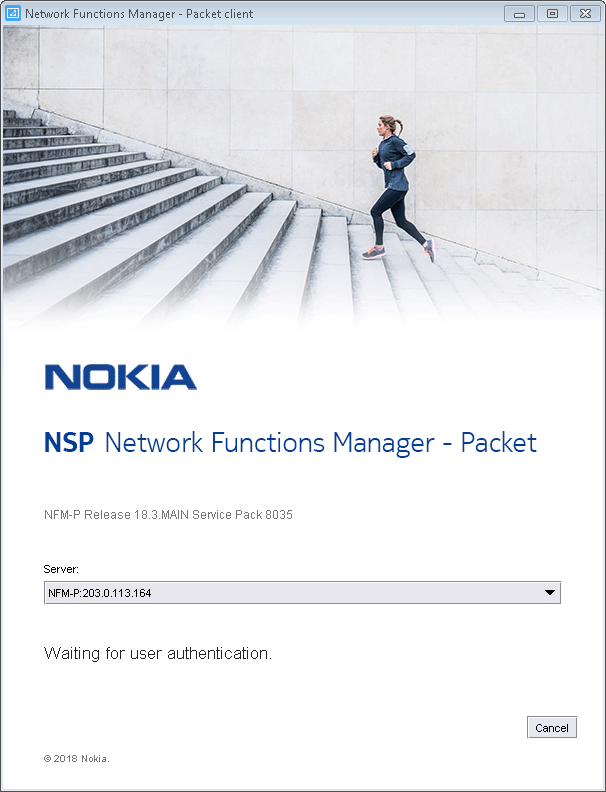
|
8 |
Verify that the GUI is operational and correctly displayed. End of steps |