Link Budget Calculation report
Link Budget Calculation report overview
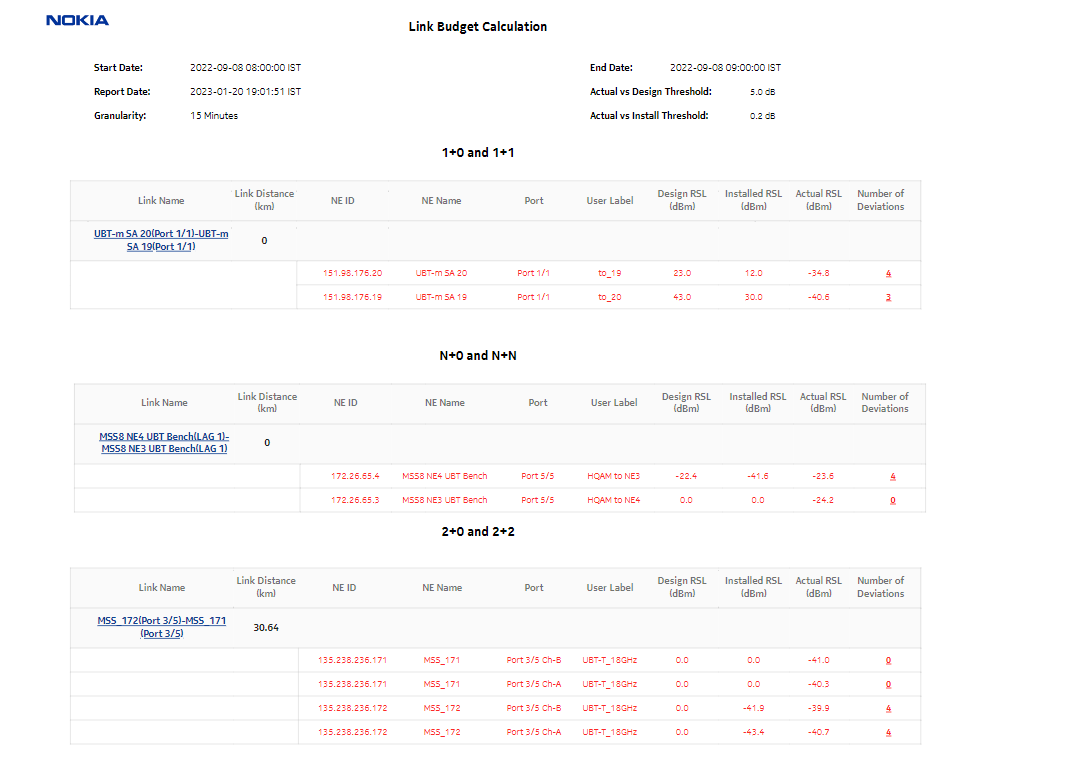
The Link Budget Calculation report provides the details on radio link deviations, based on the Install/Design and Actual RSL values per MPT/UBT basis, for selected time range and granularity. The report lists the number of deviations and details on the links for Actual vs Design and Actual vs Install dB values.
The default display is a set of tables for 1+0 and 1+1, 2+0 and 2+2, and N+0 and N+N radio links providing details including Site A, Site B, Radio Link Name, Link Distance (km/mile), Site ID, Port, Design RSL (dBm), Installed RSL (dBm), Actual RSL (dBm), and Number of deviations for the selected inputs.
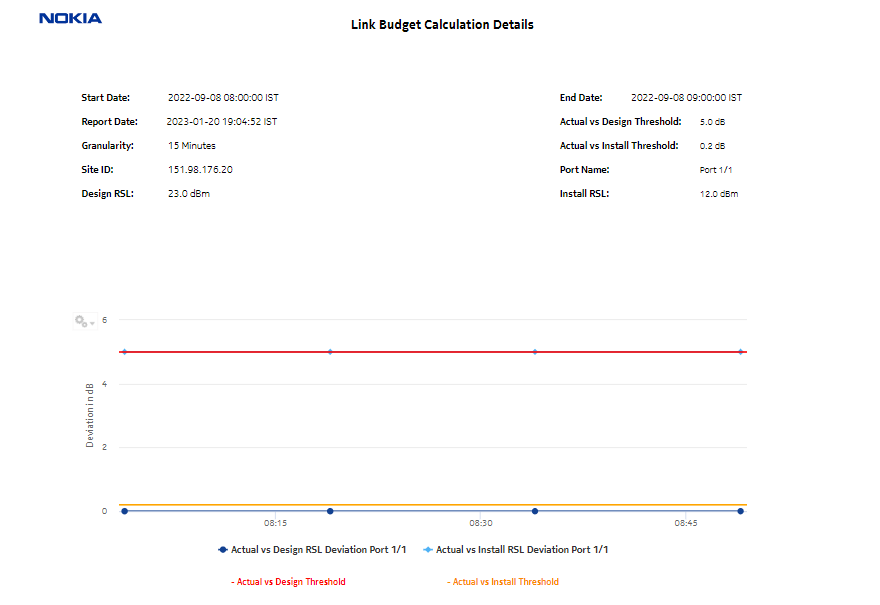
Click on the number of deviations on the selected radio link to drill down to the Link Budget Calculation details report. The default display is a time-series chart with Actual vs Design and Actual vs Install dB values. The values are plotted on the time slots in the time range and presented in a table with details like Date, Time, Actual vs Design RSL deviation, and Actual vs Installed RSL deviation.
Note: The coordinates are displayed as parameters on the General tab of the Node Properties form.
Limitations
Report limitations include:
-
Minimum and maximum throughput aggregation cannot be compared with the minimum and maximum throughput values generated from raw granularity.
-
Some table columns cannot be sorted and filtered; see Which report table columns cannot be sorted and filtered?.
Prerequisites
The following tasks need to be performed using NSP Classic management for a Link Budget Calculation Report to be created:
-
NEs with radio links need to be discovered. The path distance (user configurable between kilometer or miles) is calculated based on the latitude and longitude coordinates discovered from the NE. The NSP discovers the Wavence radio links automatically and builds this report based on the adjacency information.
Radio RSL is supported only for MPT/UBT radio ports and not supported for radio modem ports.
-
To update the Installed RSL value on the associated radio ports, the Radio RSL retrieval operation must be completed for the NEs with radio links.
See the Wavence statistics support chapter of the Wavence Device Support Guide for information about configuring link budget calculation statistics.
-
The Install RSL value must be updated per MPT/UBT after the Radio RSL retrieval operation is successfully completed on the NE.
-
The Design RSL value must be manually entered on the radio ports that are part of the radio links from the radio tab.
-
The Radio RSL Hop History Data 15 Min PM must be enabled for the radio ports that are part of radio links, to be included in the analytics reporting.
-
The Radio RSL Hop History 24 Hr PM must be enabled for the radio ports for generating report on 24 h granularity.
Note: For reports with more than 1000 pages, use the multipage display option to shorten loading times. Large reports can take from thirty seconds to several minutes to load, depending on the number of entries.
Use case
Use the Link Budget Calculation report to identify the deviations with respect to Design vs Install vs Actual RSL on a per MPT/UBT level on the radio link.
Report characteristics
The following table lists the principal report characteristics.
Table 15-16: Link Budget Calculation report characteristics
|
Characteristic |
Value | ||||
|---|---|---|---|---|---|
|
Data type |
Statistics | ||||
|
NE types supported |
Wavence MSS-1, Wavence MSS-4, Wavence MSS-8, Wavence MSS-E, Wavence MSS-HE, Wavence MSS-XE, Wavence UBT-SA, Wavence UBT-I/I2, Wavence UBT-T XP, 9500 MPR-A Chassis 4, 9500 MPR-A Chassis 8, 9500 MPR-E Chassis 1, 9500 MPR-E Chassis 4, 9500 MPR-E Chassis 8 | ||||
|
Report inputs |
Prompt |
Notes | |||
|
Start date End date |
Calendar date or relative date (for example, two days ago) and time For the Start Date, enter the start date, which is before the End Date For the End Date, enter the end date, which is after the Start Date | ||||
|
Actual vs Design threshold (dB) |
Accepts values greater than 0.1 | ||||
|
Actual vs Install threshold (dB) |
|||||
|
Number of Deviations |
Accepts integer values | ||||
|
Granularity |
15 Minutes and 24 Hours | ||||
|
Distance Unit |
Select the unit for the path distance to display on the report. Unit types: | ||||
|
Logo Resource ID |
The logo to add to the report. Enter the Resource ID of the logo image in the Images folder. The default is the Nokia logo. To create the report without a logo, leave the Logo Resource ID field blank. | ||||
|
Logo Position |
Choose Left, Middle, or Right. The logo appears on the left on the first page of the report if you choose Left or Middle. | ||||
|
Show report output on one page |
Select the check box to enable pagination. Note: Using the Show report output on one page option when creating reports as drill-downs may impact report rendering time. Nokia recommends disabling the Show report output on one page option when creating reports. | ||||
|
Apply |
Applies all the parameters and prepares the report based on the parameters entered | ||||
|
Reset |
Resets all the parameters to default value | ||||
|
Drill-down support |
Yes—This report can only be launched from the main report. Click on the Link Name to launch the Radio Link Inventory report. | ||||