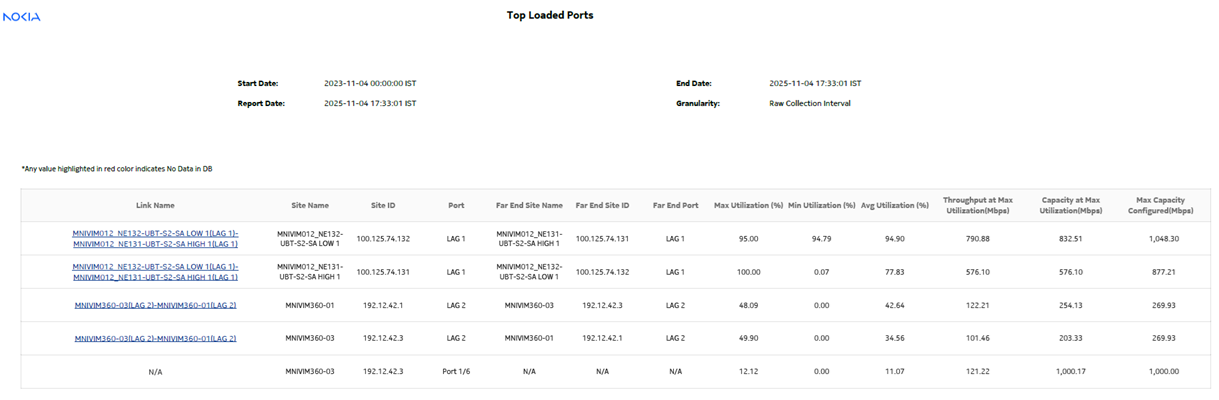
Top Loaded Ports report
Top Loaded Ports report overview
The Top Loaded Ports report shows the top loaded ports sorted by average utilization percentage. The operator can select the value of ‘N’ which corresponds to the top N loaded ports. By default, N is set to 5. The Top Loaded Ports report can be generated based on Radio or Ethernet port utilization percentage.
Use cases
Capacity planning—Use the report to examine the top loaded ports based on the radio and/or Ethernet traffic in a given network and to plan for capacity requirements.
Limitations
Report limitations include:
-
Minimum and maximum throughput aggregation cannot be compared with the minimum and maximum throughput values generated from raw granularity.
-
Records with a Max Utilization value of 0 are excluded from the report
-
When multiple throughput values have the same Max Utilization value, the higher value is considered.
-
Spare ports are excluded from the report, and spare channels are excluded from Net Bandwidth calculation
-
The observed Capacity at Max Utilization is sometimes higher than the configured Max Capacity
Prerequisites
The following table describes the aggregation rules that must be enabled and the accounting policies that must be configured for the NEs on which statistics are to be collected; see the NSP NFM-P Statistics Management Guide for information about configuring an accounting policy. To view the report for granularities other than raw data, the aggregation rules must be enabled; see How do I configure analytics aggregation?.
Note: Busy hour support is only available for raw data granularity.
Table 15-33: Top Loaded Ports report prerequisites
|
Aggregator name |
Monitored object class |
Statistics class |
Statistics collection |
MIB |
NE types |
|---|---|---|---|---|---|
|
Wavence Egress Stats Bandwidth Aggregator |
Port LAG |
Ethernet Radio |
Ethernet Aggregate Tx Stats (15Min) |
ethAggrMaintTxEntry |
Wavence MSS-1, Wavence MSS-4, Wavence MSS-8, Wavence MSS-O, Wavence MSS-E, Wavence MSS-HE, Wavence MSS-XE, Wavence MSS-1c, Wavence SA, Wavence UBT-SA, Wavence UBT-I/I2, Wavence UBT-T XP, 9500 MPR-A Chassis 1, 9500 MPR-A Chassis 4, 9500 MPR-A Chassis 8, 9500 MPR-E Chassis 1, 9500 MPR-E Chassis 4, 9500 MPR-E Chassis 8, 9500 MSS-1c, 9500 MSS-O ANSI, 9500 MSS-O ETSI, 9500 SA Note: The 7705 SAR-H is not supported. |
Report characteristics
The following table lists the principal report characteristics.
Table 15-34: Top Loaded Ports report characteristics
|
Characteristic |
Value | ||||
|---|---|---|---|---|---|
|
Data type |
Statistics | ||||
|
NE types supported |
Wavence MSS-1, Wavence MSS-4, Wavence MSS-8, Wavence MSS-O, Wavence MSS-E, Wavence MSS-HE, Wavence MSS-XE, Wavence MSS-1c, Wavence SA, Wavence UBT-SA, Wavence UBT-I/I2, Wavence UBT-T XP, 9500 MPR-A Chassis 1, 9500 MPR-A Chassis 4, 9500 MPR-A Chassis 8, 9500 MPR-E Chassis 1, 9500 MPR-E Chassis 4, 9500 MPR-E Chassis 8, 9500 MSS-1c, 9500 MSS-O ANSI, 9500 MSS-O ETSI, 9500 SA | ||||
|
Report inputs |
Prompt |
Notes | |||
|
Start date End date |
Calendar date or relative date (for example, two days ago) and time For the Start Date, enter the start date, which is before the End Date For the End Date, enter the end date, which is after the Start Date | ||||
|
Granularity |
Aggregation types: | ||||
|
Top ‘N’ Ports |
Specify the value (1,2, etc.) to get the ports details of the selected number of ports in the report. Default: N=5 | ||||
|
Port Type |
Select Radio or Ethernet or All. | ||||
|
Utilization Threshold (%) |
Specify the threshold percentage to get reports for all entries equal and above the specified threshold value. | ||||
|
Minimum Number of Occurrence |
Specify the number of occurrences. | ||||
|
Busy Hour Support |
Allows specifying Busy Start Hour and Busy End Hour to customize report range for busy hours. Busy Hour Support is only available for raw data granularity. | ||||
|
Busy Start Hour |
Start hour of the busy hour in the report range | ||||
|
Busy End Hour |
End hour of the busy hour in the report range | ||||
|
Logo Resource ID |
The logo to add to the report. Enter the Resource ID of the logo image in the Images folder. The default is the Nokia logo. To create the report without a logo, leave the Logo Resource ID field blank. | ||||
|
Logo Position |
Choose Left, Middle, or Right. The logo appears on the left on the first page of the report if you choose Left or Middle. | ||||
|
Show report output on one page |
Select the check box to enable pagination. Note: Using the Show report output on one page option when creating reports as drill-downs may impact report rendering time. Nokia recommends disabling the Show report output on one page option when creating reports. | ||||
|
Apply |
Applies all the parameters and prepares the report based on the parameters entered. | ||||
|
Reset |
Resets all the parameters to default value. | ||||
|
Drill-down support |
Yes—Click on each Link Name to get the individual link Bandwidth Throughput Summary. | ||||