| |
|
1 |
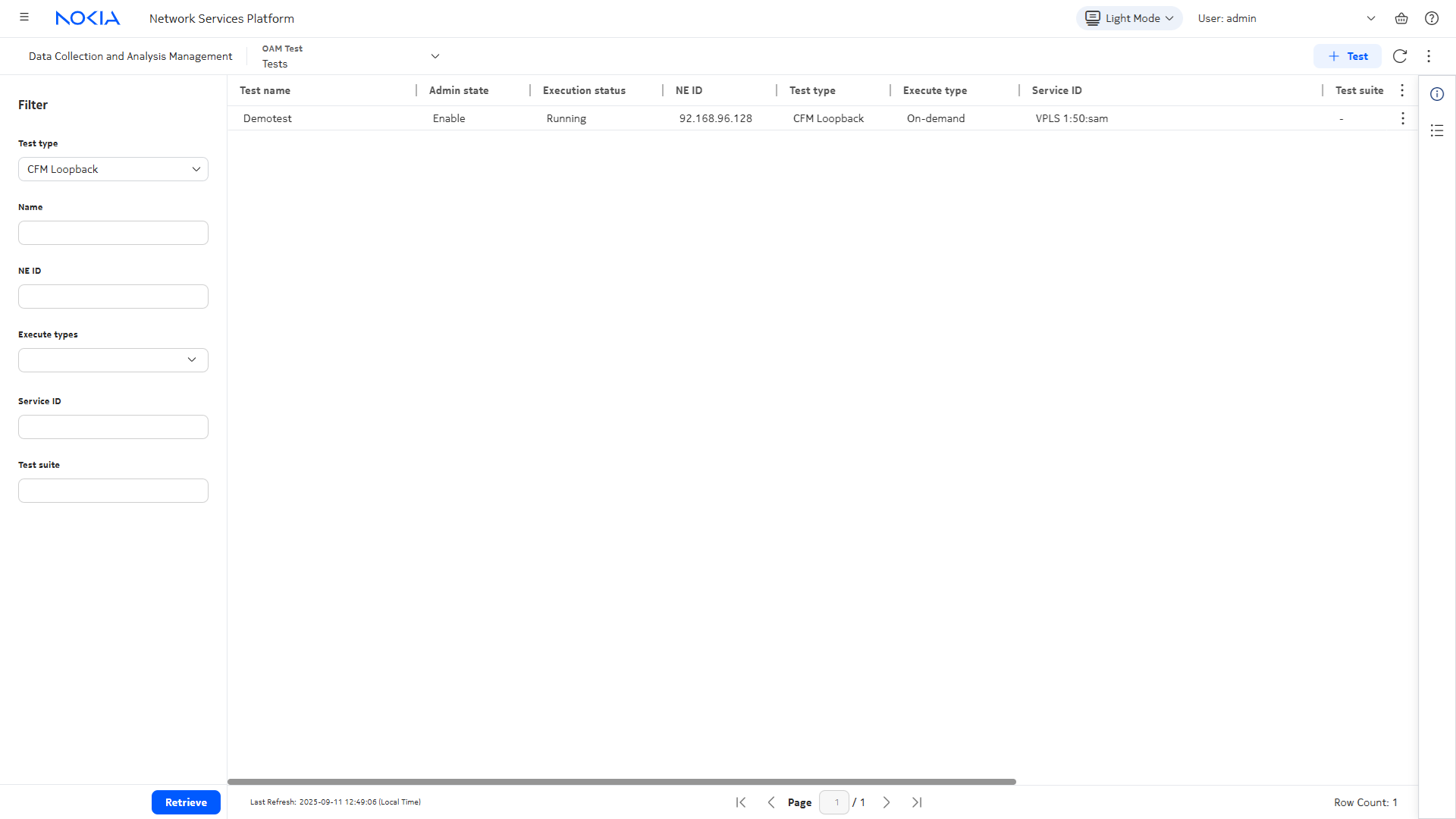
Open Data Collection and Analysis Management, Tests.
|
2 |
In the Filter column at the left of the view, choose the test type and click Retrieve. The list of tests is populated and filtered according to your input.
|
3 |
Choose a test and click  to open the Test Details panel to verify that the test parameters meet your needs. to open the Test Details panel to verify that the test parameters meet your needs.
|
4 |
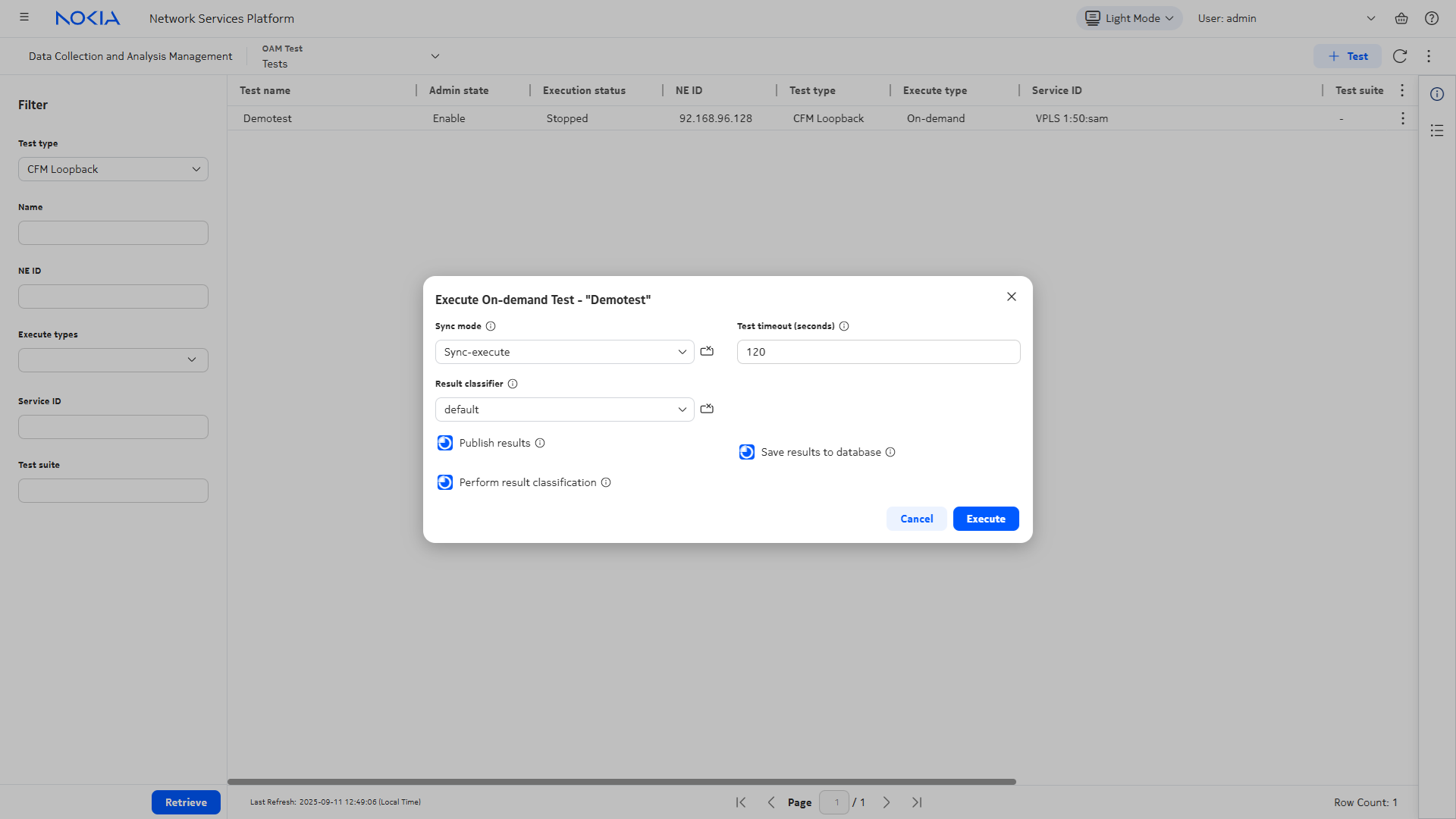
From your selected test row, click  (Table row actions), Execute. The Execute dialogue opens. (Table row actions), Execute. The Execute dialogue opens.
|
5 |
Configure the required parameters.
-
The Sync mode parameter specifies whether or not execution requests generate notifications in the UI. The Sync-execute option (default) provides a notification if the execution fails.
-
The Result Classifier parameter specifies the name of the result classifier used to determine test success or failure. Result classifiers are configurable using a REST API.
Check the Perform result classification check box to apply the classifications.
-
The Publish results check box publishes results to Kafka.
-
The Save results to database check box makes results available to the NSP UI. If this box is not checked, the UI does not display the test results.
Click Execute. The execution status changes to Running.
|
6 |
To stop a test that is running, choose the test in the list and click (Table row actions), Stop.
End of steps |
We’re done
The test is now running in the NSP.
To view results of a discovered test, the test must be stopped in NFM-P and executed from the NSP.
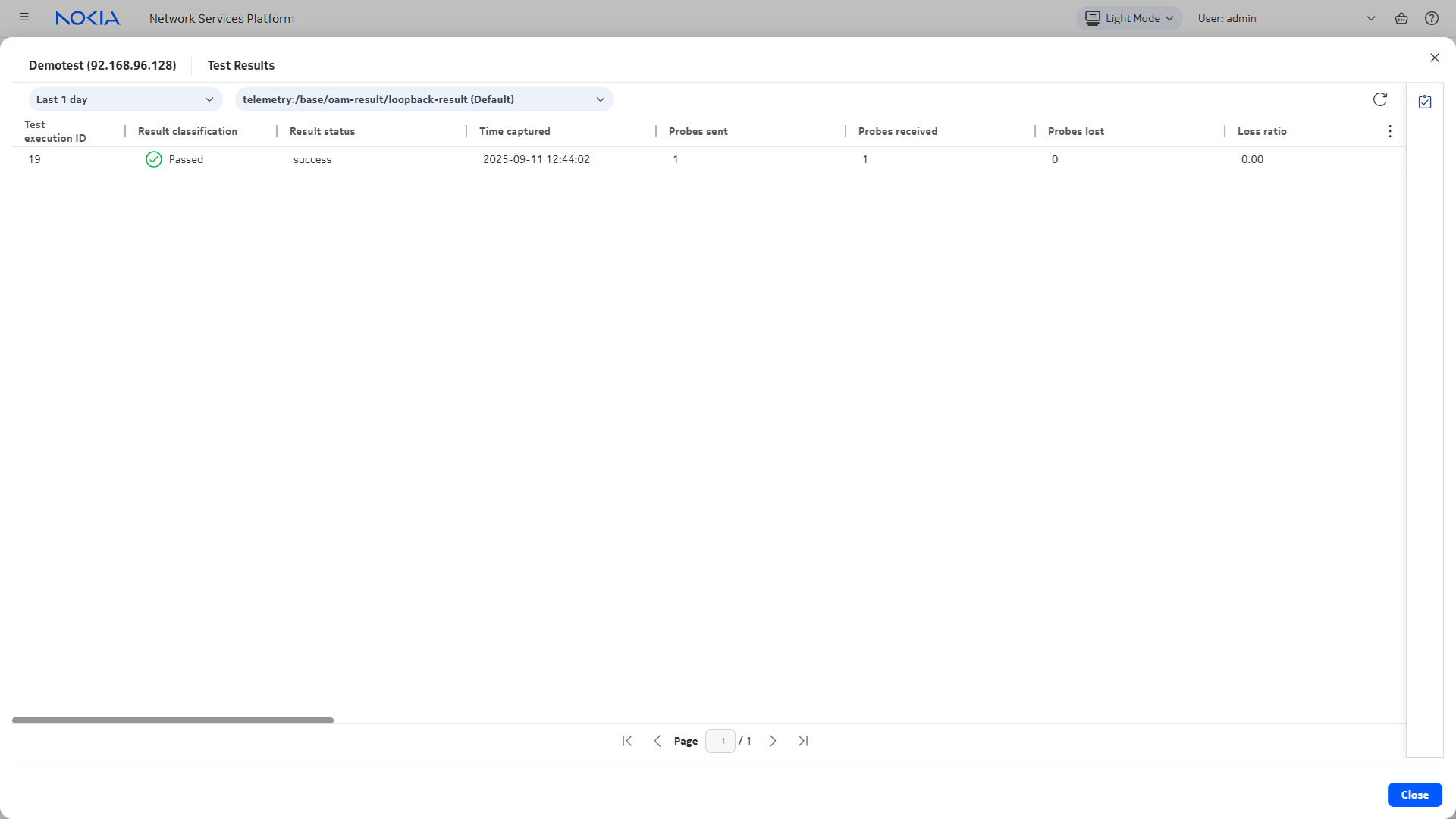
Select the test in the Tests view and click (Table row actions), View Results.
The Test executions view opens, showing the executions and their results.
Note: After a test has executed, there is a brief processing delay before results are available. For tests that have just finished running, Nokia recommends that you wait a minimum of 5 s before viewing the results.
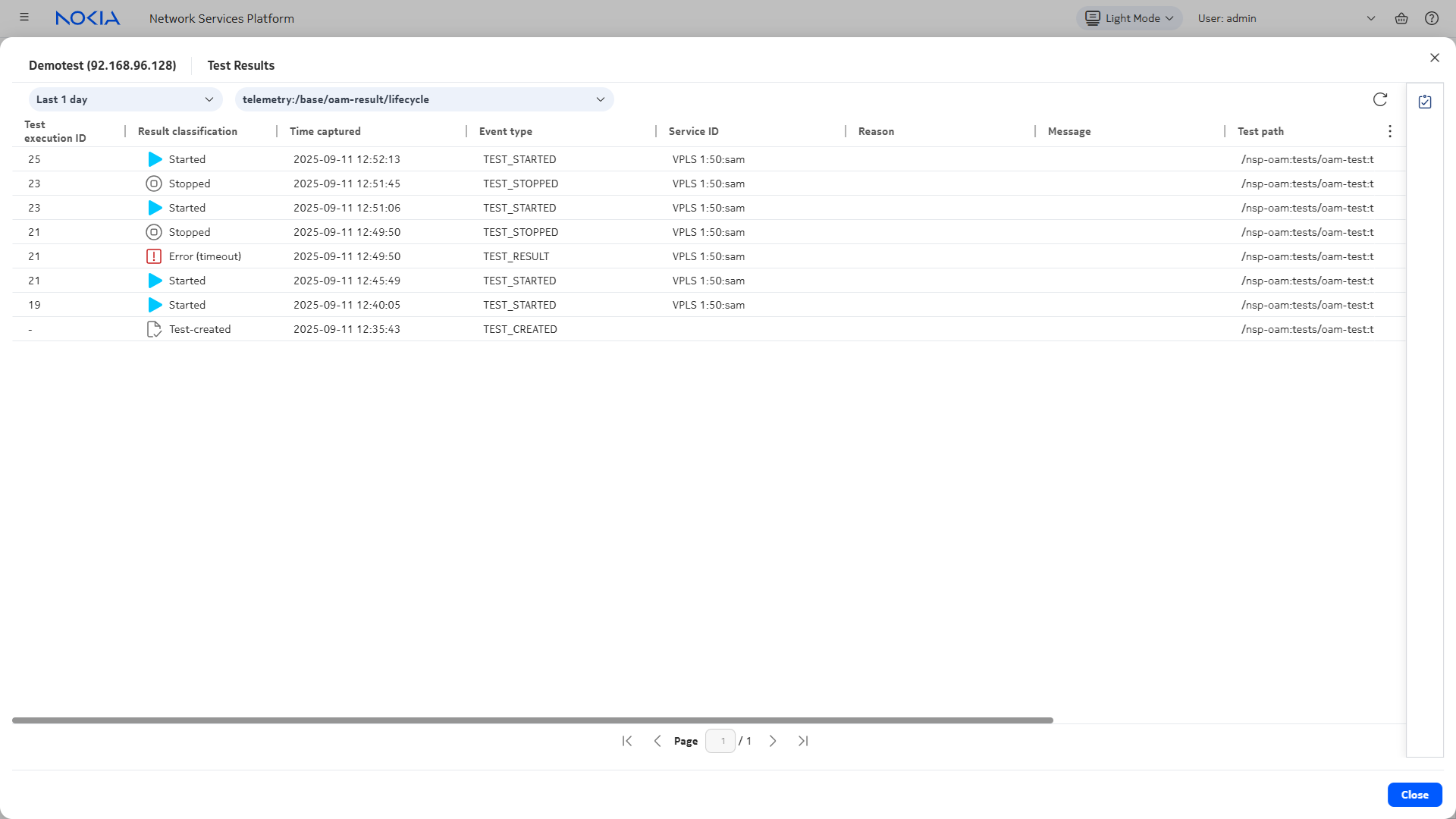
To view the test result lifecycle, select telemetry type-result/lifecycle from the dropdown in the Test Results view.