Turning up and shutting down a port on a 7750 SR
Before you begin
This sample procedure shows how to use NSP to update the admin state parameter of port 1/1/5, on a model-driven 7750 SR NE. The procedures to make other configuration changes are similar. You can configure the NE using Model Driven Configurator, or deploy a configuration template in the Device Configuration views.
Model Driven Configurator
You can use Model Driven Configurator (MDC) to make changes to any model-driven NE without the need to create a template or import intent type artifacts. However, you can only use MDC to configure one NE at a time.
Device Configuration
You can deploy a device configuration template to make configuration changes to multiple NEs at once.
In this example, the configuration template Port has been created using the predefined port-eth_msros_24-10-1_24-4 intent type; see How do I import a configuration intent type? and How do I create a configuration template?.
The intent type is available from the Nokia NSP software download site as part of an artifacts bundle. For example, the intent type used in this example can be found in the bundle device-config-artifacts-msros-23-10-1-nsp-25-8-0-v2.zip for Release 25.8.
See “What is an artifact?” in the NSP Network Automation Guide for information about obtaining artifacts.
The NSP Device Configuration Intent Type Catalog is available from the Artifacts folder along with the intent type bundles. This document contains information about the function of each intent type and any limitations that apply.
Steps
Model Driven Configurator | |
1 |
Open the Model Driven Configurator view for the NE. |
2 |
Navigate to the Port List in the Nokia-conf:/configure path. Port 1/1/5 is not enabled. 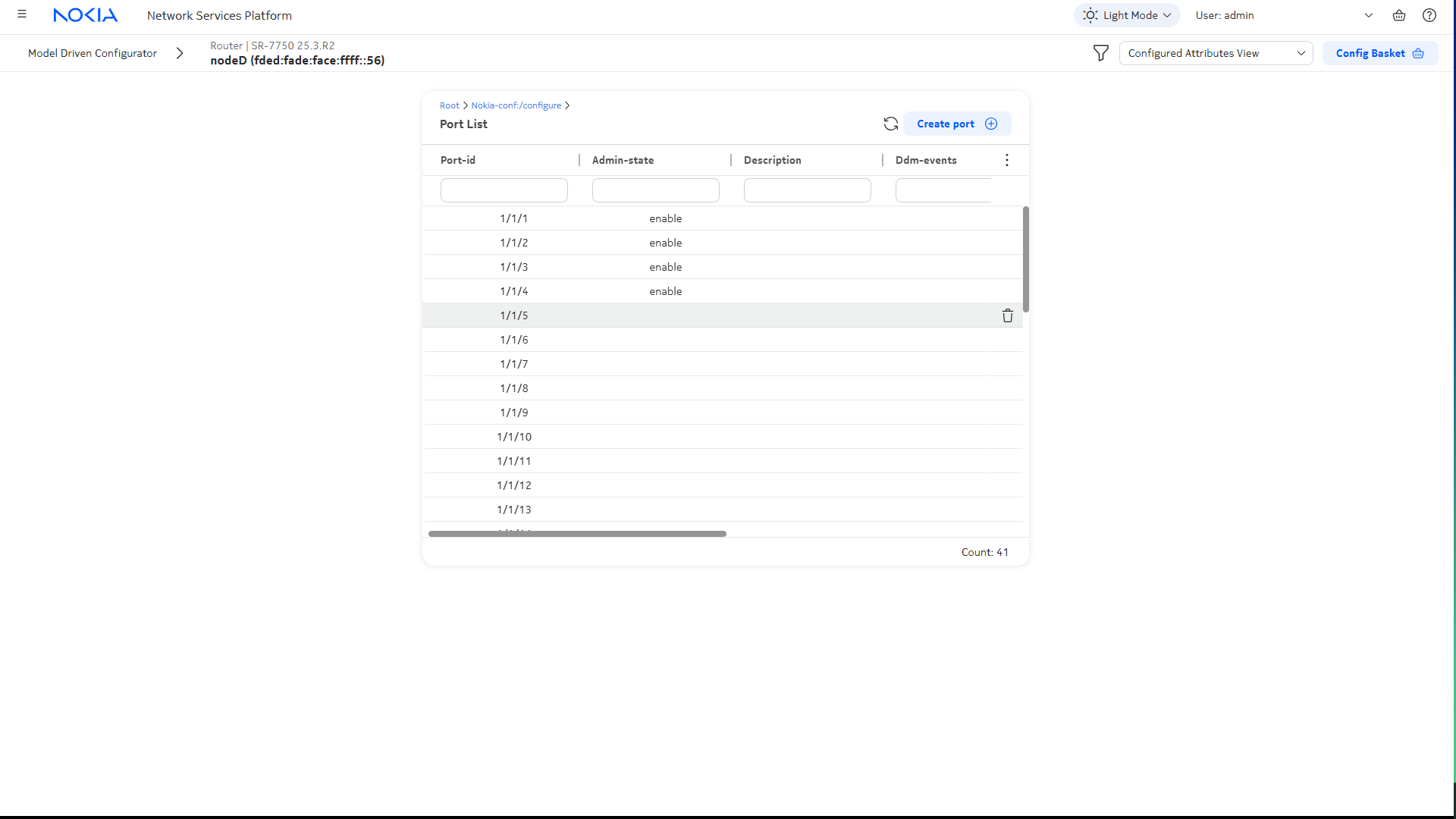
|
3 |
Double-click on Port 1/1/5. Select All Attributes view at the top of the screen to see attributes that have not been configured. 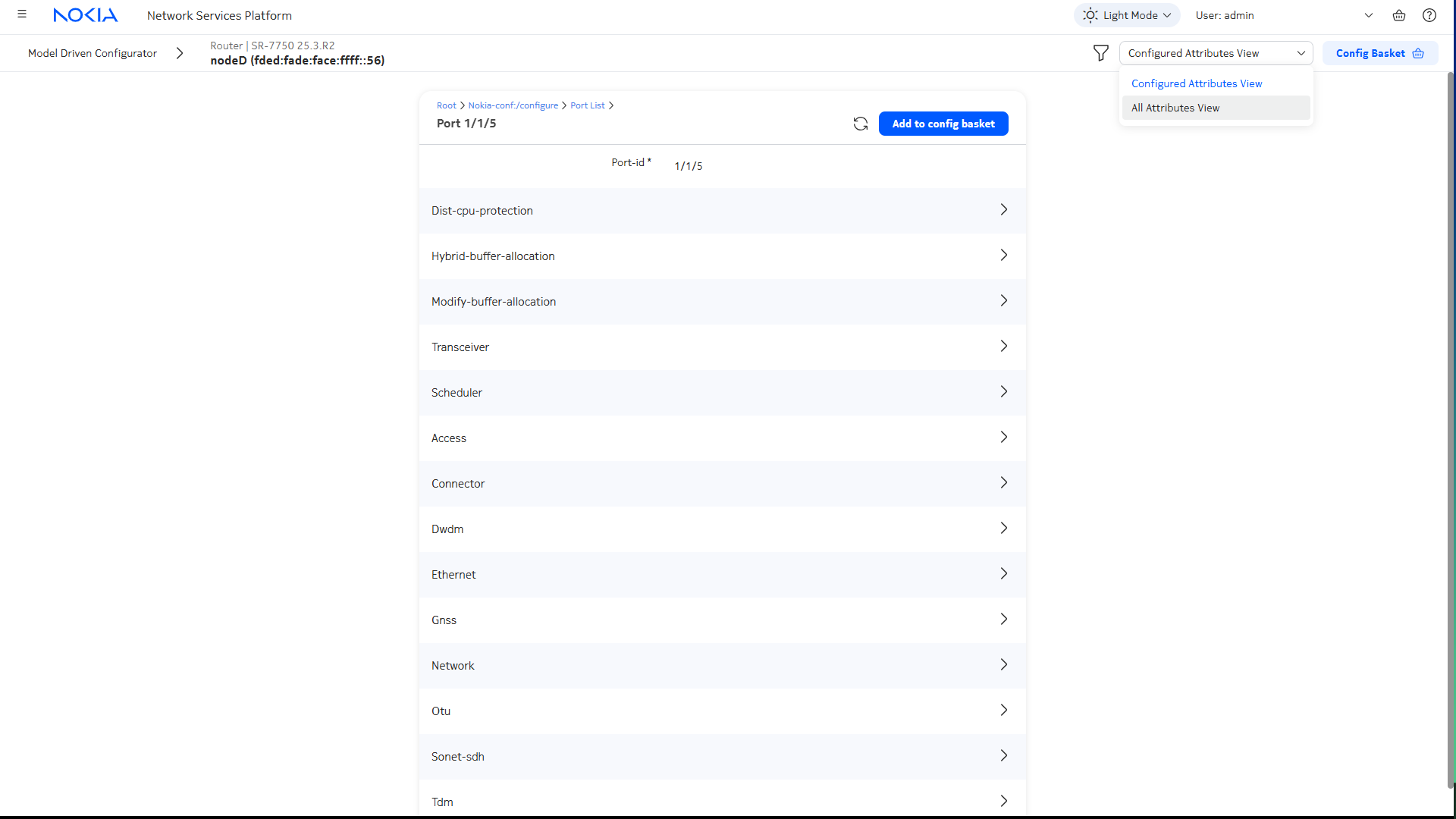
|
4 |
Choose enable from the Admin-state dropdown and click Add to config basket. 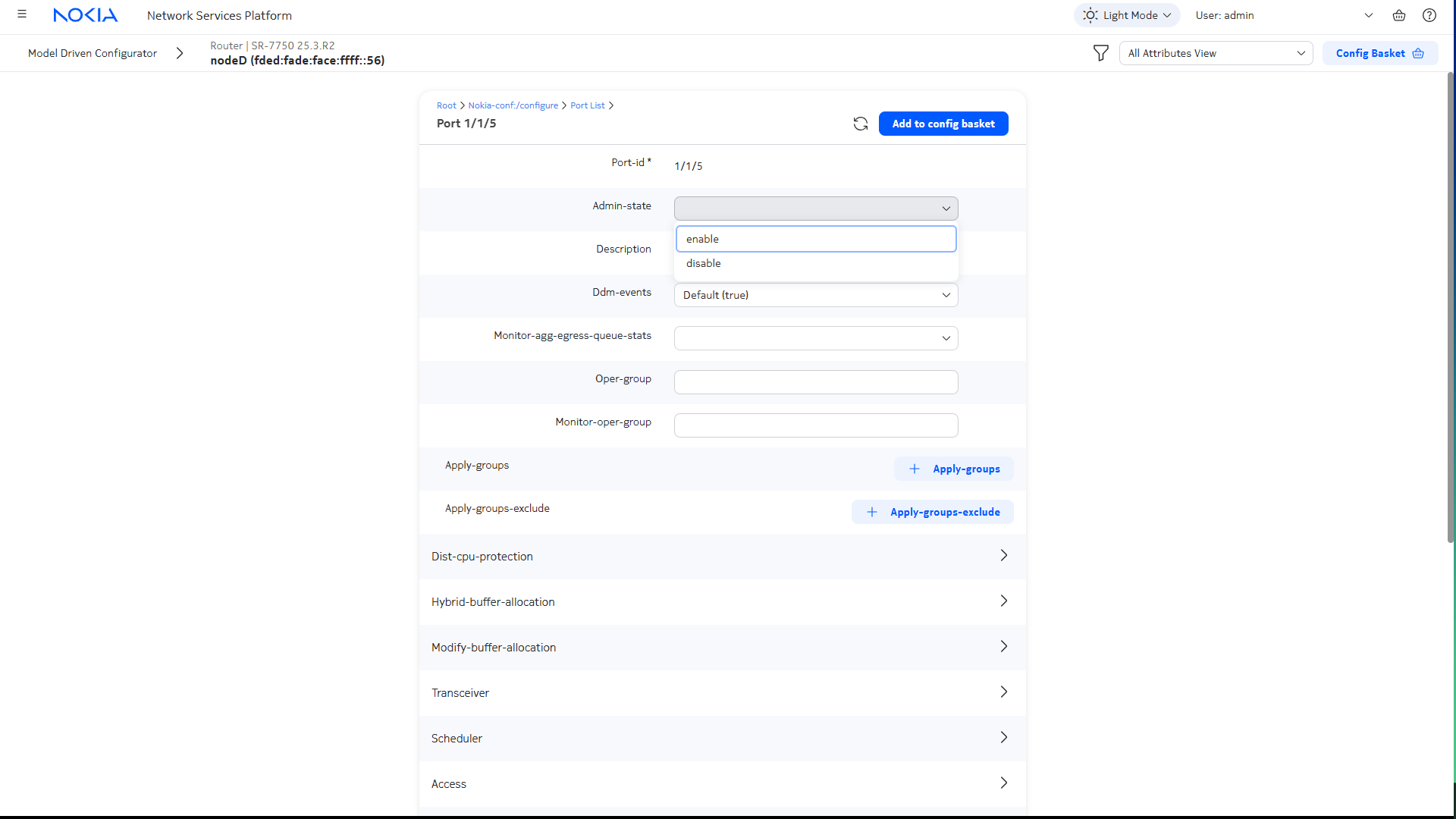
|
5 |
Click Config Basket at the top of the page. The config basket shows the list of changes you have requested. Note: You can place multiple changes in the config basket from multiple locations in the config and state trees, but only one NE can be configured at a time. 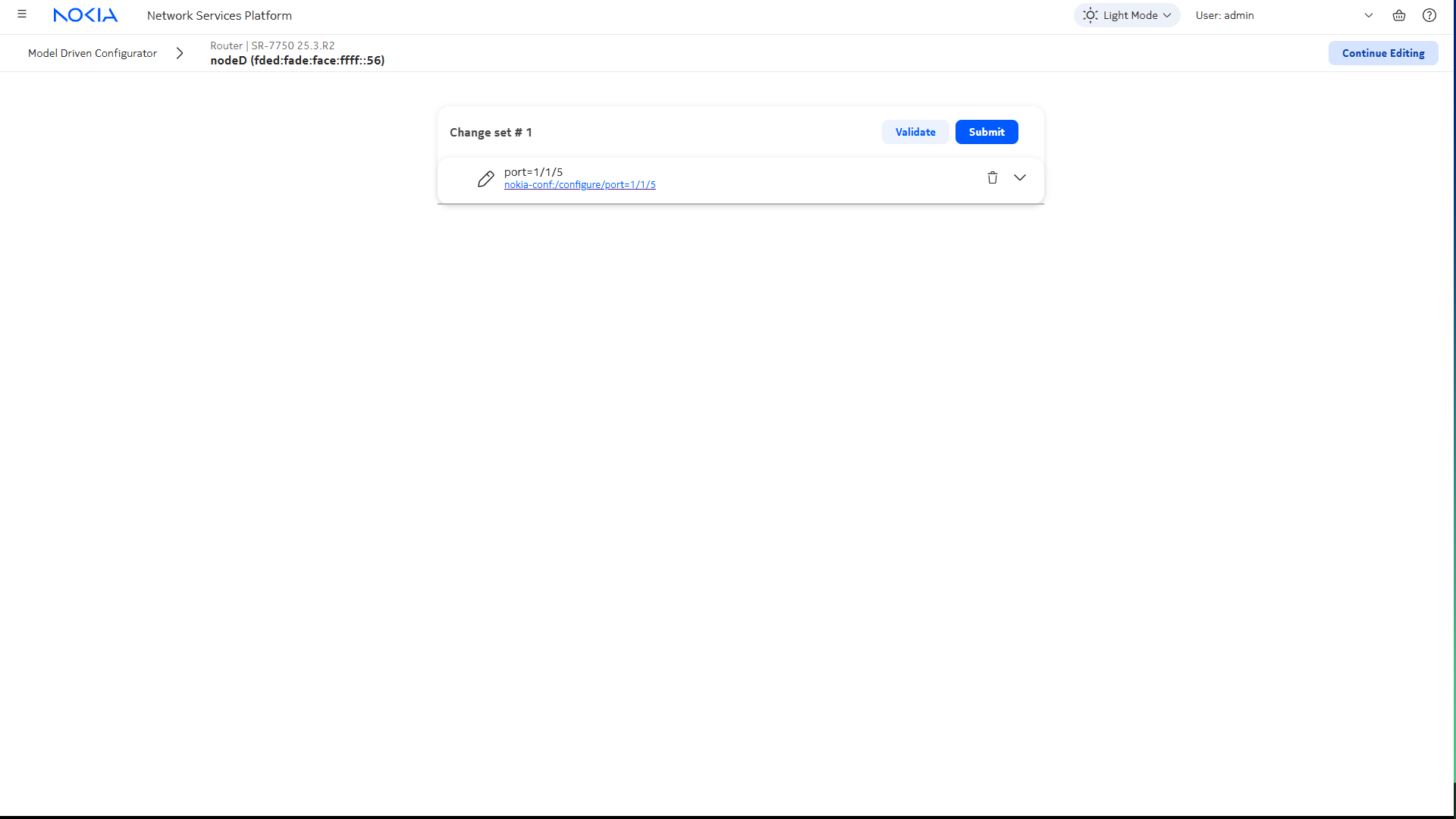
|
6 |
Click Submit. The Admin state is enabled. 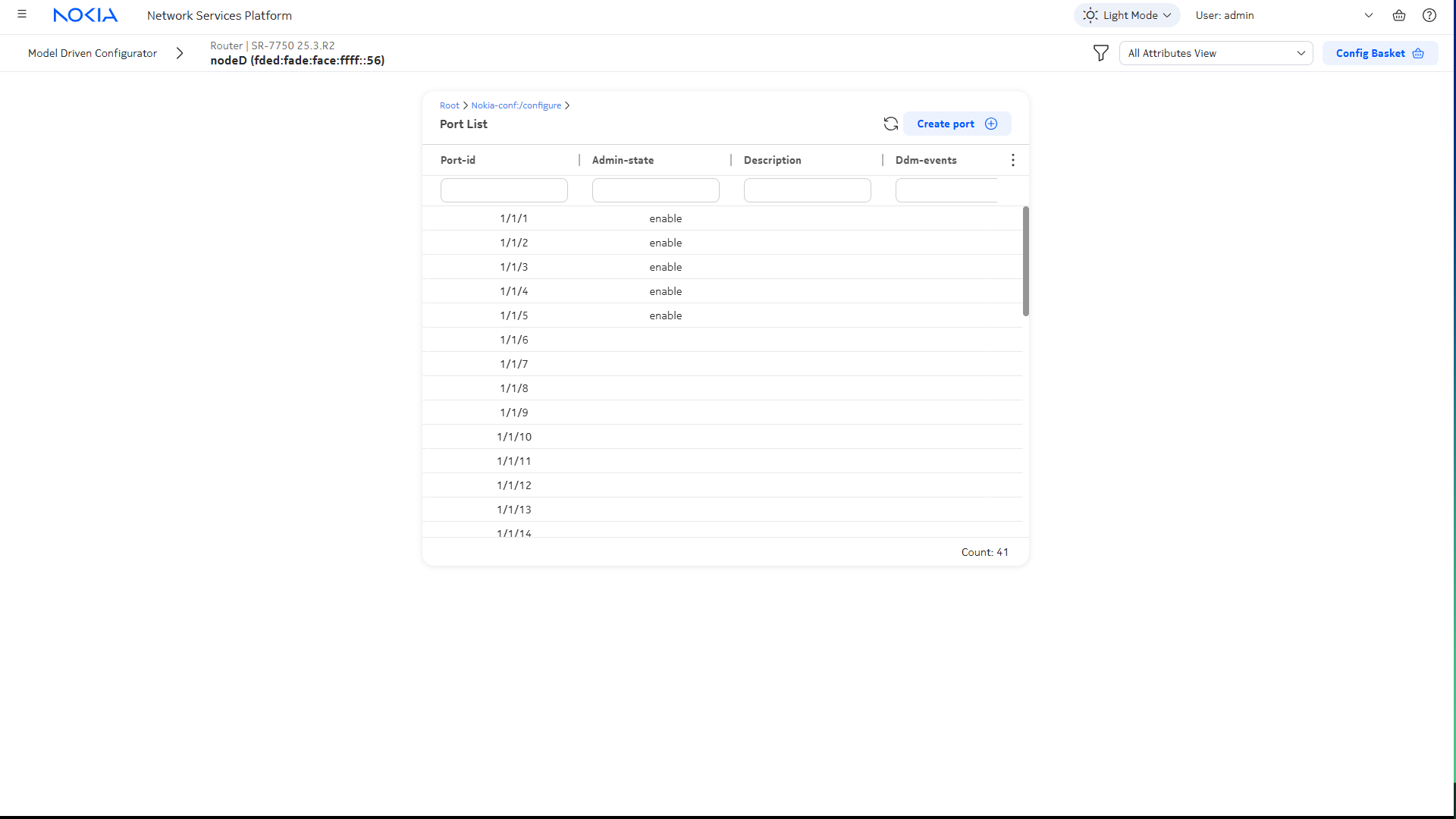
End of steps |
Steps
Device Configuration | |
1 |
Open Device Management, Configuration Deployments. |
2 |
Click |
3 |
In the Deploy Physical Configuration form, add the Port template: 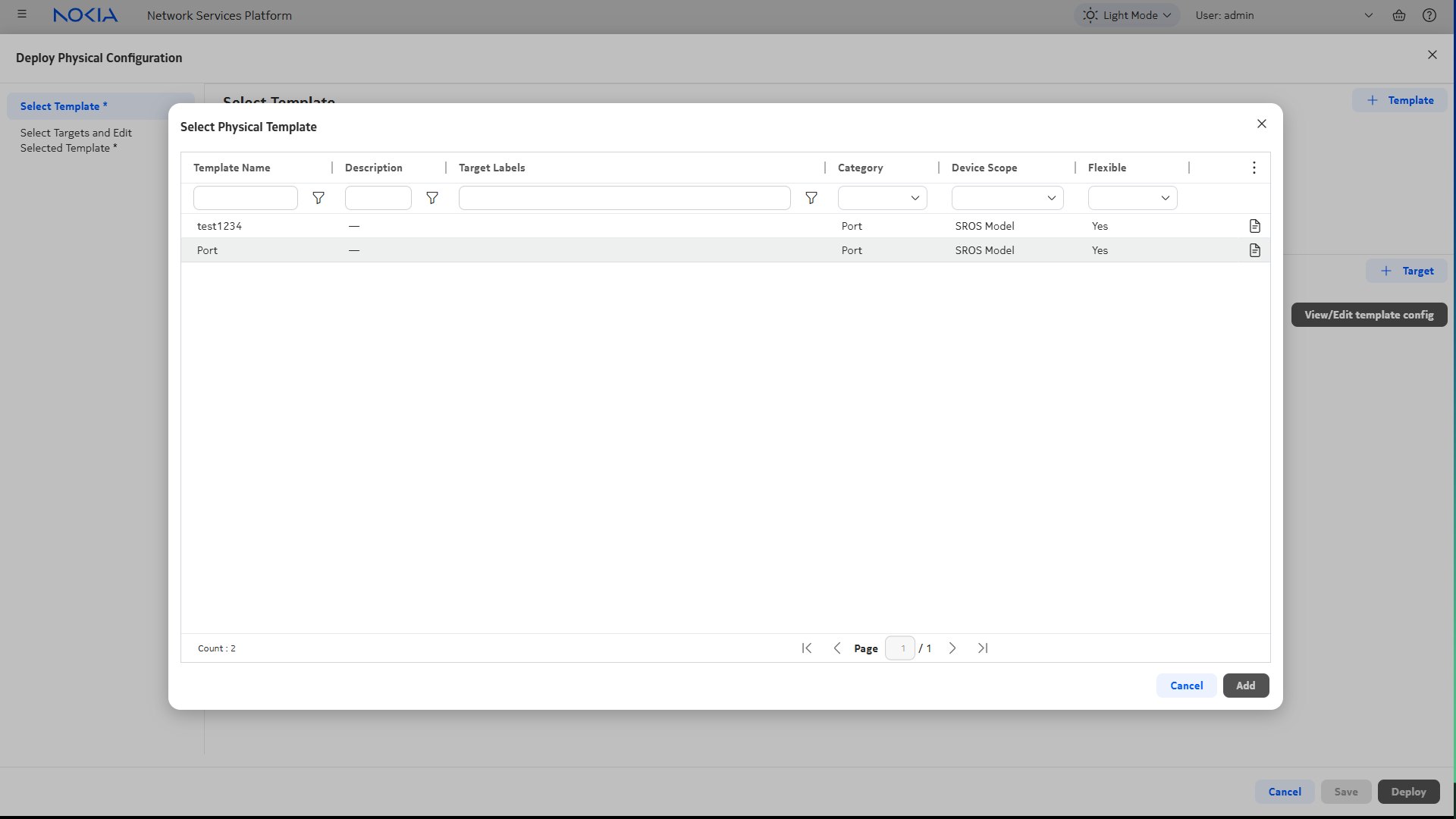
|
4 |
Add the target: Note: If you are deploying a template to multiple targets, all targets must be the same type. That is, you can’t deploy to Ports and Predefined Groups in the same deployment. 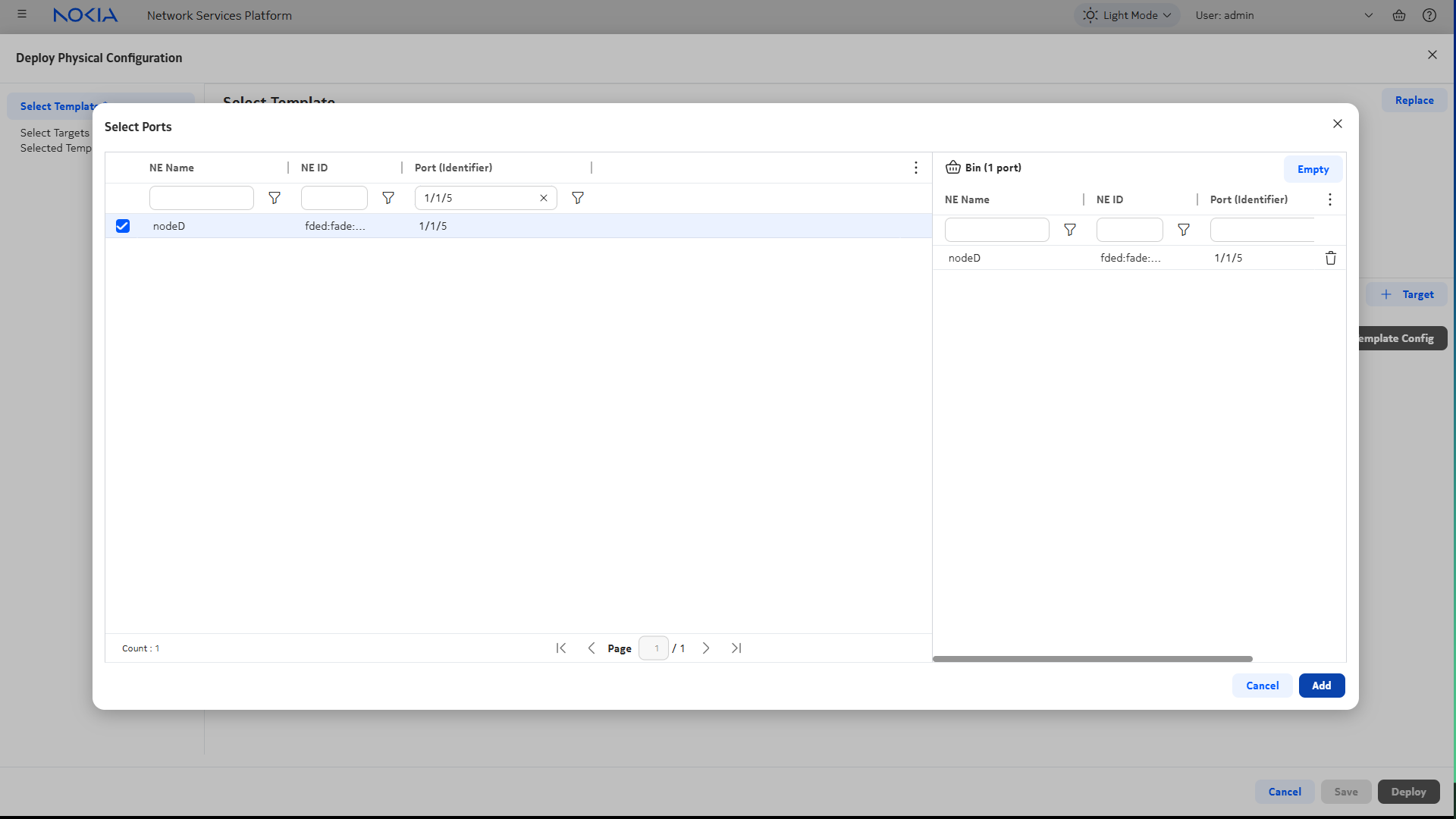
|
5 |
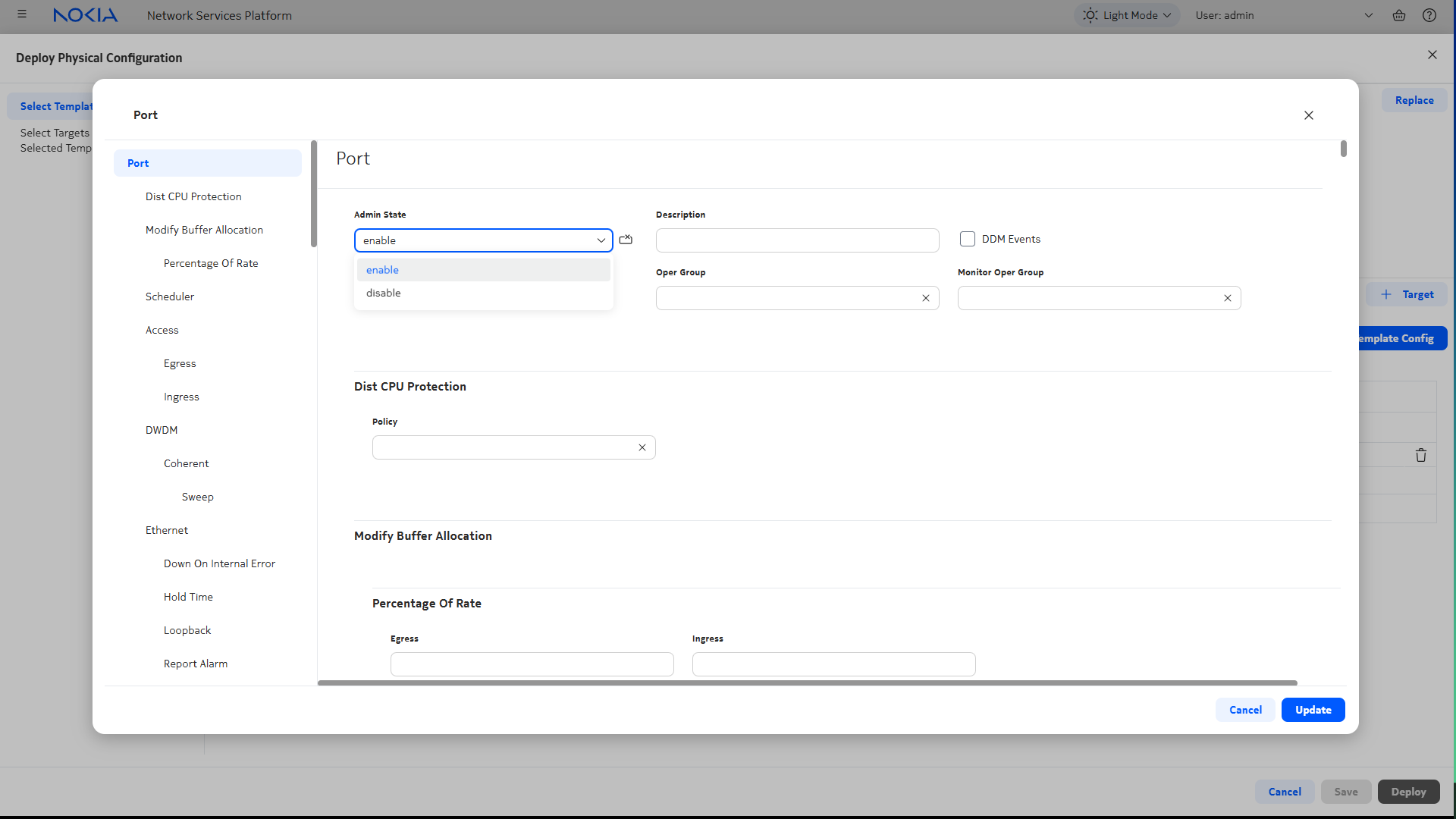
Update the template parameters to turn up the port:
|
6 |
Click Deploy to apply the configuration to the port. When the deployment is in Deployed Aligned status, the port state is configured. 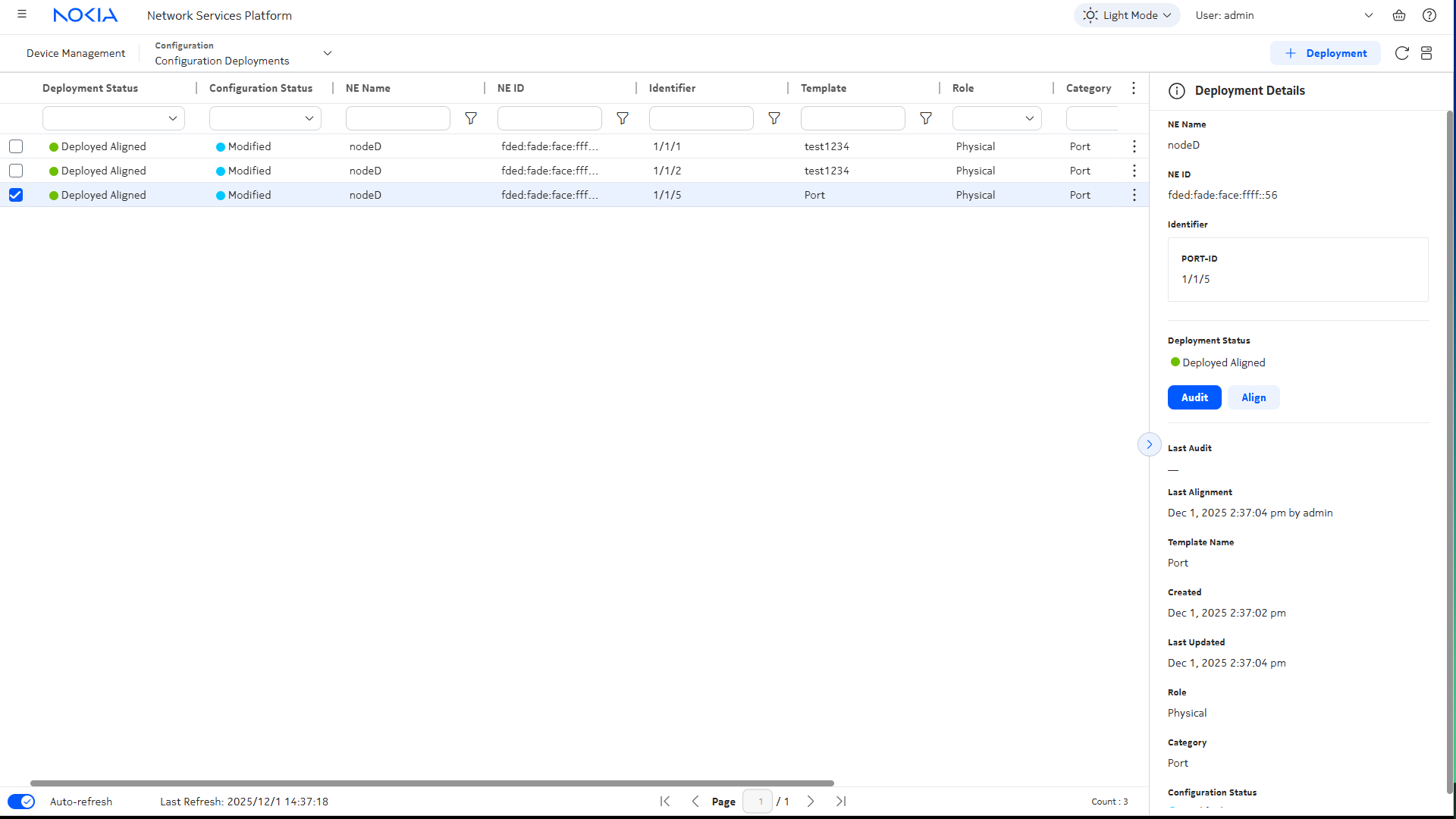
|
Turn down the port using Device Configuration | |
7 |
We can use the same deployment we used to turn up the port to shut it down. Open Device Management, Configuration Deployments. |
8 |
From the list of deployments, choose the deployment you deployed in
Step 6, and click 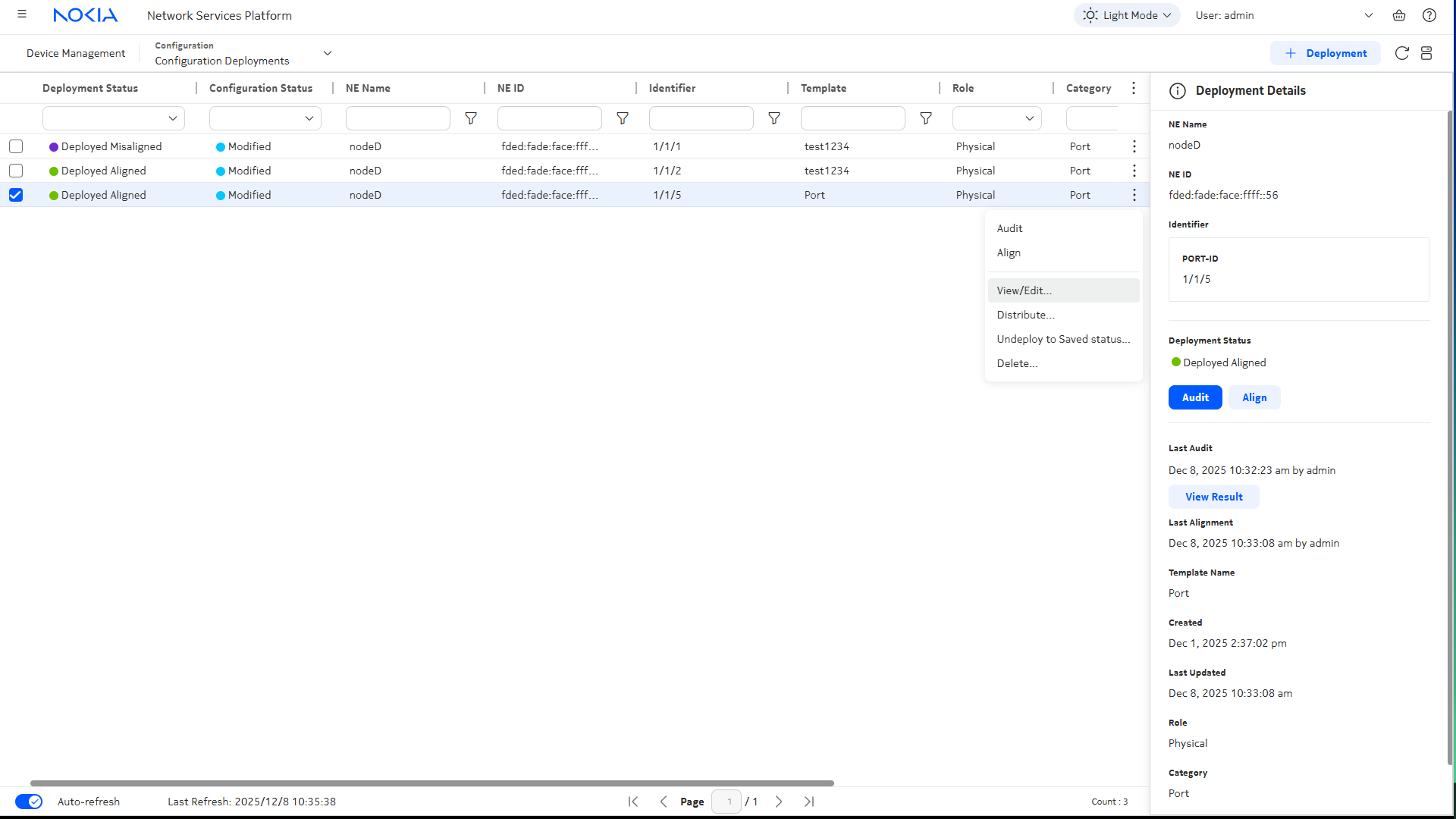
|
9 |
Update the template parameters to turn down the port:
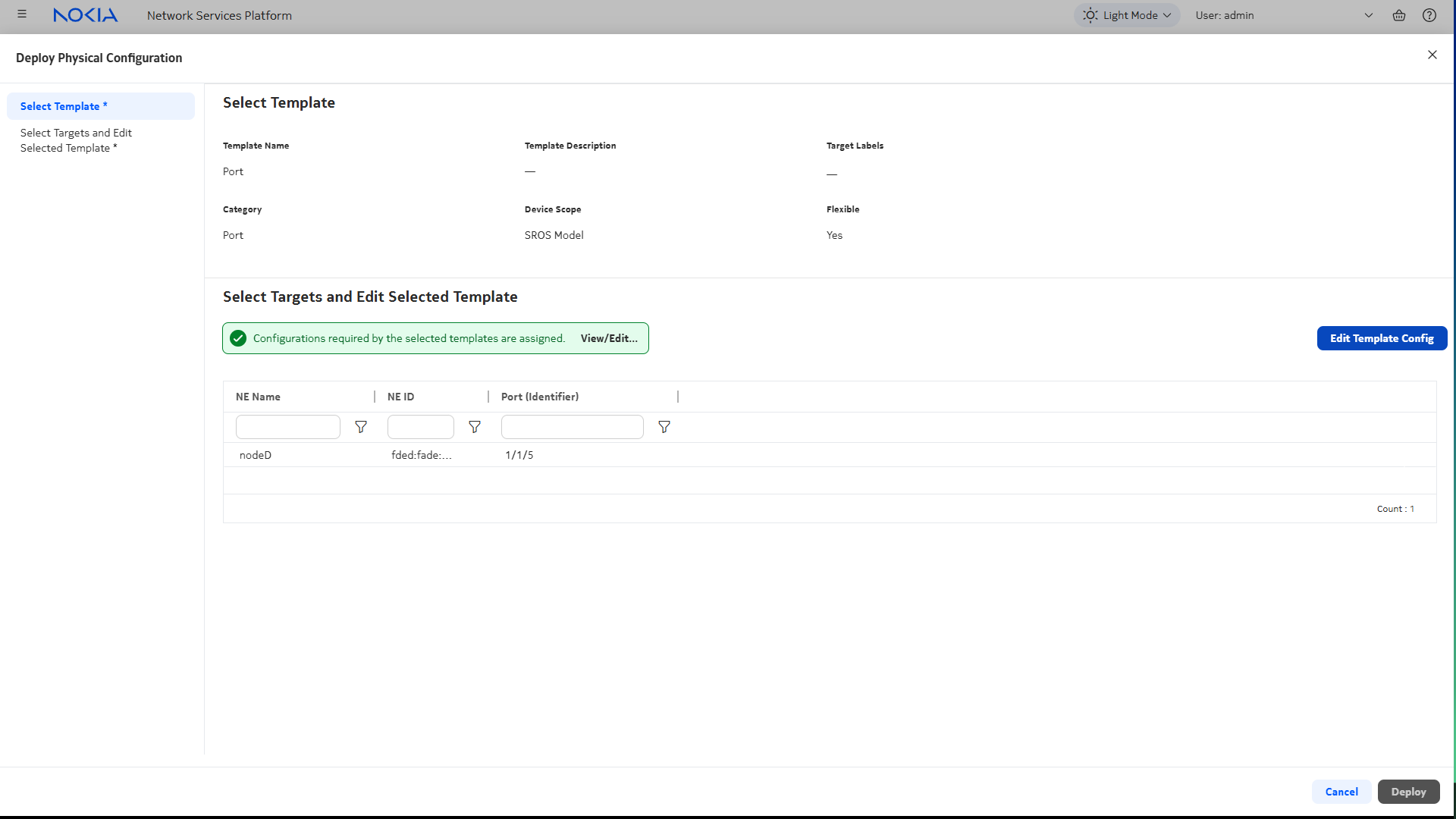
|
10 |
Click Deploy to apply the updated configuration to the port. When the deployment is in Deployed Aligned status, the port state is updated.
End of steps |
 Deployment and choose Physical from the drop-down list.
 (Table row actions), View/Edit