Delete service components
Steps
1 |
Navigate to the Service Management views and select Services from the drop-down menu. A list of existing services is displayed. |
2 |
Click The Edit Service form opens. |
3 |
Click 
A dialog box appears. |
4 |
Click DELETE as shown below: 
The IRB is deleted. |
5 |
Verify the deletion on the NE as shown below: 
|
6 |
Repeat Step 3 through Step 5 to delete the remaining IRB. |
7 |
Click 
A dialog box appears. |
8 |
Click DELETE as shown below: 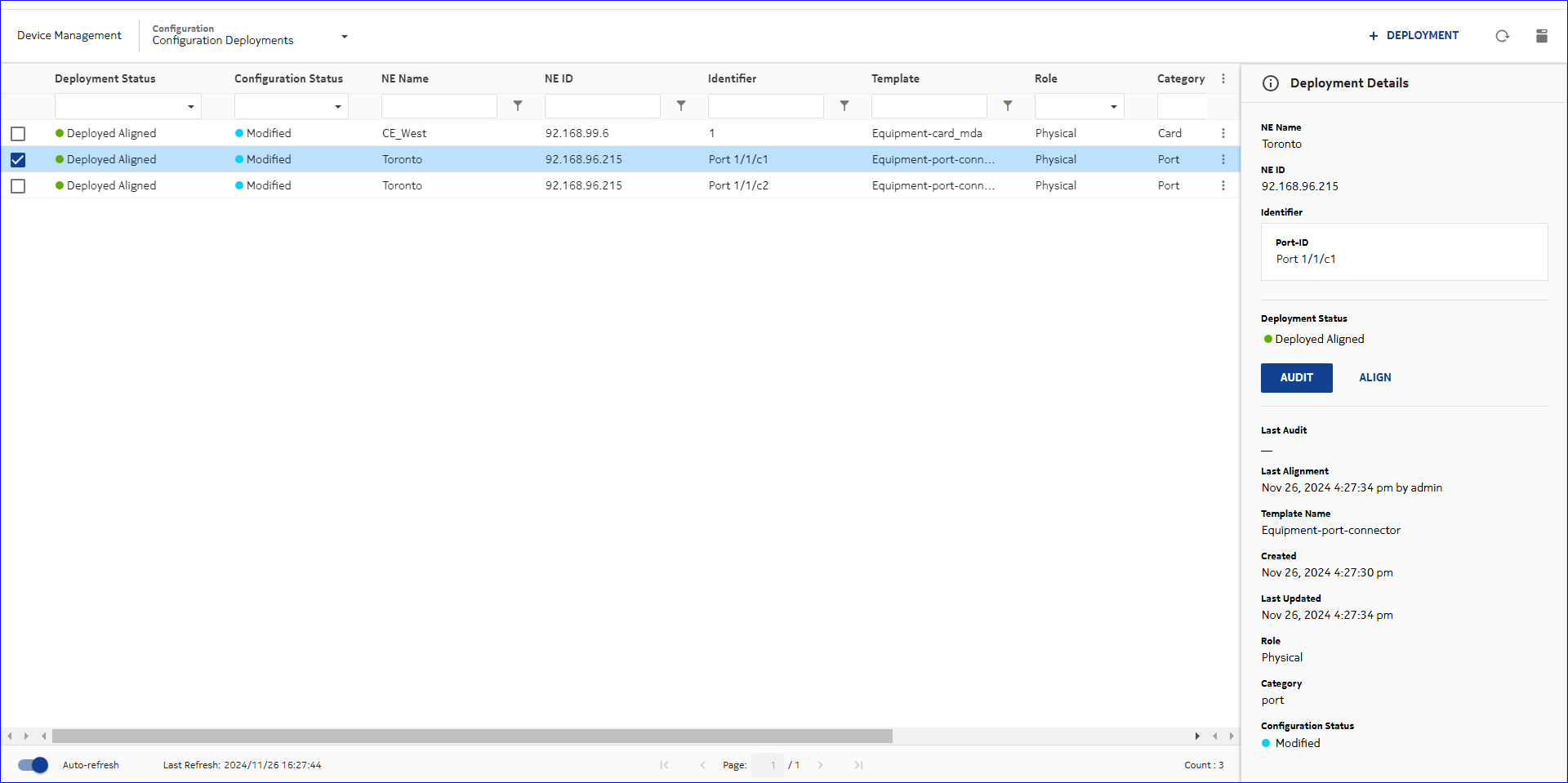
The L3 site is deleted. |
9 |
Verify the deletion on the NE as shown below: 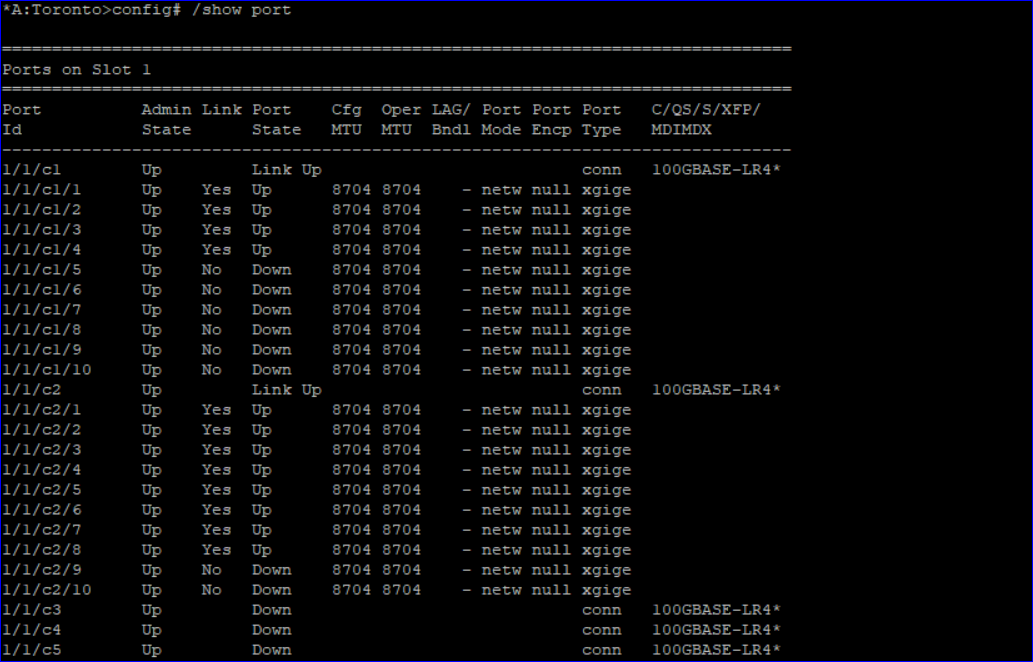
|
10 |
Repeat Step 7 through Step 9 to delete the remaining L3 site. |
11 |
Close the Edit Service form. |
12 |
Select Composite Services from the drop-down menu. A list of existing composite services is displayed. |
13 |
Click 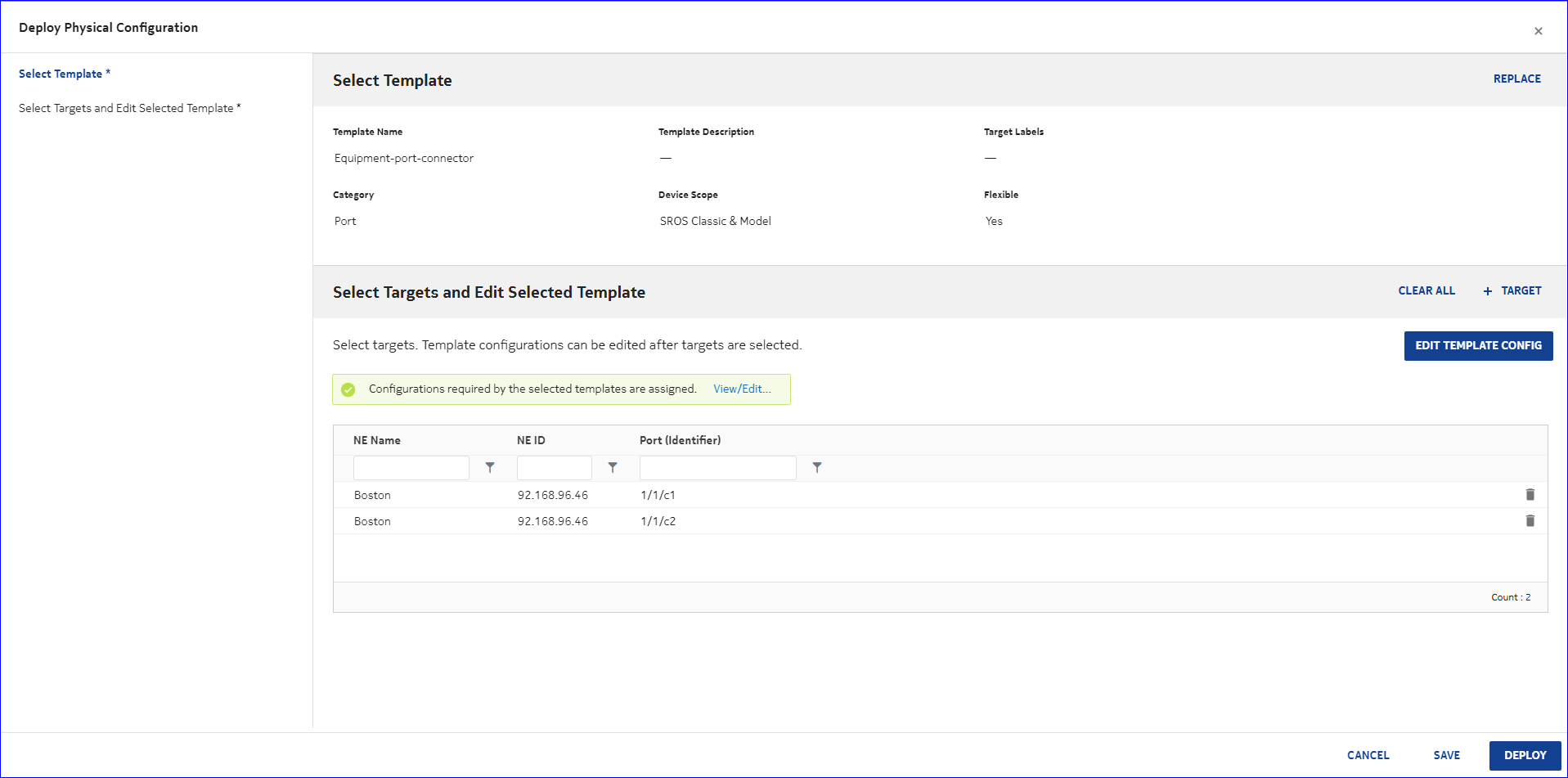
A dialog box appears. |
14 |
Click REMOVE as shown below: 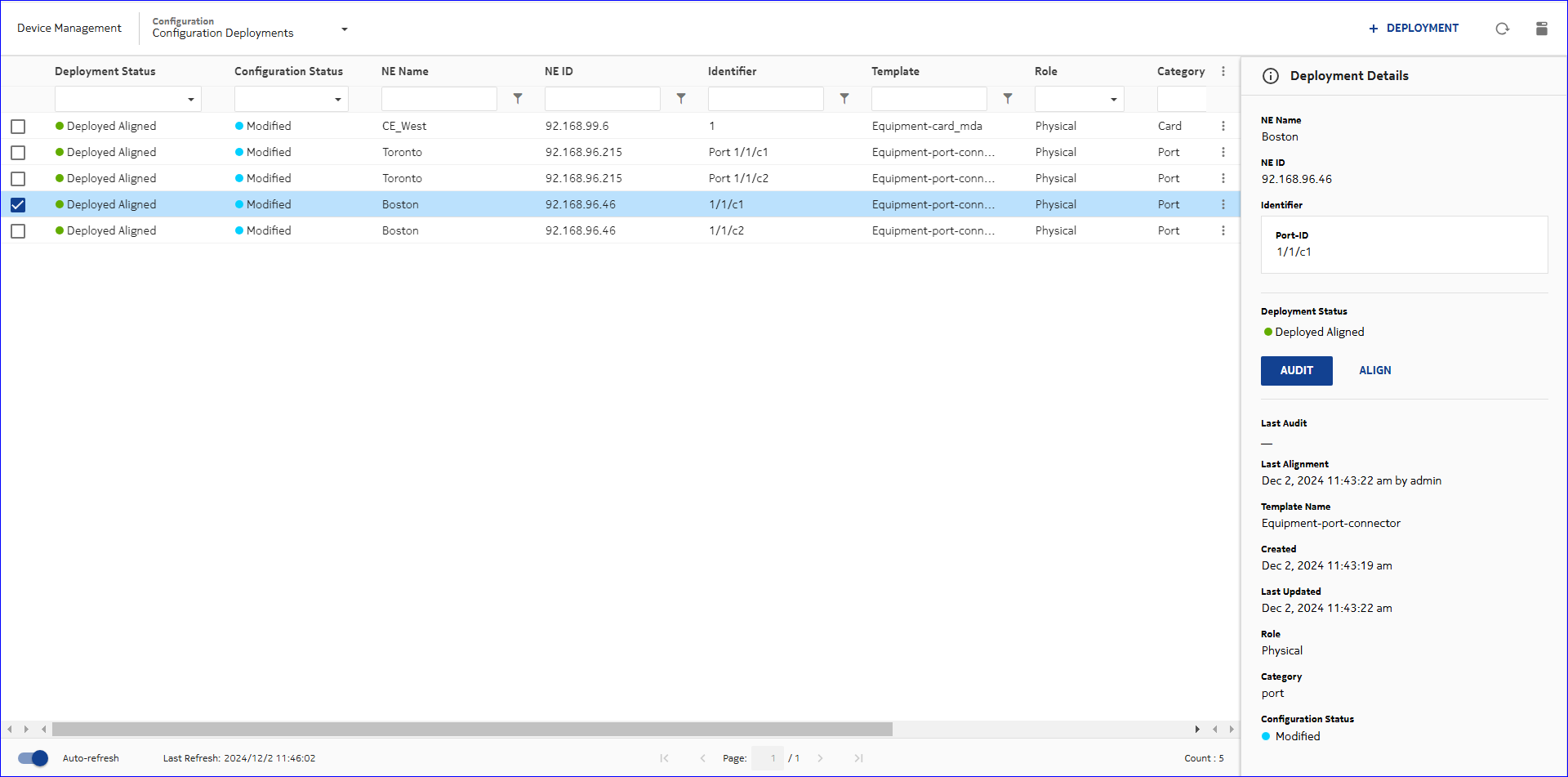
|
15 |
Click 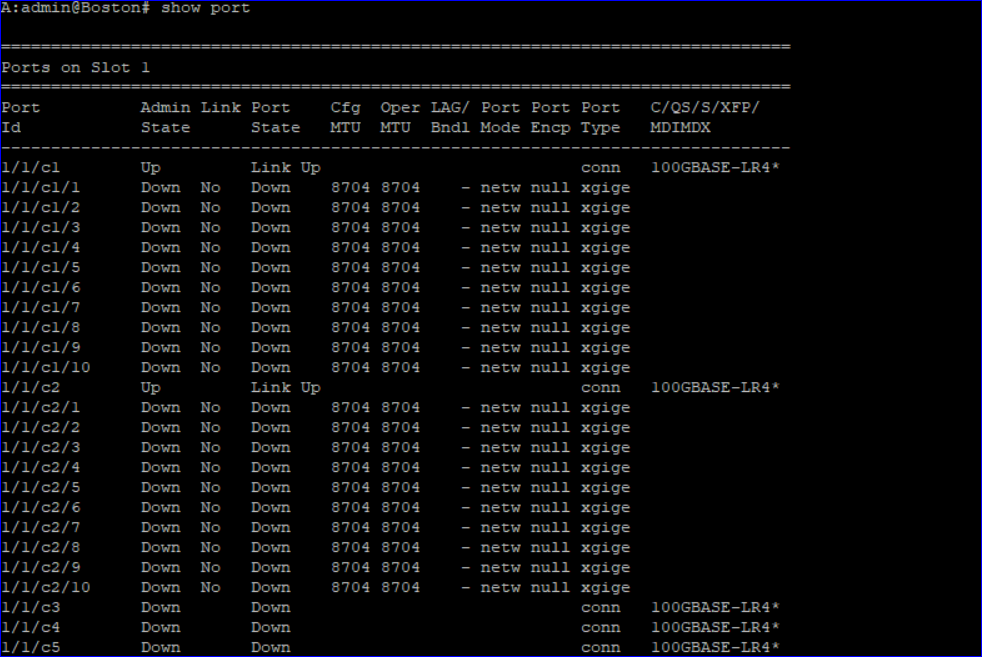
A dialog box appears. |
16 |
Click DELETE as shown below: 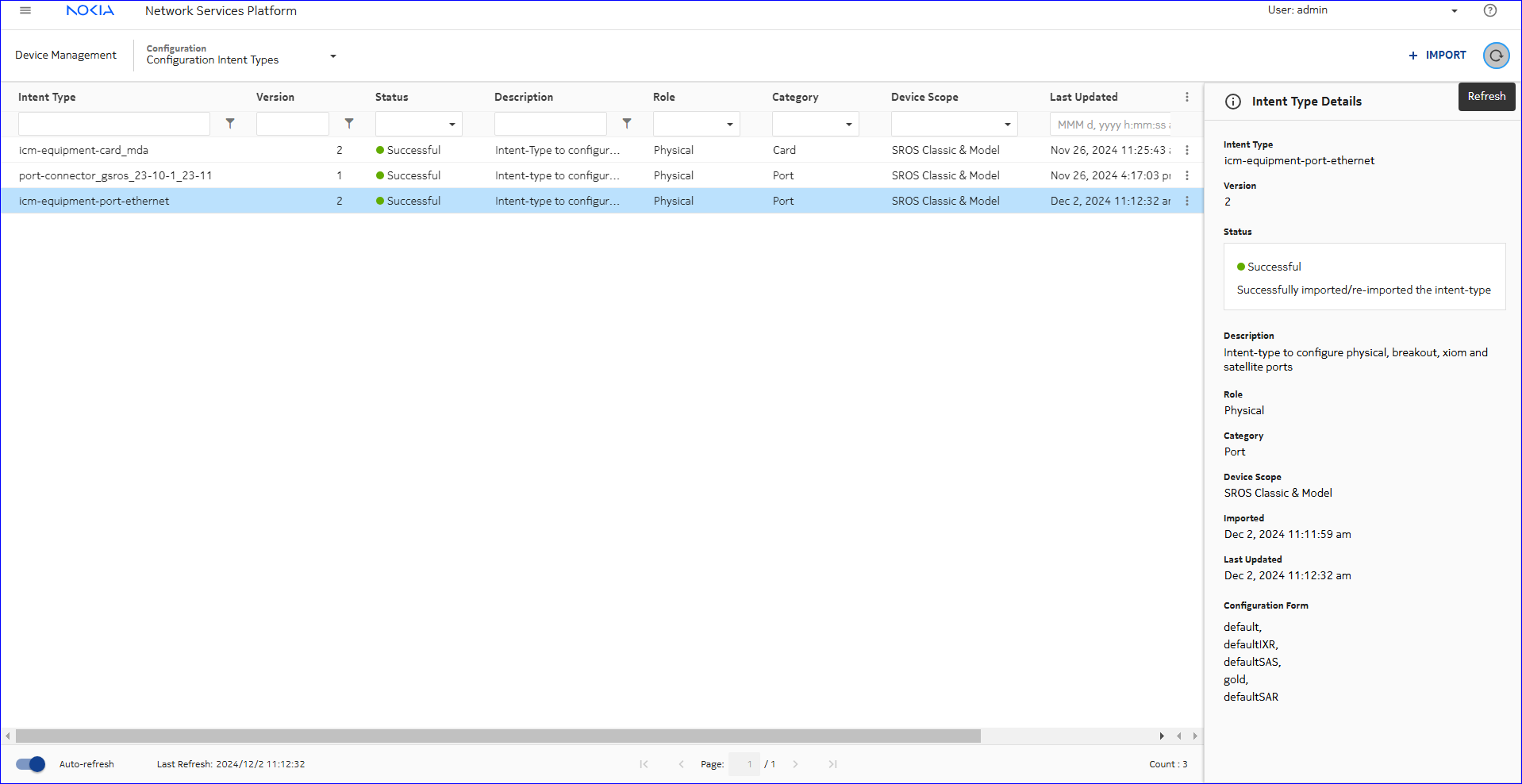
The composite service is deleted. End of steps |
 (Table row actions), Edit in-line with the desired service.