Procedure 3-7: Initialize and Upgrade with a new release

- 

This option starts the background activity on the NE to perform the actual switch over from the current release to the new release. This option returns a completion message to the user when the background activity is successfully started.

Note: Migration of all Hardware and Software is supported with a traffic hit of 5 minutes with an objective of 2 minutes.

In case of configuration using FX interface at slot 4, around 90 seconds of traffic hit occurs during warm reboot.

In case of configuration using LAG, around 1 second of traffic hit occurs during warm reboot.

In case configuration using R2O2E (Microwave card), 3 to 7 minutes of traffic hit occurs during warm reboot and in other configurations hitless warm restart occurs within 50 milli seconds.

 
1

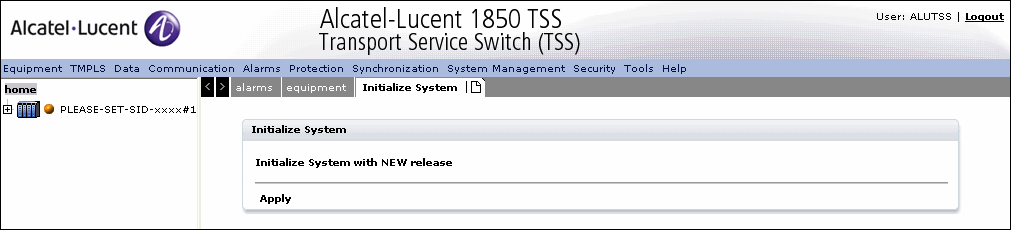
Select System Management -> Initialize and Upgrade -> Initialize System -> With New Release as shown in Figure 3-11, Initialize and Upgrade with a new release.

Figure 3-11: Initialize and Upgrade with a new release
Initialize and Upgrade with a new release+
2

The Initialize System tab displays the Initialize System panel that shows the Apply hyperlink that is used to start the new release downloading procedure.

Note: Note: If the IS-IS is provisioned using the following steps for all NEs, In Band Management over IS-IS will work well after upgrade:

  • Upgrade the Software

  • Enable PPPoE on the NNI1 for CPE2 via IBM3. Enable PPPoE on the NNI1 for CPE3 via IBM

    Note:When this step is complete all In Band Management traffic will be operationally down.

  • Ensure that the PC is connected to CPE1 out band interface, and the PC gateway is CPE1 out band IP.

  • Enable IS-IS protocol on the out band and NNI1 for CPE1, so that CPE2 can be managed with the in band IP.

  • Enable the IS-IS protocol on the NNI2 for CPE2, so that CPE3 can be managed with the in band IP


End of steps

Retrieving current sessions
 
1

Select Security -> Administration -> Current Session as shown in Figure 3-12, Retrieve the current sessions.

Figure 3-12: Retrieve the current sessions
Retrieve the current sessions+
2

The page displays a table with information about current session.

The columns of the table are:

  • Action - Contains the Log Off User hyperlink which allows to close the session

  • User Identifier - Specifies a unique user ID (e.g. ALCATEL)

  • Session - Specifies by a unique identifier allocated to a client connection that distinguishes that connection from other connections in the system

  • Address - Specifies the address where the user is connecting from. It is the port/IP address that is being used for access.

  • Last login timestamp - Specifies by a quoted string the last recorded Login time of a user. This time is displayed every time a user logs in


3

Click Refresh to refresh the page.


End of steps

Administering Command Privileges
 
1

Select Security -> Administration -> Command Privileges as shown in Figure 3-13, Command Privileges.

Figure 3-13: Command Privileges
Command Privileges+
2

The page the command security privileges assigned to the specified TL1 command. The columns of the table are :

  • Action - contains the hyperlinks in order to modify the security privilege. The manager actions related to these hyperlinks are:

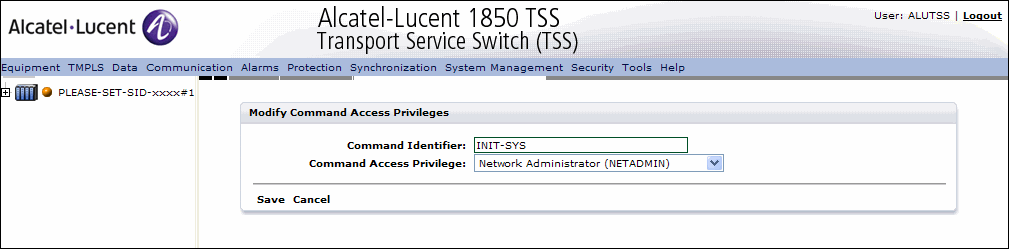
    • The Modify hyperlink activates the following Modify Command Access Privileges page.

  • Command Identifier - Specifies the TL1 command code. The value for the parameter can be any one of the TL1 command codes, in upper or lower case excluding the following TL1 command codes (i.e. the commands for factory default):

    • ALW-USER-SECU - Allows to reinstate users, so the user can again establish a session with the system

    • ACT-USER - Authenticates a session established with the system by logging in an existing user through a User Identifier and a Password Identifier

    • CANC-USER - Unauthenticates a session with the addressed NE (identified by optional TID parameter)., whether or not that session was previously authenticated by an ACT-USER command, by logging off the user

    • CANC-USER-SECU - Unauthenticates a session with the addressed NE (identified by optional TID parameter)., whether or not that session was previously authenticated by an ACT-USER command, by logging off the specified user

    • DLT-USER-SECU - Deletes user profiles in the User Security Database, for the specified User Identifier (UID)

    • ED-CMD-SECU - This is used by an user with security administrator privileges to change the command access security level (CAP - Command Access Privilege) assigned to a TL1 command

    • ED-USER-SECU - This is used by a user with security administrator privileges to edit the existing user profile entry, identified by the User Identifier (UID), in the User Security Database

    • ENT-USER-SECU - This is used to create a new user profile in the User Security Database

    • INH-USER-SECU - Allows a user with security administrator privileges to inhibit (i.e., disable) existing users (without deleting the user account), so the users can be denied to get an authorized session with the system (i.e., the inhibited users cannot log on).

  • Command Access Privilege - Allows to chose the User access privilege(s) granted to the user


3

Click Modify to modify the command privileges and click Save to save the modification as shown in

Figure 3-14: Modify Command Access Privileges
Modify Command Access Privileges+
4

Click Cancel to return to the previous screen without saving.


End of steps

Alcatel-Lucent – Proprietary

Use pursuant to applicable agreements