Procedure 3-32: Create MAC Access Control List
1 |
Select Data -> MAC Access Control List from the menu bar as shown in Figure 3-73, MAC Access Control List. Figure 3-73: MAC Access Control List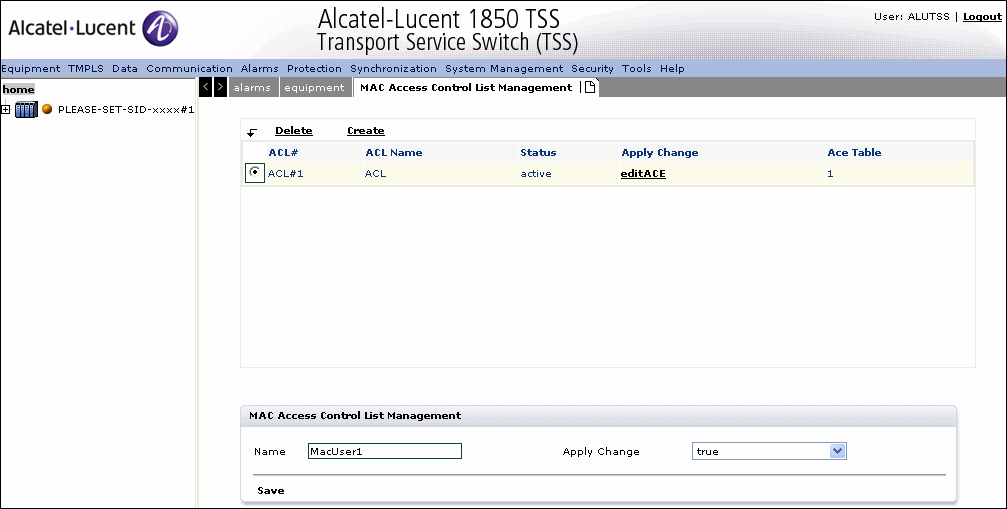  |
2 |
Provide a MAC ACL name under MAC Access Control List Management, and select the apply change option as true or false. |
3 |
Click Create, the MAC Access Control List Name dialog box is displayed as shown in Figure 3-74, MAC ACL name. Figure 3-74: MAC ACL name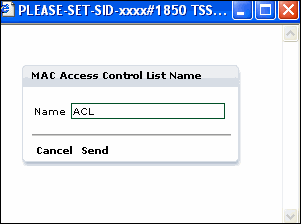 |
4 |
Provide an ACL name and click Send. |
5 |
The MAC ACL is created. End of steps |
Modify or Delete a MAC Access Control List
1 |
To modify a MAC ACL, click to select the ACL to be modified as shown in Figure 3-75, Modify a MAC ACL Figure 3-75: Modify a MAC ACL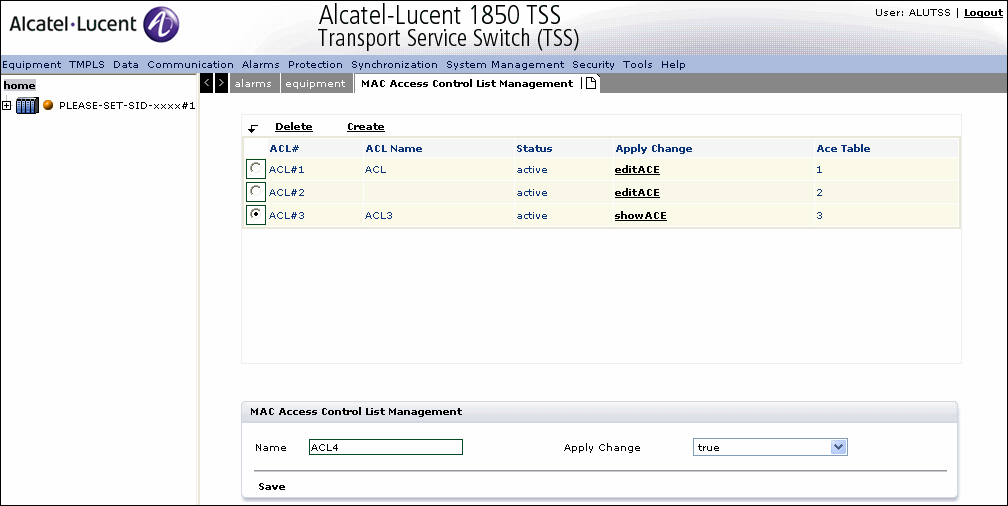 |
2 |
In the section under MAC Access Control List Management specify the unique name and select True under apply change. Click Save. A pop-up dialog box is displayed as shown in Figure 3-75, Modify a MAC ACL. Figure 3-76: Modify a MAC ACL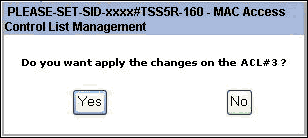 |
3 |
Click Yesin the dialog box to confirm modifications or click No to cancel modifications. |
4 |
To delete a MAC ACL, click to select the ACL to be deleted and click Delete A pop-up dialog is displayed as shown in Figure 3-77, Delete MAC ACL. Figure 3-77: Delete MAC ACL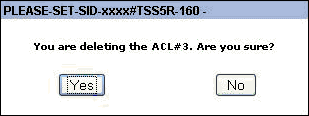 |
5 |
Click Yes to proceed with deletion or click No to cancel deletion. End of steps |
Create an ACE
An ACE cannot be modified when the ACL is associated with a port. An Operator is not allowed/permitted to configure the order (rank) for an Access Control Element. The order of Access Control Element in an Access Control List is determined by the order of the creation of ACE.
To create an ACE with classifier destination MAC and action permit:
1 |
Select the ACL option under Home-> Data Management from the left. Click on the ACE title under the Apply Change panel modify. The screen is refreshed to display the Access Control Element Management screen. Click create an ACE with classifier destination MAC and Action Permit. | ||||||||||||||||||||||||||||||||||||
2 |
Select Permit option for Action and select the check box to enter the Destination MAC Address. | ||||||||||||||||||||||||||||||||||||
3 |
Click on Add to create an ACE with classifier Destination MAC. The result is displayed in Figure 3-78, ACE with classifier destination MAC and action permit. The ACE is created. Figure 3-78: ACE with classifier destination MAC and action permit
Specify the MAC ACE permit values as described in Table 3-23, ACE classifier fields default values and ranges Table 3-23: ACE classifier fields default values and ranges
| ||||||||||||||||||||||||||||||||||||
4 |
Click Save to save the changes or click Save and Exit to save changes and return to the previous screen. Click cancel to close the screen without saving. End of steps |
Creating an ACE with classifier Source MAC and Action Deny
1 |
Select the ACL option under Home-> Data Management from the left. Click on the ACE title under the Apply Change panel modify. The screen is refreshed to display the Access Control Element Management screen. Click create an ACE with classifier destination MAC and Action Deny. |
2 |
Click on Create to create an ACE with classifier Source MAC. Refer ACE creation with Classifier Source MAC and Action Deny. The result is displayed in Figure 3-79, ACE with classifier source MAC and Action Deny. Figure 3-79: ACE with classifier source MAC and Action Deny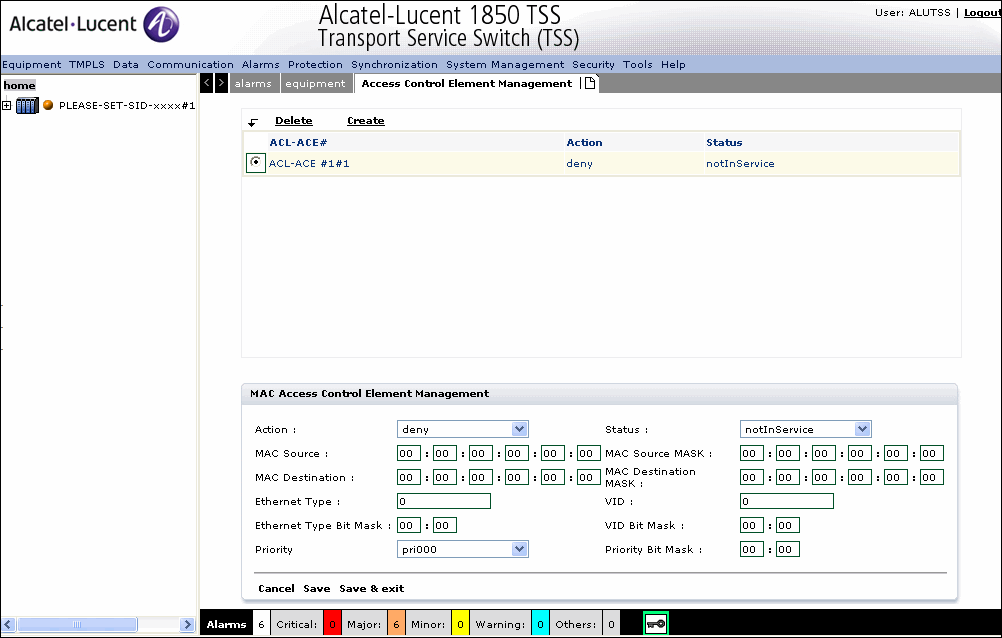 |
3 |
Specify the MAC ACE deny values as described in Table 3-23, ACE classifier fields default values and ranges |
4 |
Click Save to save the changes or click Save and Exit to save changes and return to the previous screen. Click cancel to close the screen without saving. End of steps |
Modifying an ACE
1 |
Select the ACL option under Home-> Data Management from the left. Click on the ACE title under the Apply Change panel modify. The screen is refreshed to display the Access Control Element Management screen. Select the ACE to be modified and click . |
2 |
The modify ACE screen is displayed. Select the fields to be modified. Modify the parameters as described in Table 3-23, ACE classifier fields default values and ranges. |
3 |
Click Save to save the changes or click Cancel to return to the previous screen without saving. End of steps |
Deleting an ACE from an ACL
1 |
Select the ACL option under Home-> Data Management from the left. Click on the ACE title under the Apply Change panel modify. The screen is refreshed to display the Access Control Element Management screen. |
2 |
Select the ACE to be removed and click Delete. End of steps |
Alcatel-Lucent – Proprietary
Use pursuant to applicable agreements