Procedure 3-43: Configure On-Demand Delay Measurement
To configure On-Demand DM:
1 |
Select Data -> OAM Management -> On-Demand -> Delay Measurement, the Delay Measurement screen is displayed as shown in Figure 3-93, On-Demand Delay Measurement. Figure 3-93: On-Demand Delay Measurement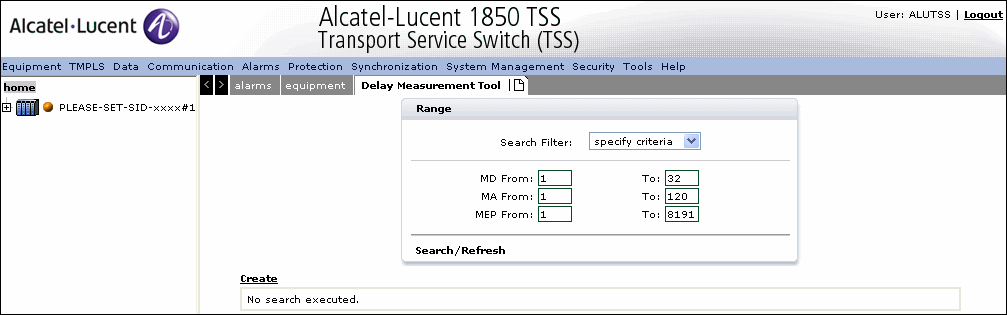  |
2 |
Click Create to create the On-Demand DM as shown in Figure 3-94, Create On-Demand Delay Measurement. Figure 3-94: Create On-Demand Delay Measurement |
3 |
Click Select, to select the MEP Id. |
4 |
Select the Priority between 0 to 7 from the drop-down. Note: The status field is not enabled. |
5 |
Select the Destination as MEP ID or Mac Address. Provide the MEP ID or the Mac Destination address as per the destination selection. |
6 |
Enter the number of samples (pkts) between the value range of 1 to 100. |
7 |
Select the Period in terms of Intervals. |
8 |
Specify the Frame Size as Random or a value between 64 and 9600. |
9 |
Click Save to save the On Demand DM configuration or click Cancel to return to the previous screen without saving. End of steps |
Modify On-Demand DM
1 |
Navigate to the Delay Measurement Tool screen, select the Search Filter. Specify the MEP-ETH-OD-DM To and From values and click Search/Refresh to display the configured On-Demand DM's in this range as shown in Figure 3-95, Modify On-Demand DM Figure 3-95: Modify On-Demand DM |
2 |
Select the DM to modify and update the parameters as explained in Create On-demand DM. |
3 |
Click Save to save the DM modification or click Cancel to return to the previous screen without saving. |
4 |
To Delete a On-Demand DM, click Search/Refresh to locate the available configured DM's, select and Delete. End of steps |
Alcatel-Lucent – Proprietary
Use pursuant to applicable agreements