Optical Power and Voltage Details report
Optical Power and Voltage Details report overview
The Optical Power and Voltage Details report includes optical power and voltage data for NEs managed by the NFM-P only, MDM (model-driven Nokia) only, or NFM-P+MDM-mediated NEs. The report provides comprehensive insights into the optical and electrical performance parameters of network equipment ports. It enables users to monitor and analyse key metrics such as temperature, power, current, and voltage across different Digital Diagnostic Monitoring (DDM), Lane DDM (LDDM), Coherent Optical, and Hardware Resource statistics.
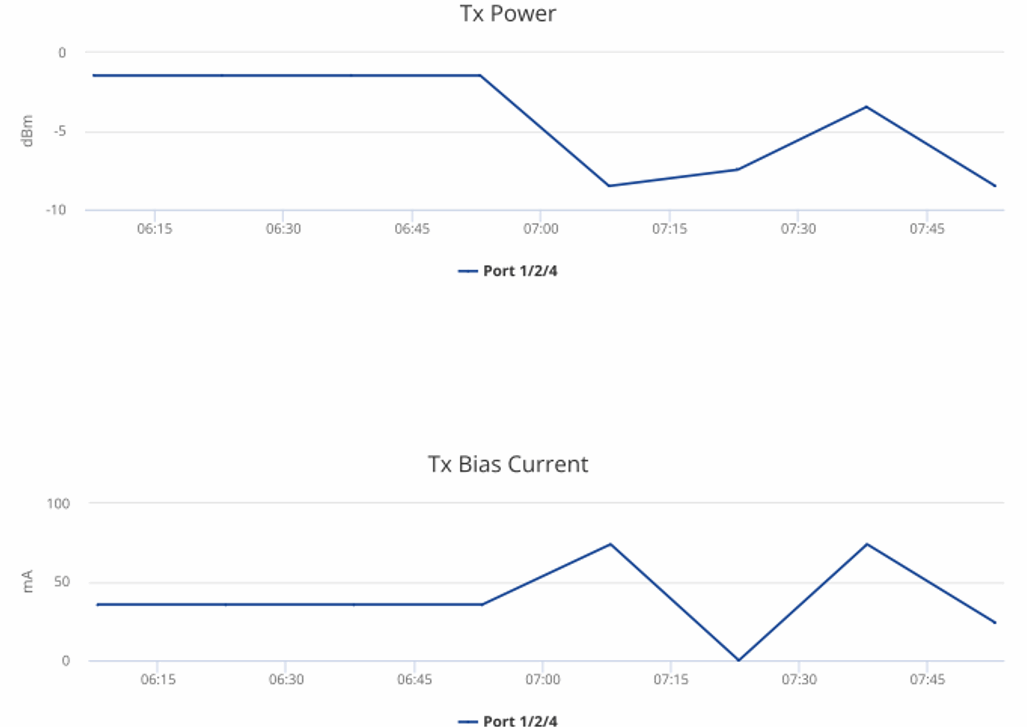
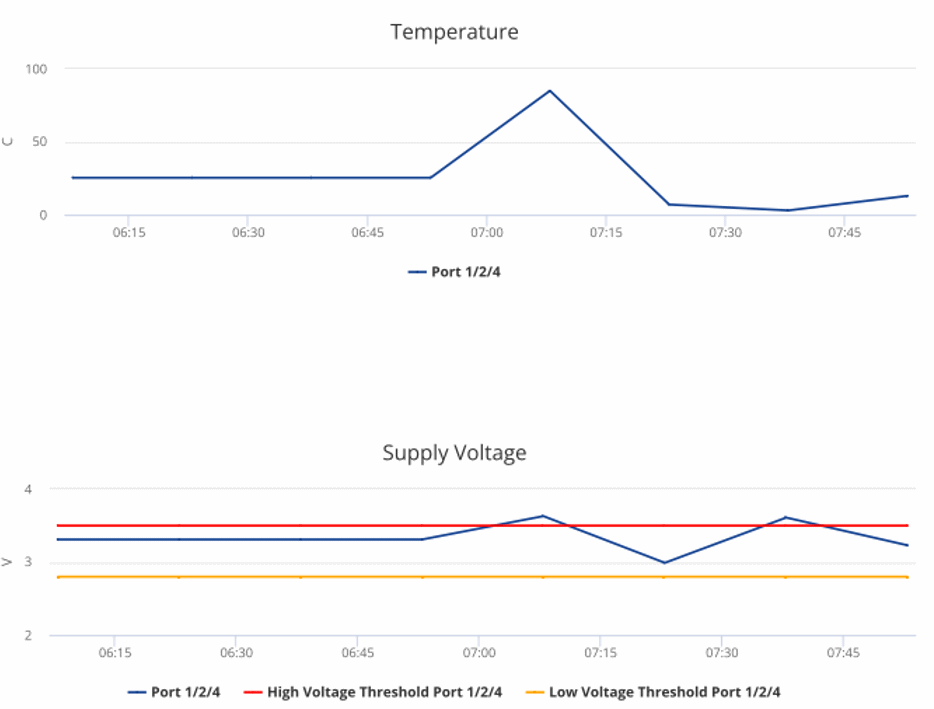
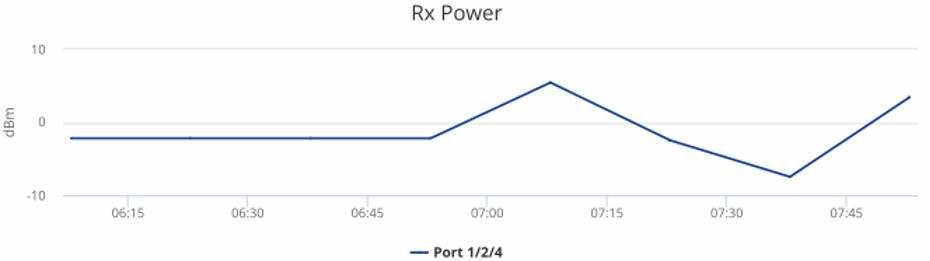
The report includes graphical visualizations for each statistic type, allowing users to filter data based on Region, Sub-Region, NE Type, NE and Port selections. These graphs help to assess the operational health of network components and track optical performance variations such as transmit and receive power levels, bias current, and voltage behaviour over time.
Use cases
Troubleshooting—Confirm that optical power is in the optimum operating range to determine if it is a cause of network impairment.
Limitations
Report limitations include:
-
Low voltage threshold and high voltage threshold report inputs are applicable only to DDM statistics and hardware resource statistics.
-
Periodic counters are used for hardware resource statistics if non-periodic counters are not present in aggregation tables.
Prerequisites
Perform the prerequisites in section Common prerequisites for node power and optical power reports, in addition to the prerequisites described here.
The following table describes the aggregation rules that must be enabled and the file and accounting policies that must be configured for the NEs on which statistics are to be collected; see the NSP NFM-P Statistics Management Guide for information about configuring file and accounting policies. To view the report for granularities other than raw data, the aggregation rules must be enabled; see How do I configure analytics aggregation?.
Table 16-9: Optical Power and Voltage Details report prerequisites
|
Aggregator name |
Monitored object class |
Statistics class |
Statistics collection |
NE types |
|---|---|---|---|---|
|
DDM stats aggregator |
equipment.Digital DiagnosticMonitoring equipment.equipment equipment.portdetails |
equipment.DDMStats telemetry_4572106t_transceiver_digital _diagnostic_monitoring |
MIB-based GRPC/ Telemetry |
7210 SAS-D 7210 SAS-MXP 7210 SAS-R 7250 IXR 7705 SAR 7750 SR 7750 MD SR |
|
Lane DDM stats aggregator |
equipment.LaneDDM equipment.equipment equipment.portdetails |
Equipment.LaneDDMStats telemetry_4572106t_transceiver_ digital_diagnostic_monitoring |
MIB-based GRPC/ Telemetry |
7210 SAS-R 7210 SAS-S/Sx 7250 IXR 7450 ESS 7705 SAR-Hm 7750 MD SR 7750 SR 7950 XRS |
|
Coherent optical port stats aggregator |
equipment.Connector equipment.equipment equipment.PhysicalPort equipment.portdetails |
ethernetequipment CohOptPortStats telemetry_base_sros_port_port_ dwdm_coherent_statistics |
MIB-based GRPC/ Telemetry |
7250 IXR 7450 ESS 7705 SAR-Hm 7750 MD SR 7750 SR 7950 XRS |
|
Hardware resource stats aggregator |
equipment.HwEnvironment equipment.equipment equipment.portdetails |
equipment HardwareResourceStats telemetry_base_sros_card_card_ hardware_resource telemetry_base_sros_card_card_ mda_hardware_resource telemetry_base_sros_card_card_xiom_hardware_resource telemetry_base_sros_card_card_ xiom_mda_hardware_resource telemetry_base_sros_chassis_chassis_ fan_hardware_resource telemetry_base_sros_cpm_ cpm_hardware_resource telemetry_base_sros_sfm_ sfm_hardware_resource telemetry_base_sros_system_system_power_management |
MIB-based GRPC/ Telemetry |
7250 IXR 7750 MD SR 7750 SR 7950 XRS |
Report characteristics
The following table lists the principal report characteristics.
Table 16-10: Optical Power and Voltage Details report characteristics
Example
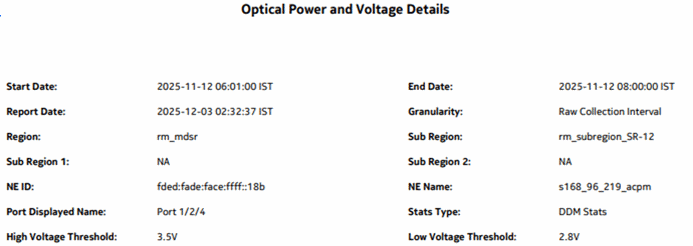
The following figures show a report example.
Figure 16-4: Optical Power and Voltage Details report