Create the composite service
Steps
1 |
From the Service Management views, select Composite Services from the drop-down list, then click 
The Select a service template to start form opens. |
2 |
Select the composite service template created in Create a composite service template. The Create Service form opens. |
3 |
Provide a Service Name, then click on the Customer ID parameter, as shown below. 
The Select Customer ID form opens. |
4 |
Select the customer from the list. 
You are returned to the Create Service form. |
Create L2 sites | |
5 |
In the Layer 2 Site Details panel, click 
The Create Site form opens. |
6 |
Configure the BGP EVPN parameters as shown below: 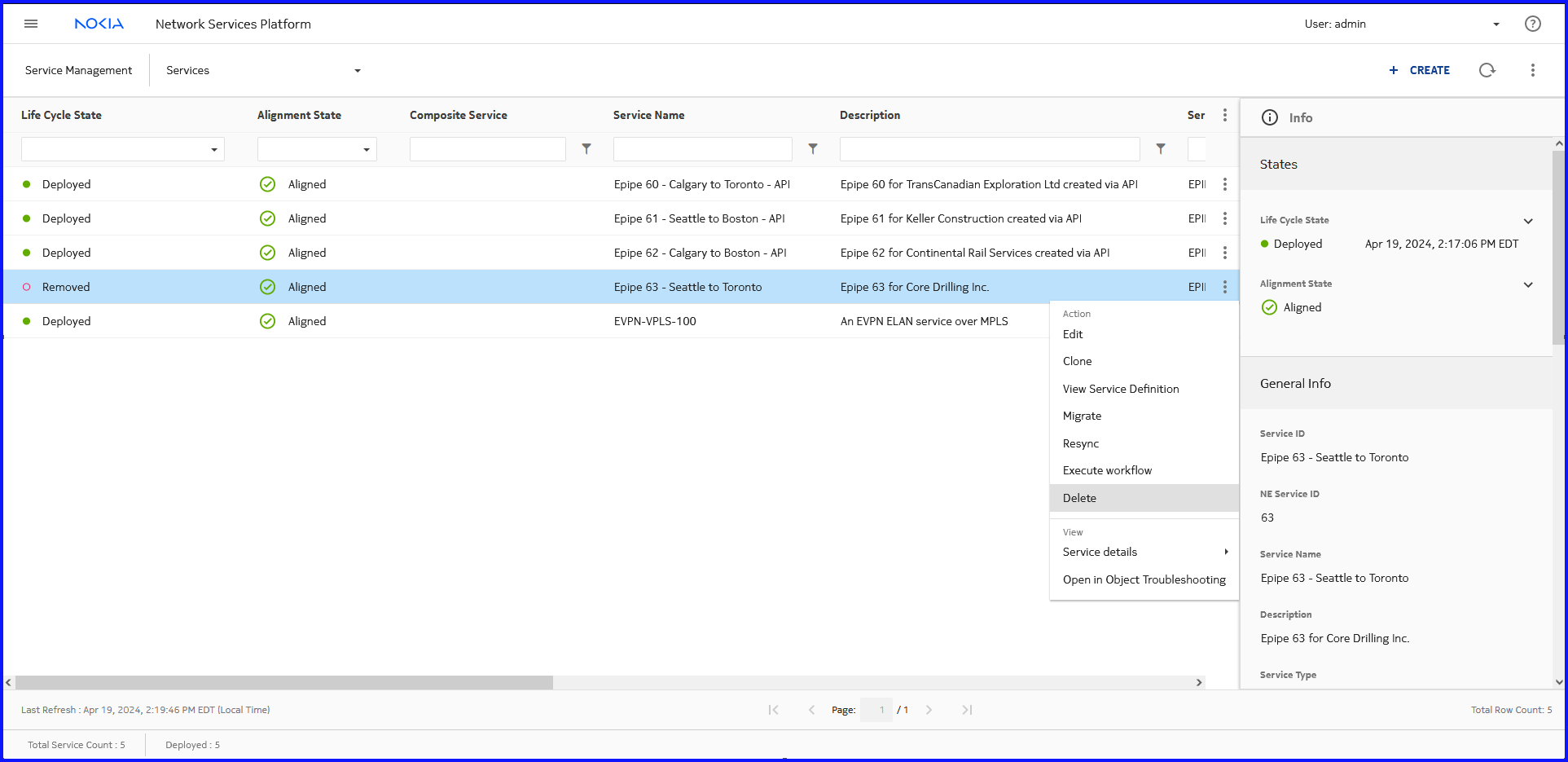
|
7 |
Configure the VXLAN parameters as shown below: 
|
8 |
In the IRB Interface Details panel, click 
The Create IRB form opens. |
9 |
Configure the parameters as shown below: 
|
10 |
Click UPDATE. You are returned to the Create Site form and the IRB interface is listed, as shown below: 
|
11 |
In the Endpoint Details panel, click 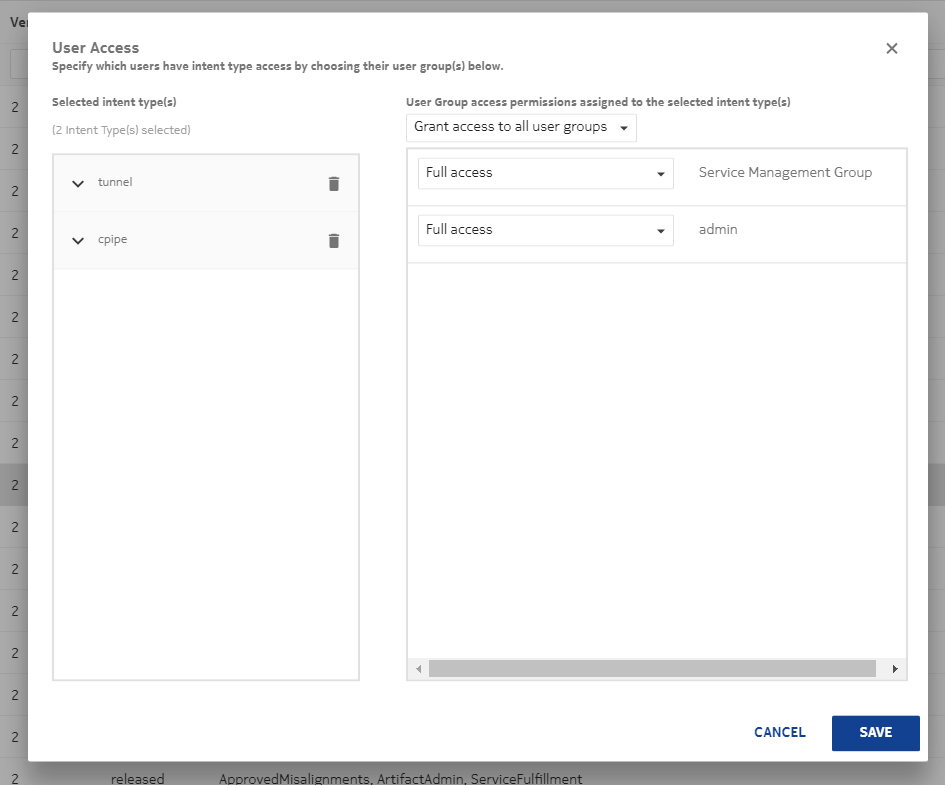
The Create Endpoint form opens. |
12 |
Configure the parameters as shown below: 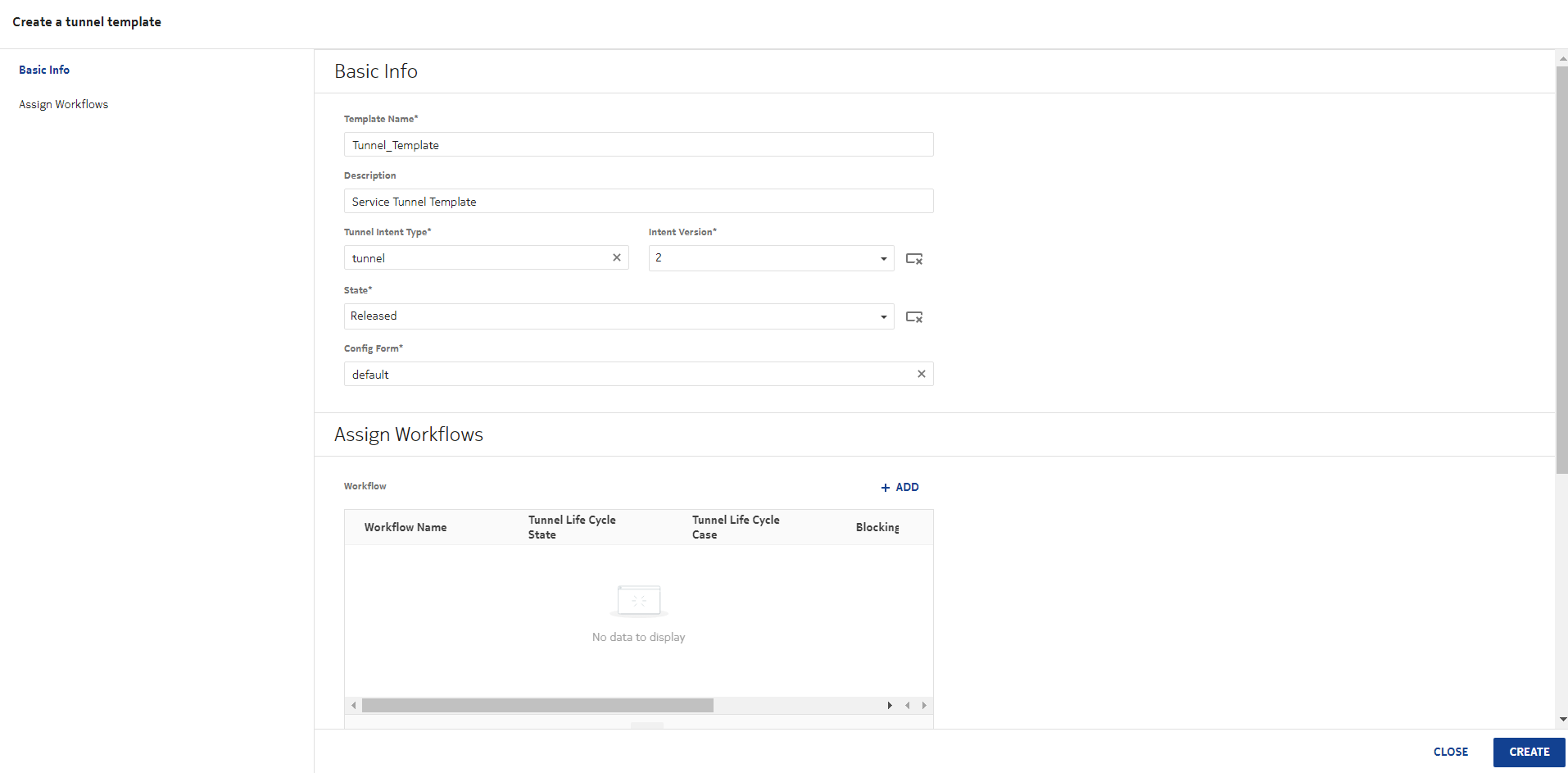
|
13 |
Click UPDATE. You are returned to the Create Site form and the Endpoint is listed, as shown below: 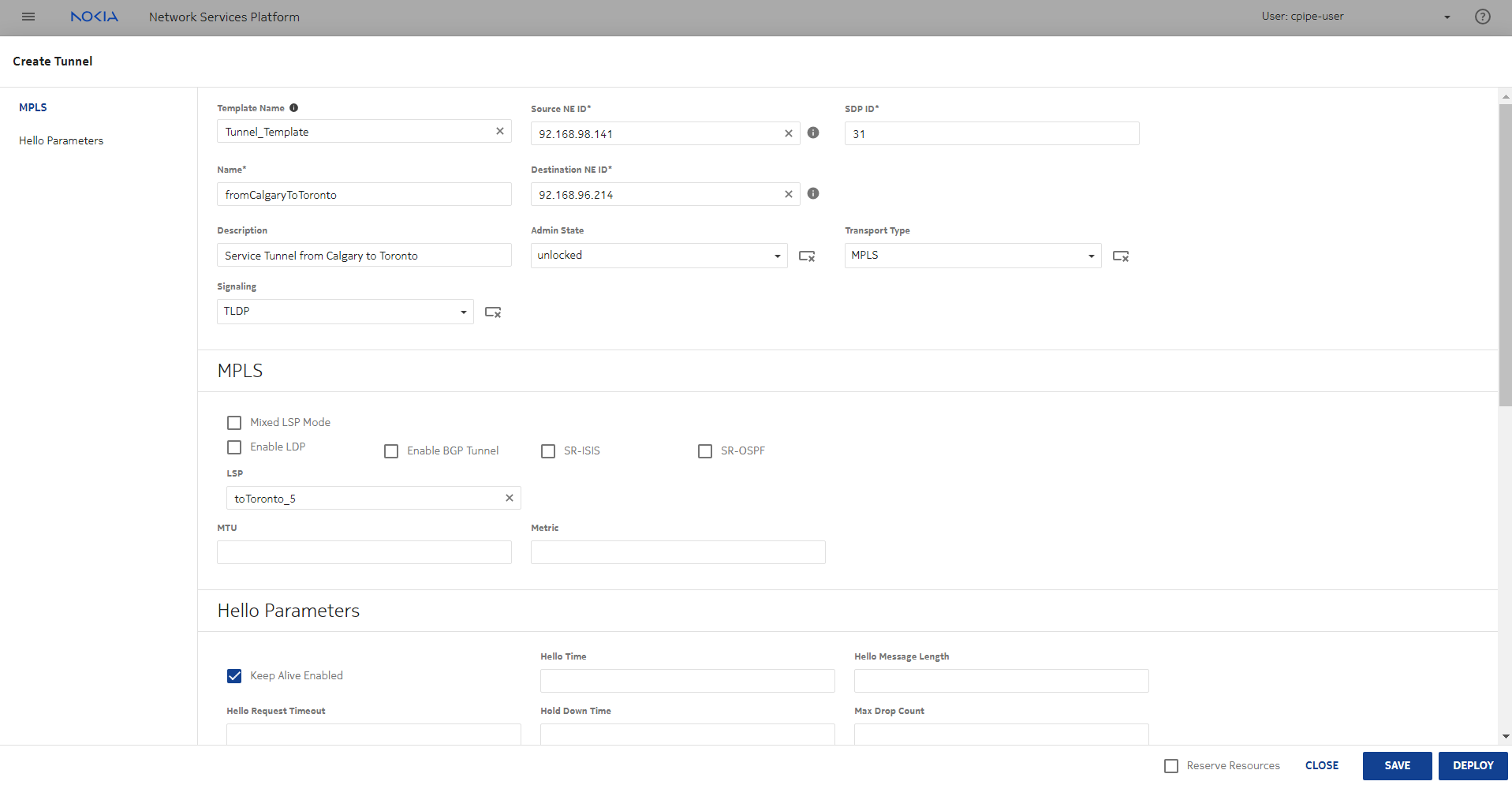
|
14 |
Click UPDATE. You are returned to the Create Service form and the Site is listed, as shown below: 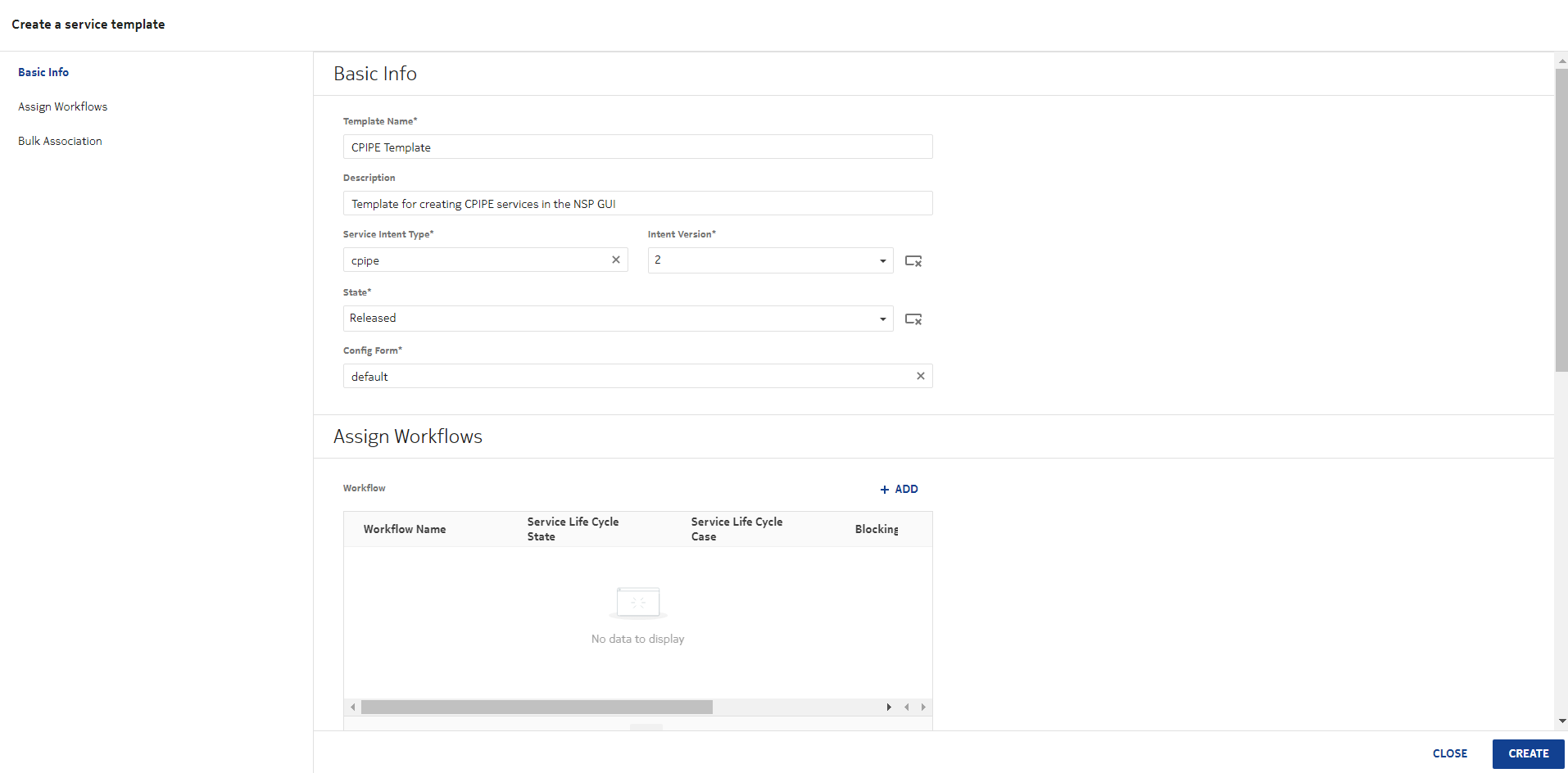
|
15 |
In the Layer 2 Site Details panel, click The Create Site form opens. |
16 |
Click on the Device ID parameter. The Select Device ID form opens. |
17 |
Select the device ID as shown below: 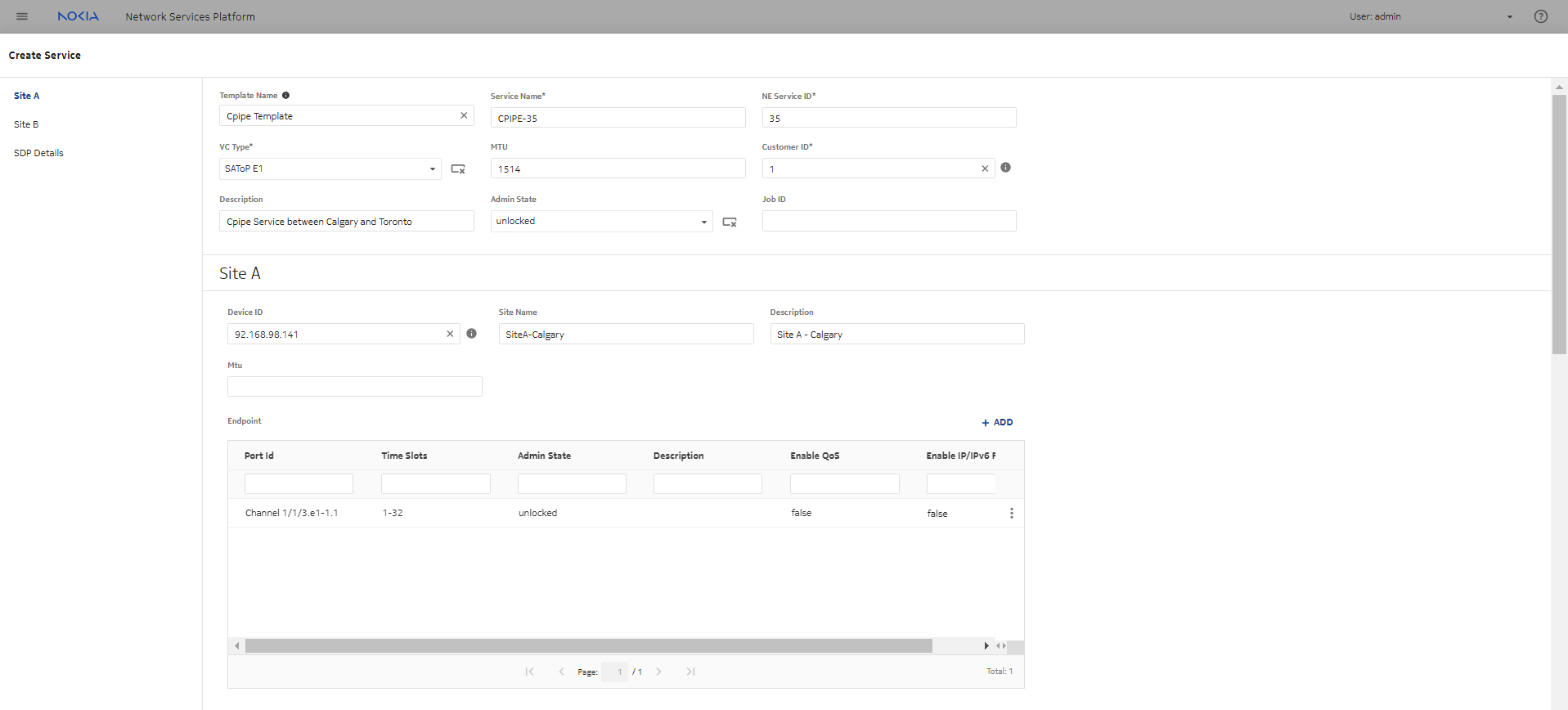
|
18 |
Click SELECT. You are returned to the Create Site form. |
19 |
Configure the parameters as shown below: 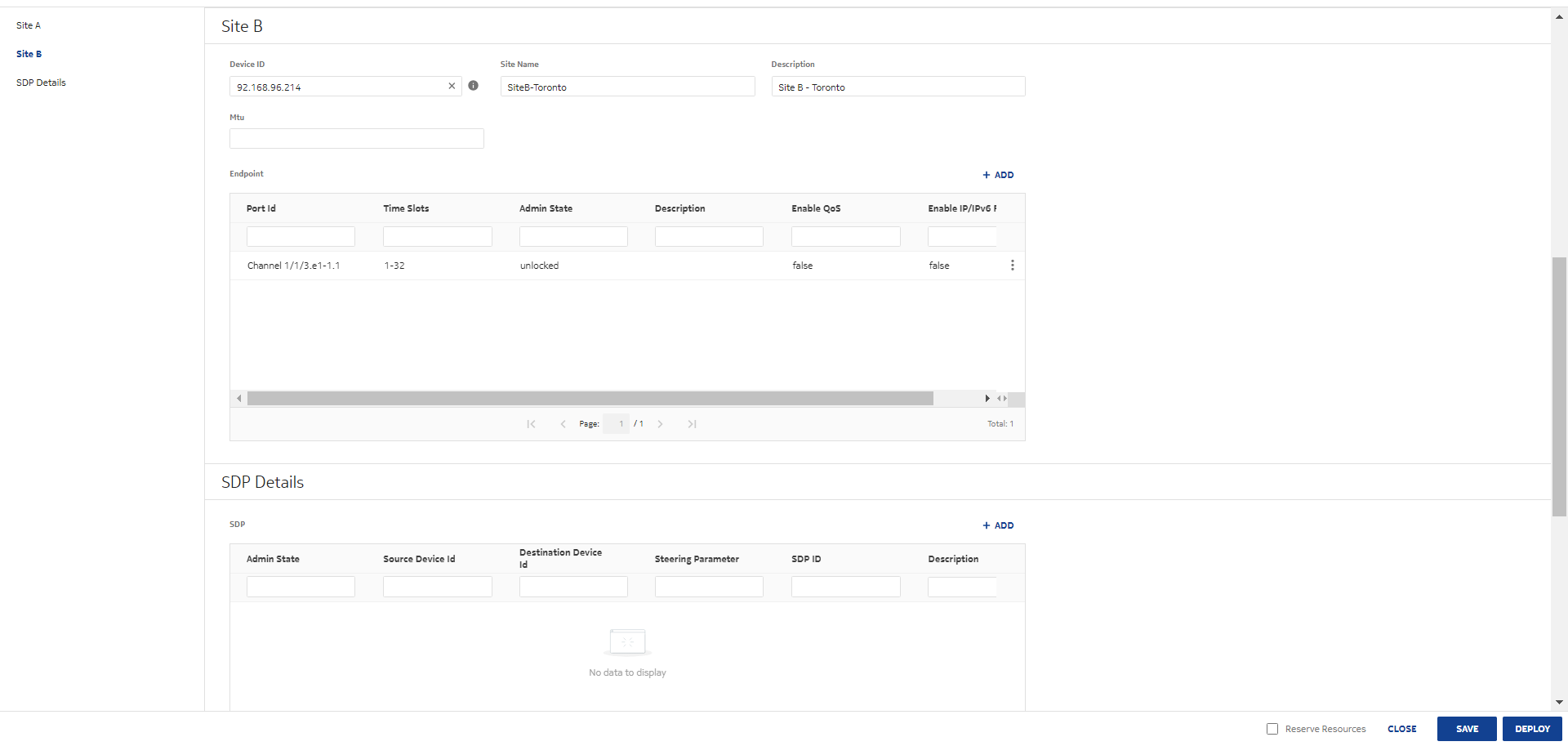
|
20 |
Click 
The Create Route Target form opens. |
21 |
Configure the parameters as shown below: 
|
22 |
Click ADD. You are returned to the Create Site form, and the Route Target is listed, as shown below: 
|
23 |
Configure the VXLAN parameters as shown below: 
|
24 |
Click 
The Create IRB form opens. |
25 |
Configure the parameters as shown below: 
|
26 |
Click ADD. You are returned to the Create Site form, and the IRB Interface is listed, as shown below: 
|
27 |
Click 
The Create Endpoint form opens. |
28 |
Configure the parameters as shown below: 
|
29 |
Click ADD. You are returned to the Create Site form, and the Endpoint is listed, as shown below: 
|
30 |
Click ADD. You are returned to the Create Service form, and the Layer 2 Site is listed, as shown below: 
|
Create L3 sites | |
31 |
In the Layer 3 Site Details panel, click 
The Create Site form opens. |
32 |
Click on the Device ID parameter. The Select Device ID form opens. |
33 |
Select the device ID, then click SELECT, as shown below: 
You are returned to the Create Site form, and the device is listed, as shown below: 
|
34 |
In the IRB Interface Details panel, click The Create IRB form opens. |
35 |
Configure the parameters as shown below: 
|
36 |
Click ADD. You are returned to the Create Site form, and the IRB Interface is listed, as shown below: 
|
37 |
Configure the BGP EVPN parameters as shown below: 
|
38 |
Click 
The Create Route Target form opens. |
39 |
Configure the parameters as shown below: 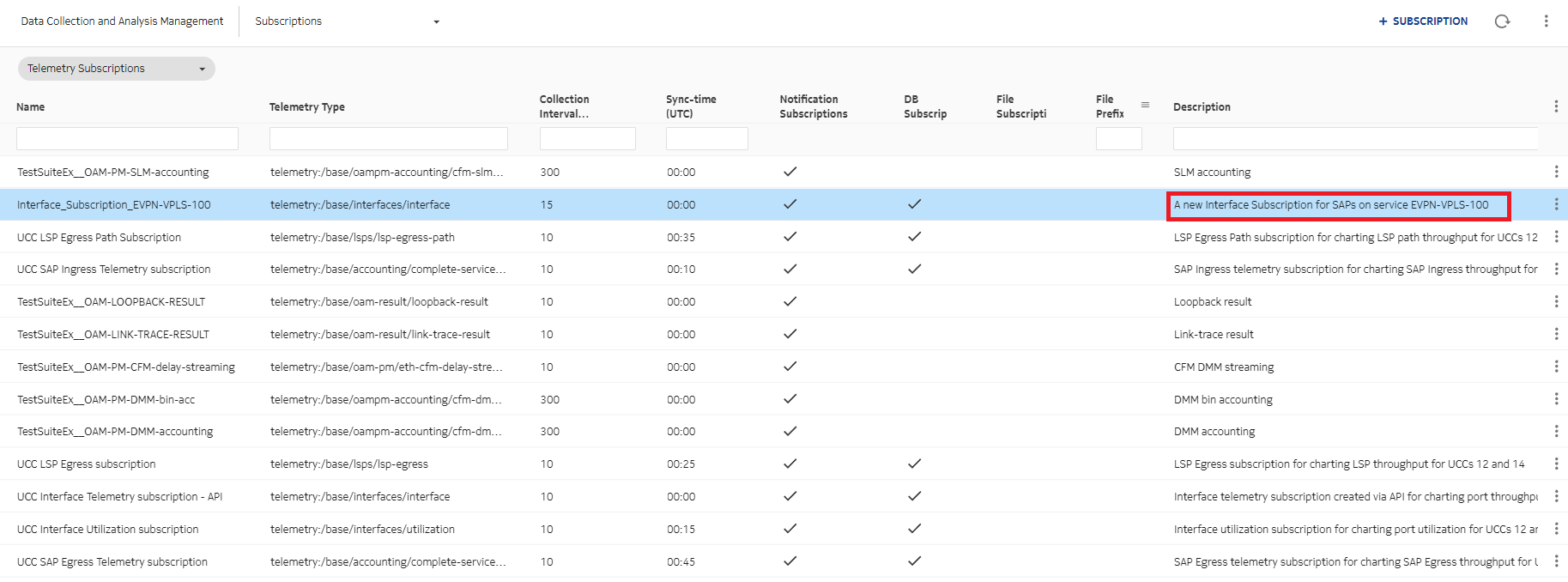
|
40 |
Click ADD. You are returned to the Create Site form, and the Route Target is listed, as shown below: 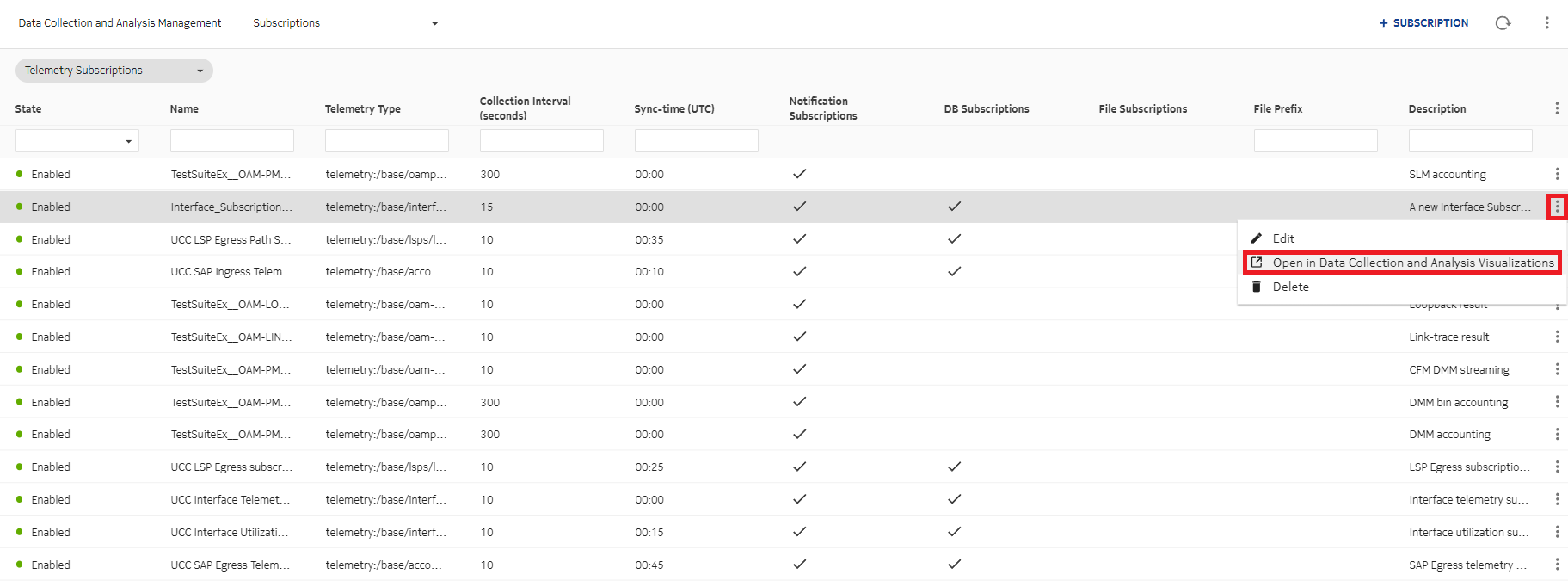
|
41 |
Configure the VXLAN parameters as shown below:
|
42 |
Click ADD. You are returned to the Create Service form, and the Layer 3 Site is listed, as shown below: 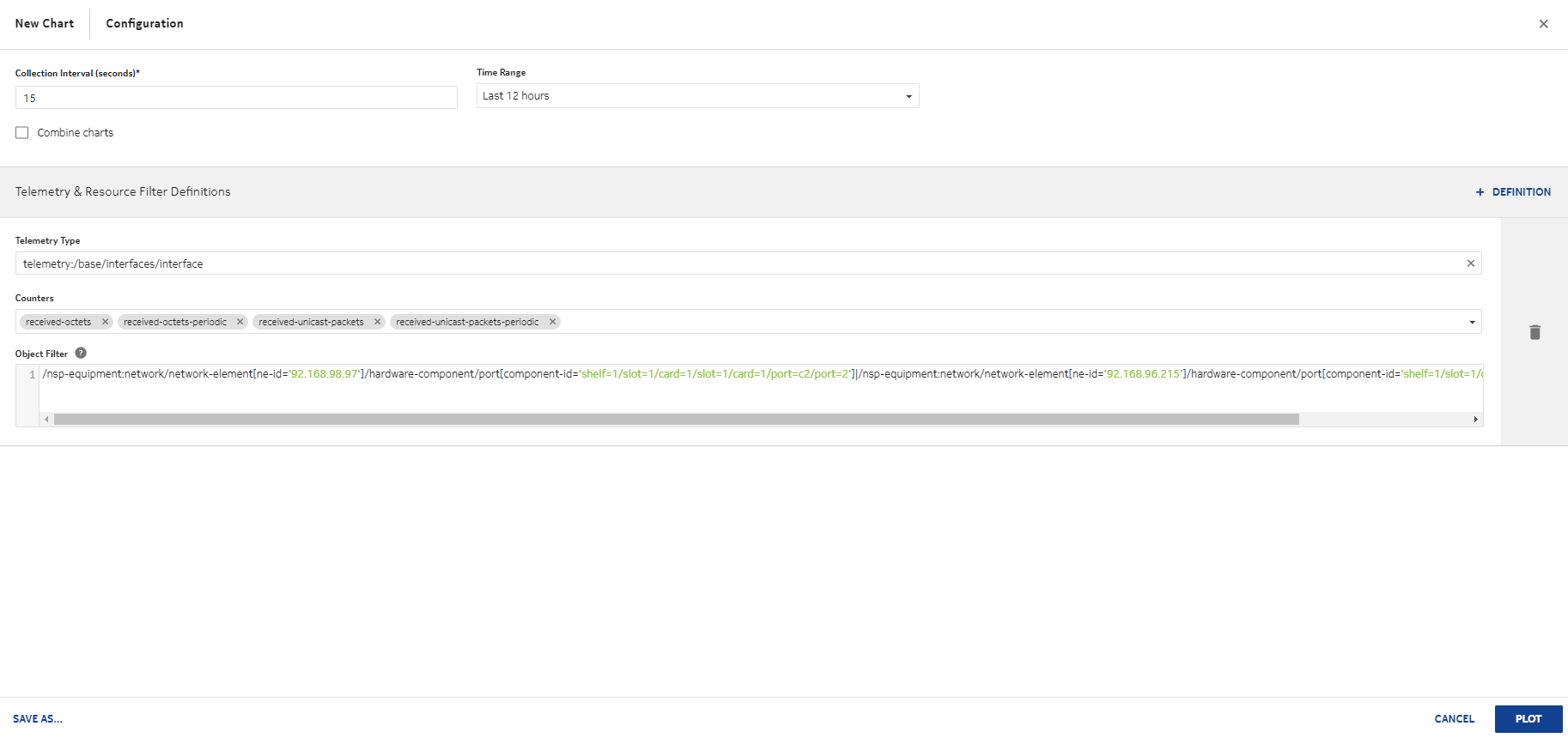
|
43 |
In the Layer 3 Site Details panel, click The Create Site form opens. |
44 |
Select the device ID, then click SELECT, as shown below: 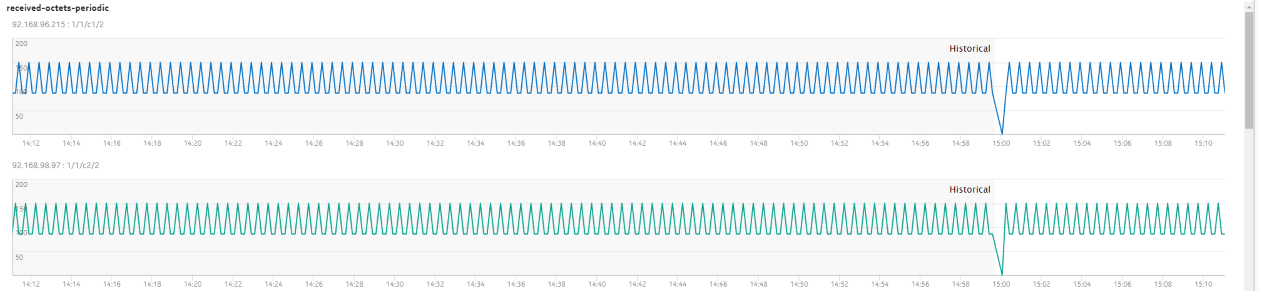
You are returned to the Create Site form, and the device is listed, as shown below: 
|
45 |
Repeat Step 34 through Step 40. |
46 |
Configure the VXLAN parameters as shown below: 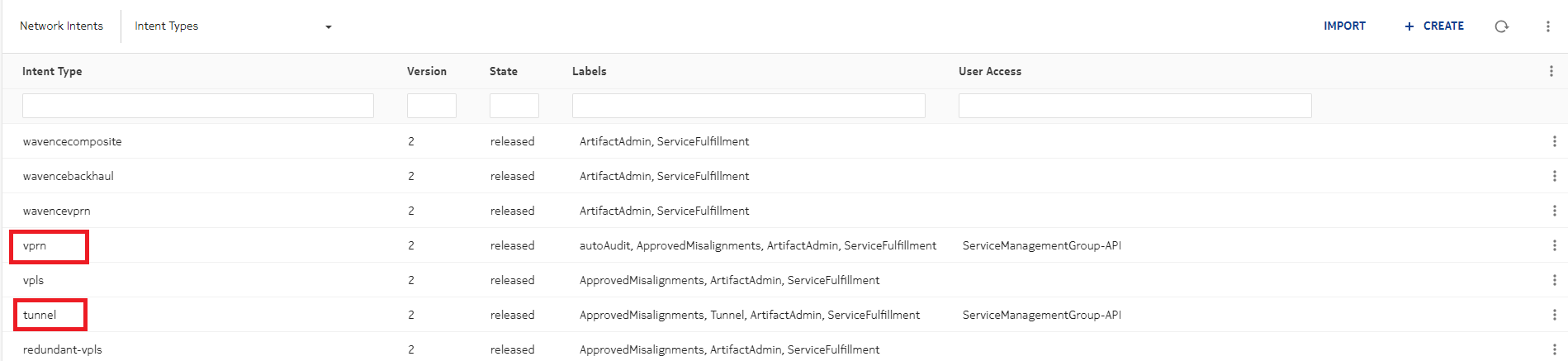
|
47 |
Click ADD. You are returned to the Create Service form, and the Layer 3 Site is listed, as shown below: 
|
Create IRB | |
48 |
In the IRB DETAILS panel, click The Create IRB form opens. |
49 |
Configure the parameters as shown below: 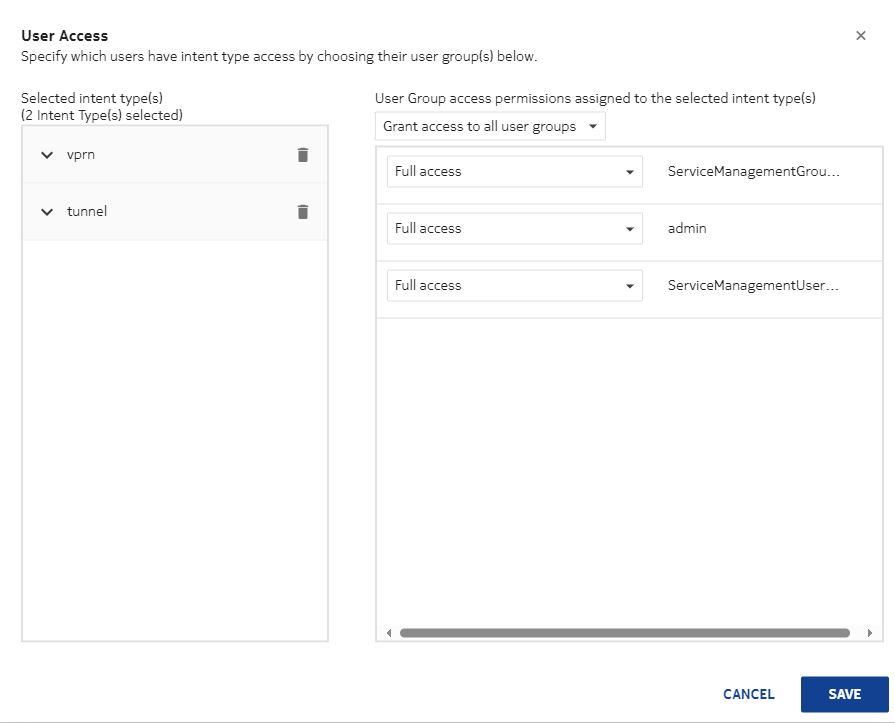
|
50 |
Configure the ARP parameters as shown below: 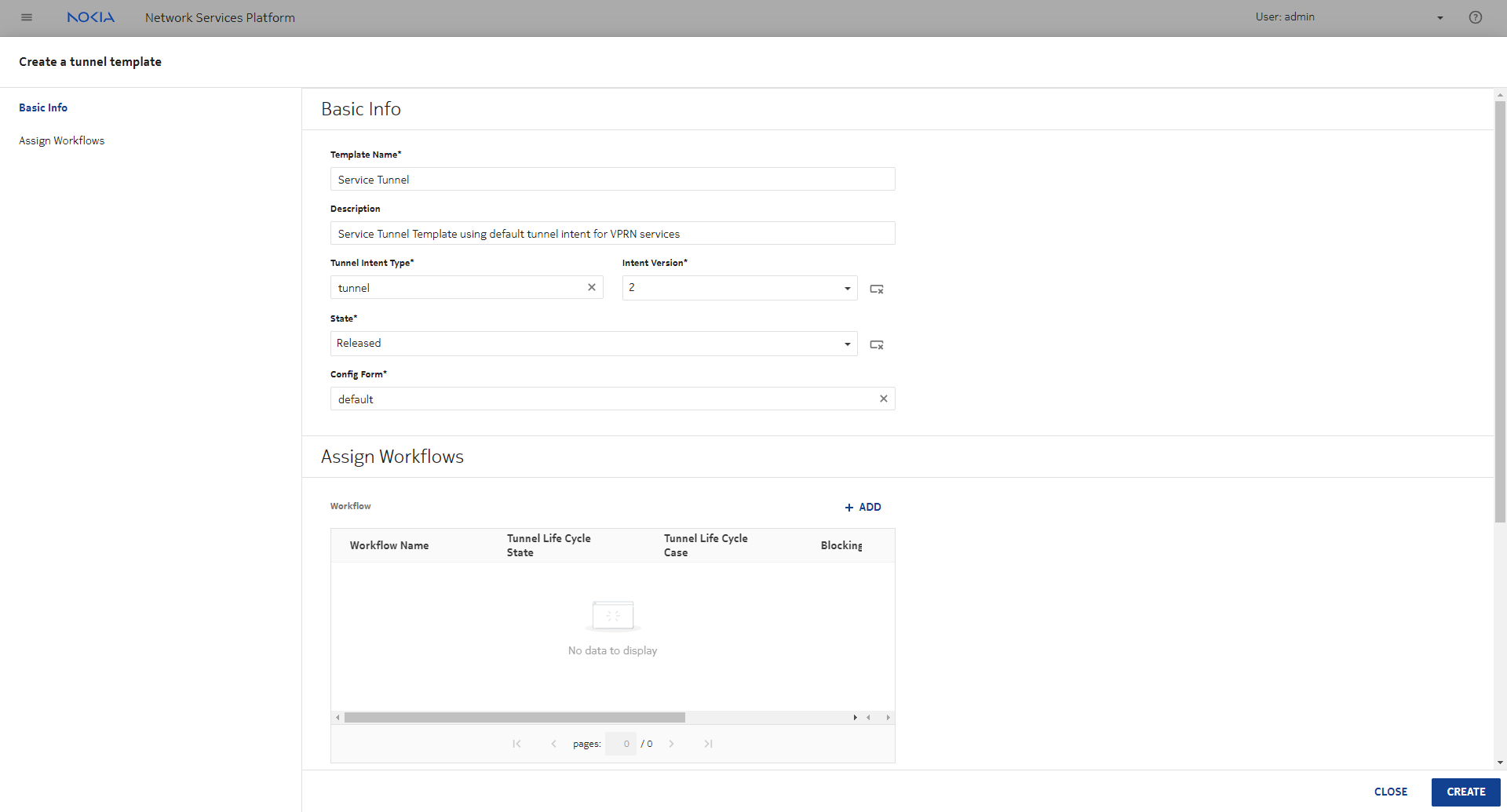
|
51 |
Configure the Threshold (percent) parameter as shown below: 
|
52 |
Configure the Neighbor Discovery parameters as shown below: 
|
53 |
Click UPDATE. You are returned to the Create Service form and the IRB is listed, as shown below: 
|
54 |
In the IRB DETAILS panel, click The Create IRB form opens. |
55 |
Configure the parameters as shown below: 
|
56 |
Configure the ARP parameters as shown below: 
|
57 |
Configure the Threshold (percent) parameter as shown below: 
|
58 |
Configure the Neighbor Discovery parameters as shown below: 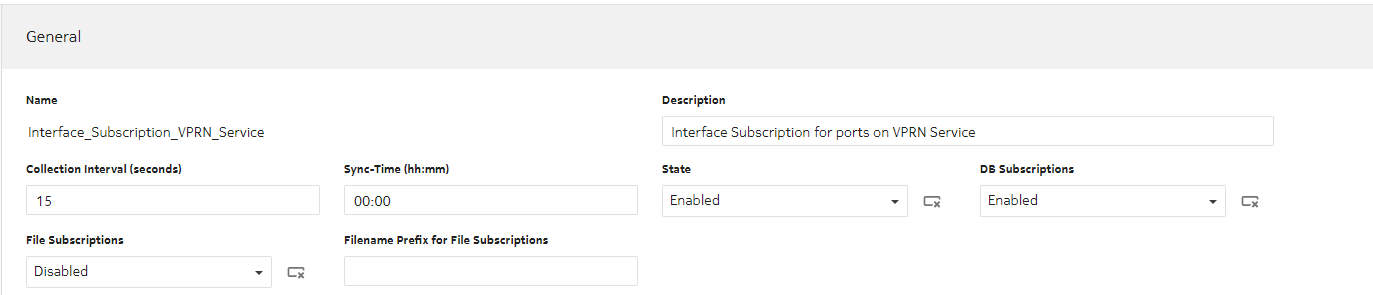
|
59 |
Click UPDATE. You are returned to the Create Service form and the IRB is listed, as shown below: 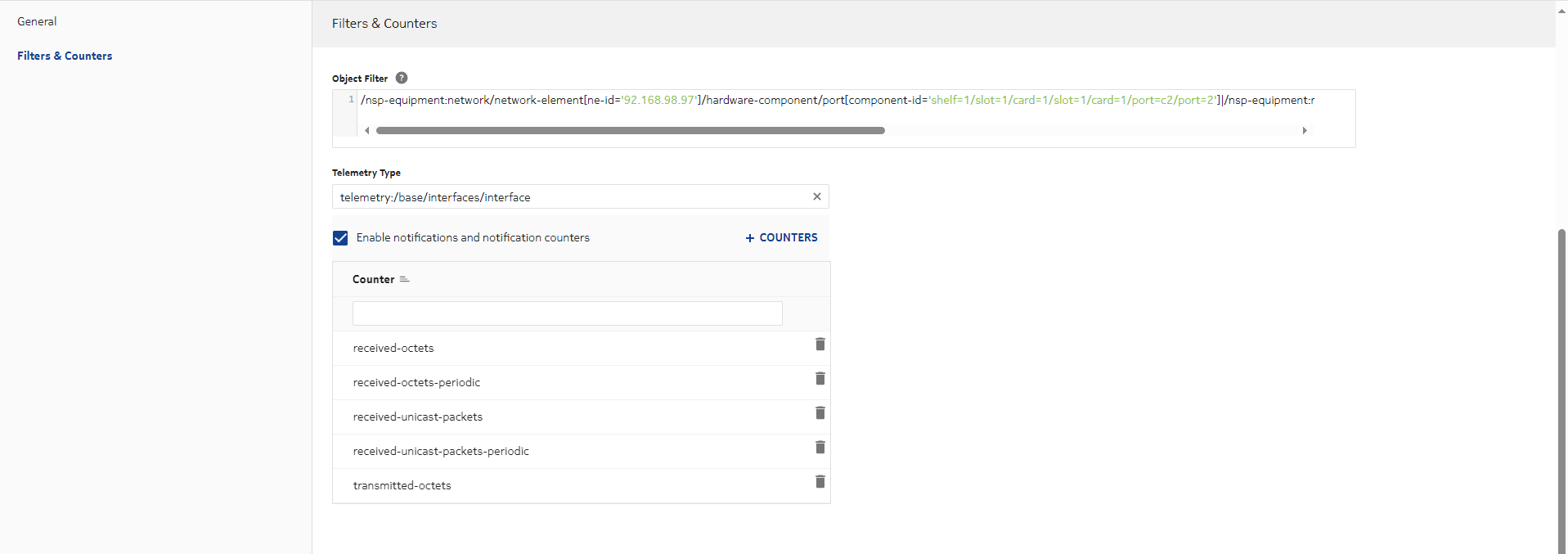
|
Deploy the service | |
60 |
Click DEPLOY as shown below: 
The Create Service form closes. |
Verify service deployment | |
61 |
Select Composite Services from the drop-down and verify that the service is Deployed and Aligned, as shown below: 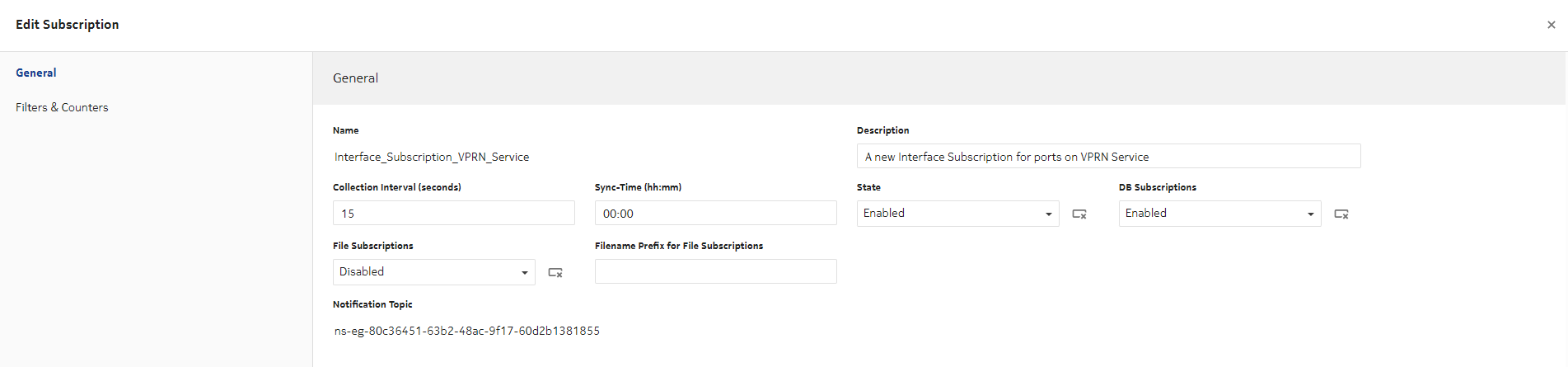
|
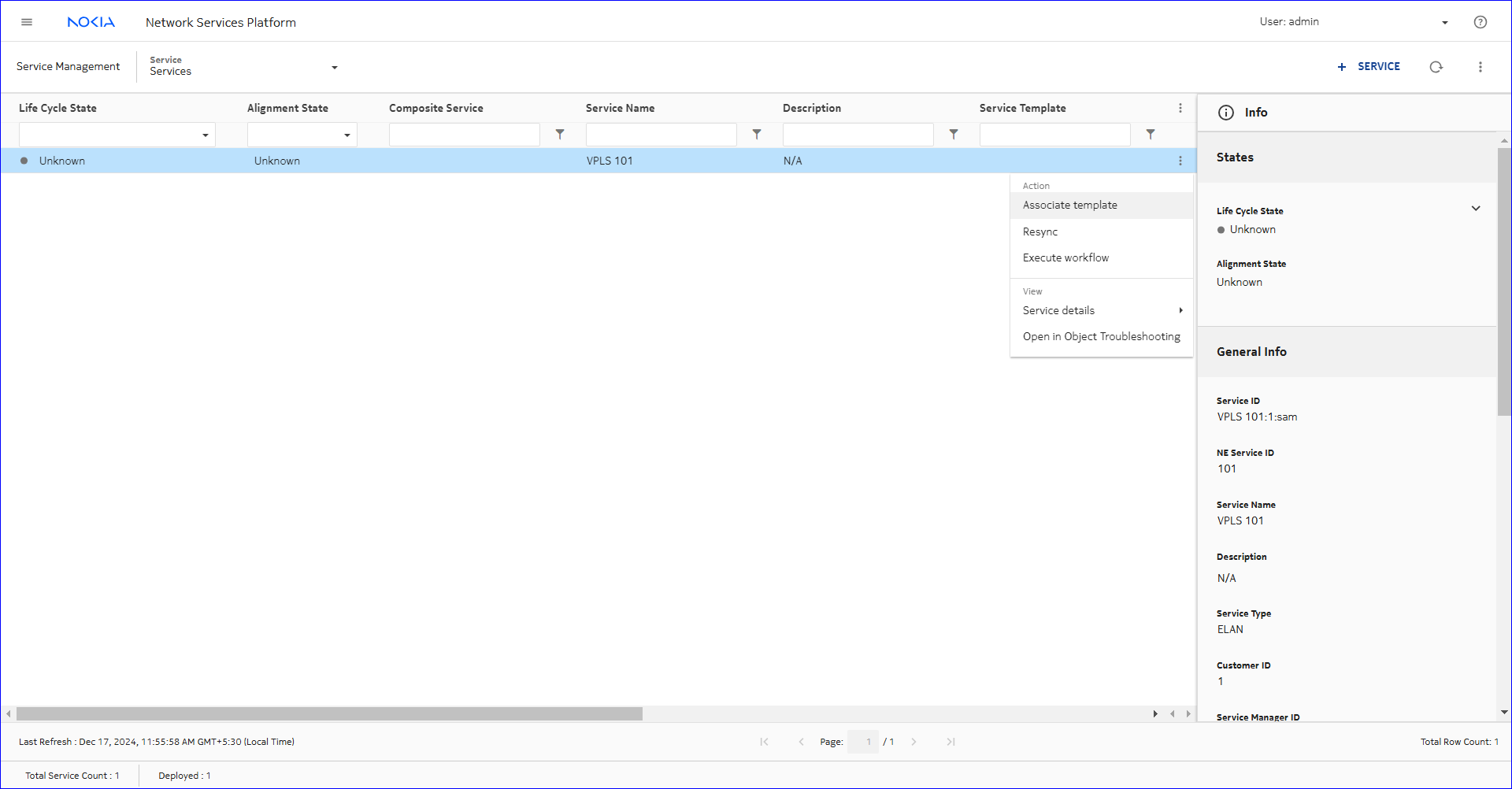
62 |
Select Services from the drop-down and verify that the services that comprise the composite service are Deployed and Aligned, as shown below: 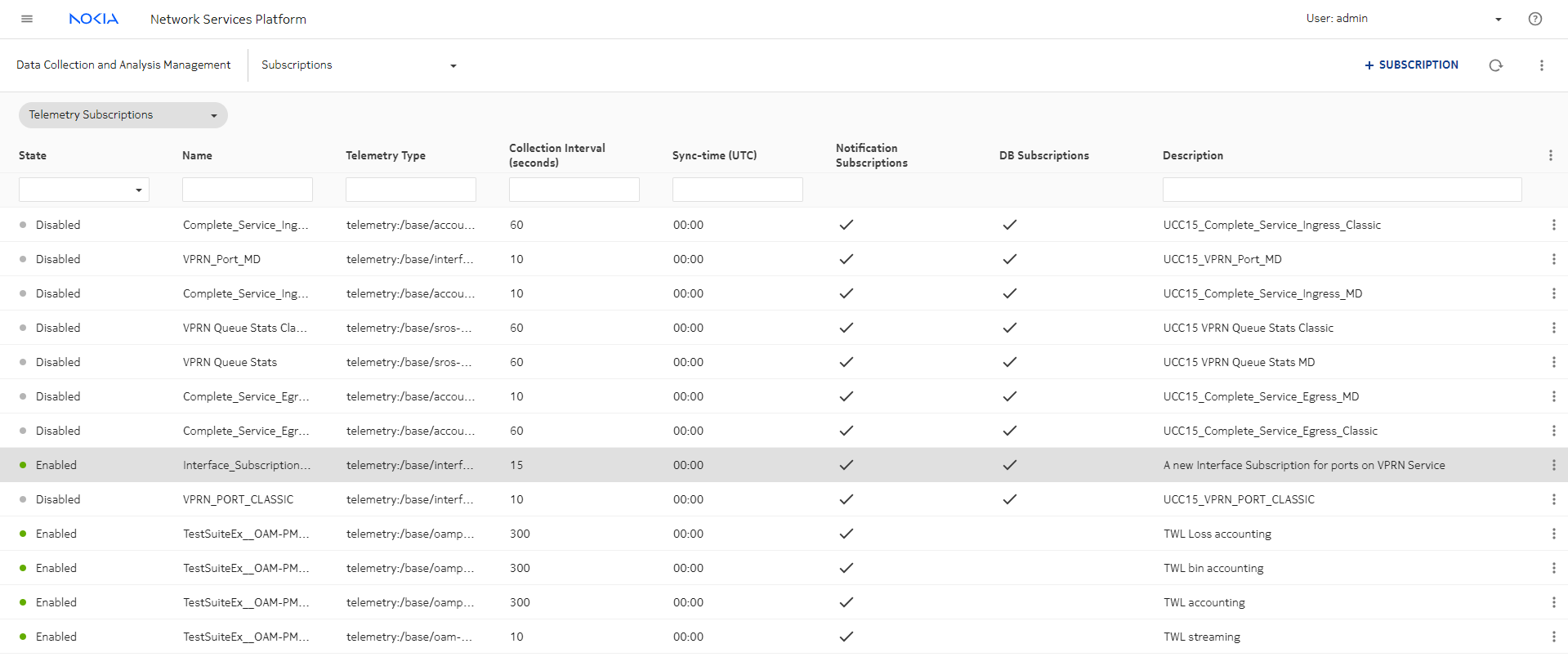
|
63 |
Click on the services in the list to open the Info panel and view additional service details. Note: The first two services in the above list should be L3 VPN. The last two services should be ELAN. Note: The Admin State of each of the above services should be Unlocked, and their Operational State should be Enabled. End of steps |
 SERVICE, as shown below: