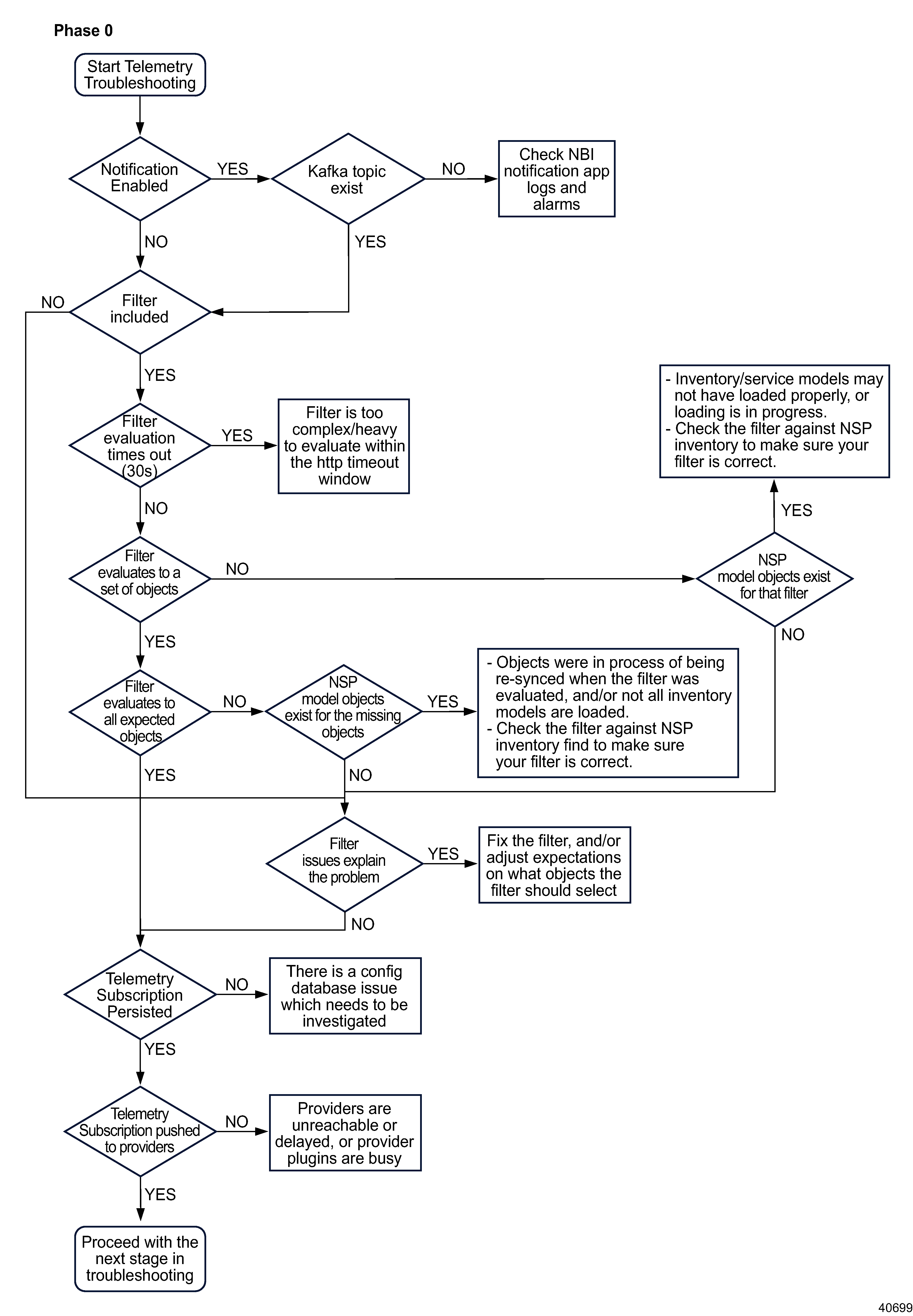
Phase 0: Start telemetry subscription troubleshooting
|
| |
|
1 |
Open Data Collection and Analysis Management, Subscriptions to see the subscription details.
Check the Notification Subscriptions column: a check mark is displayed if notifications are enabled.
Are notifications enabled?
-
YES:
Proceed to
Stage 2.
-
NO:
Proceed to
Stage 4
|
2 |
Verify the status of the Kafka topic:
-
Select the subscription and click  (Table row actions), Edit. (Table row actions), Edit.
-
Note the notification topic.
-
Log in as the root or NSP admin user on an NSP cluster node.
-
Open a console window.
-
Enter the following to navigate to the folder hosting Kafka:
# kubectl -n nsp-psa-restricted exec -it nspos-kafka-broker-0 -- bash ↵
# cd /opt/bitnami/kafka/bin ↵
-
Enter the following to list the egress topics:
# ./kafka-topics.sh --list --bootstrap-server nspos-kafka-broker-0.nspos-kafka-broker-headless.nsp-psa-restricted.svc.cluster.local:9392 --command-config=../config/consumer.properties | grep "ns-eg-" ↵
Does the notification topic in the subscription appear in the list of egress topics from the Kafka pod?
-
YES:
Proceed to
Stage 4.
-
NO:
Proceed to
Stage 3.
|
3 |
Check NBI notification application logs and alarms:
-
From the System Health dashboard, open Log Viewer and click Discover. Search nsp-platform-tomcat-logs-viewer
Check the platform tomcat log for errors or warnings in the nbi-notification-app logs.
-
Check the Current Alarms view for alarms related to Kafka, Zookeeper, nsp-platform-tomcat, or the config database; see
Figure 5-4, Telemetry alarm troubleshooting flow for alarm troubleshooting steps.
|
4 |
Does the subscription include an object filter?
-
YES:
Proceed to
Stage 5.
-
NO:
Proceed to
Stage 7
|
5 |
Evaluate the object filter.
If a subscription has been rejected with a timeout error, the object filter may be too complex for the filter to resolve within 30 s.
Perform any of the following to update the filter to reduce evaluation time:
-
simplify the filter
-
use NDIs (network device identifiers) instead of NSP model expressions
-
break up the subscription into multiple subscriptions, each filter selecting roughly half of the objects
Proceed to
Stage 6.
|
6 |
From the System Health dashboard, open Log Viewer and click Discover. Search nspos-app2-tomcat-logs
Search for the following text in the restconf log:
"No NSP model identifiers match the provided filter filter". This message indicates that the filter did not evaluate to a set of objects.
Does the filter evaluate to a set of objects?
-
YES:
If the filter evaluates to all expected objects, proceed to
Stage 7.
If the filter does not evaluate all expected objects and NSP model objects exist for the missing objects, the inventory and/or service models may not have loaded properly, or loading is in progress.
If objects are missing and NSP model objects do not exist for the missing objects, proceed to
Stage 7.
-
NO:
If the NSP model objects exist in the network for the filter, the inventory and/or service models may not have loaded properly, or loading is in progress.
Check the filter using inventory find RESTCONF API call to make sure your filter is correct.
Note: In order to issue a RESTCONF API call, you require a token; see the My First NSP API Client tutorial on the Network Developer Portal for information.
Example:the object filter is set to find ports on NEs of type 'SR-7750' and version '19.0' with admin-state 'unlocked'
POST https://{{nspos_host}}:{{port}}/restconf/operations/nsp-inventory:findBody :{ "input" : { "xpath-filter": "/nsp-equipment:network/network-element[type='7750 SR-12' and version='TiMOS-B-19.10.R1']/equipment/port[admin-state='unlocked']", "depth" : "1", "fields": "equipment-id" }}
Example response:
{
"output": {
"data": [
{
"@": {
"nsp-model:class-id": "/nsp-equipment:network/network-element/equipment/port",
"nsp-model:identifier": "/nsp-equipment:network/network-element[ne-id='192.168.96.17']/equipment/port[equipment-id='shelf=1/card=1/mda=1/port=1/1/1']"
},
"equipment-id": "shelf=1/card=1/mda=1/port=1/1/1"
},
{
"@": {
"nsp-model:class-id": "/nsp-equipment:network/network-element/equipment/port",
"nsp-model:identifier": "/nsp-equipment:network/network-element[ne-id='192.168.96.17']/equipment/port[equipment-id='shelf=1/card=1/mda=1/port=1/1/2']"
},
"equipment-id": "shelf=1/card=1/mda=1/port=1/1/2"
},
{
"@": {
"nsp-model:class-id": "/nsp-equipment:network/network-element/equipment/port",
"nsp-model:identifier": "/nsp-equipment:network/network-element[ne-id='192.168.96.17']/equipment/port[equipment-id='shelf=1/card=1/mda=1/port=1/1/3']"
},
"equipment-id": "shelf=1/card=1/mda=1/port=1/1/3"
},
{
"@": {
"nsp-model:class-id": "/nsp-equipment:network/network-element/equipment/port",
"nsp-model:identifier": "/nsp-equipment:network/network-element[ne-id='92.168.96.13']/equipment/port[equipment-id='shelf=1/card=1/mda=1/port=1/1/1']"
},
"equipment-id": "shelf=1/card=1/mda=1/port=1/1/1"
},
{
"@": {
"nsp-model:class-id": "/nsp-equipment:network/network-element/equipment/port",
"nsp-model:identifier": "/nsp-equipment:network/network-element[ne-id='92.168.96.13']/equipment/port[equipment-id='shelf=1/card=1/mda=1/port=1/1/2']"
},
"equipment-id": "shelf=1/card=1/mda=1/port=1/1/2"
},
{
"@": {
"nsp-model:class-id": "/nsp-equipment:network/network-element/equipment/port",
"nsp-model:identifier": "/nsp-equipment:network/network-element[ne-id='92.168.96.13']/equipment/port[equipment-id='shelf=1/card=1/mda=1/port=1/1/3']"
},
"equipment-id": "shelf=1/card=1/mda=1/port=1/1/3"
},
{
"@": {
"nsp-model:class-id": "/nsp-equipment:network/network-element/equipment/port",
"nsp-model:identifier": "/nsp-equipment:network/network-element[ne-id='92.168.96.13']/equipment/port[equipment-id='shelf=1/card=1/mda=1/port=1/1/5']"
},
"equipment-id": "shelf=1/card=1/mda=1/port=1/1/5"
}
]
}
}
If NSP model objects do not exist, proceed to
Stage 7.
|
7 |
Verify whether the subscription is persisted in the Postgres database:
Issue the following RESTCONF API call against the primary NSP cluster to retrieve the list of telemetry subscriptions.
Note: In order to issue a RESTCONF API call, you require a token; see the My First NSP API Client tutorial on the Network Developer Portal for information.
GET https://address/restconf/data/md-subscription:/subscriptions
where address is the advertised address of the primary NSP cluster.
The call returns information like the following:
{
"subscription": [
{
"name": "interface_filter_ne_oper_1",
"description": "less greater",
"site-selector": null,
"filter": "/nsp-equipment:network/network-element[ne-id >= '10.10.10.0'] | /nsp-equipment:network/network-element[ne-id < '10.10.10.3'] ",
"type": "telemetry:/base/interfaces/interface",
"period": 30,
"state": "enabled",
"sync-time": "00:02",
"db": "enabled",
"notification": "enabled",
"rta-notification": "disabled",
"fields": [],
"notif-topic": "ns-eg-5959d666-daa6-4b07-80a4-d886651d732d",
"client-id": "5959d666-daa6-4b07-80a4-d886651d732d"
}
]
}
Does the subscription appear in the list?
-
YES:
Proceed to
Stage 8.
-
NO:
Investigate and fix any config database issues that may be present. Contact the next level of support for assistance.
|
8 |
Verify whether the subscription information is being pushed to telemetry providers:
-
From the System Health dashboard, open Log Viewer and click Discover. Search tlm- to find telemetry pod logs.
Checking logs for each phase of subscription processing can help to isolate where a problem occurred.
-
Search tlm-request-processor to find request processor logs Check the Request Processor logs for messages that indicate the subscription was received: "Received Json request"
If subscription information was not received, wait up to 15 min for the subscriptions to be synchronized. If the problem persists, correct any issues with the telemetry pods. If this does not resolve the issue, contact the next level of support.
If the subscription information was received, proceed to
Phase 1: Start NE telemetry troubleshooting.
|
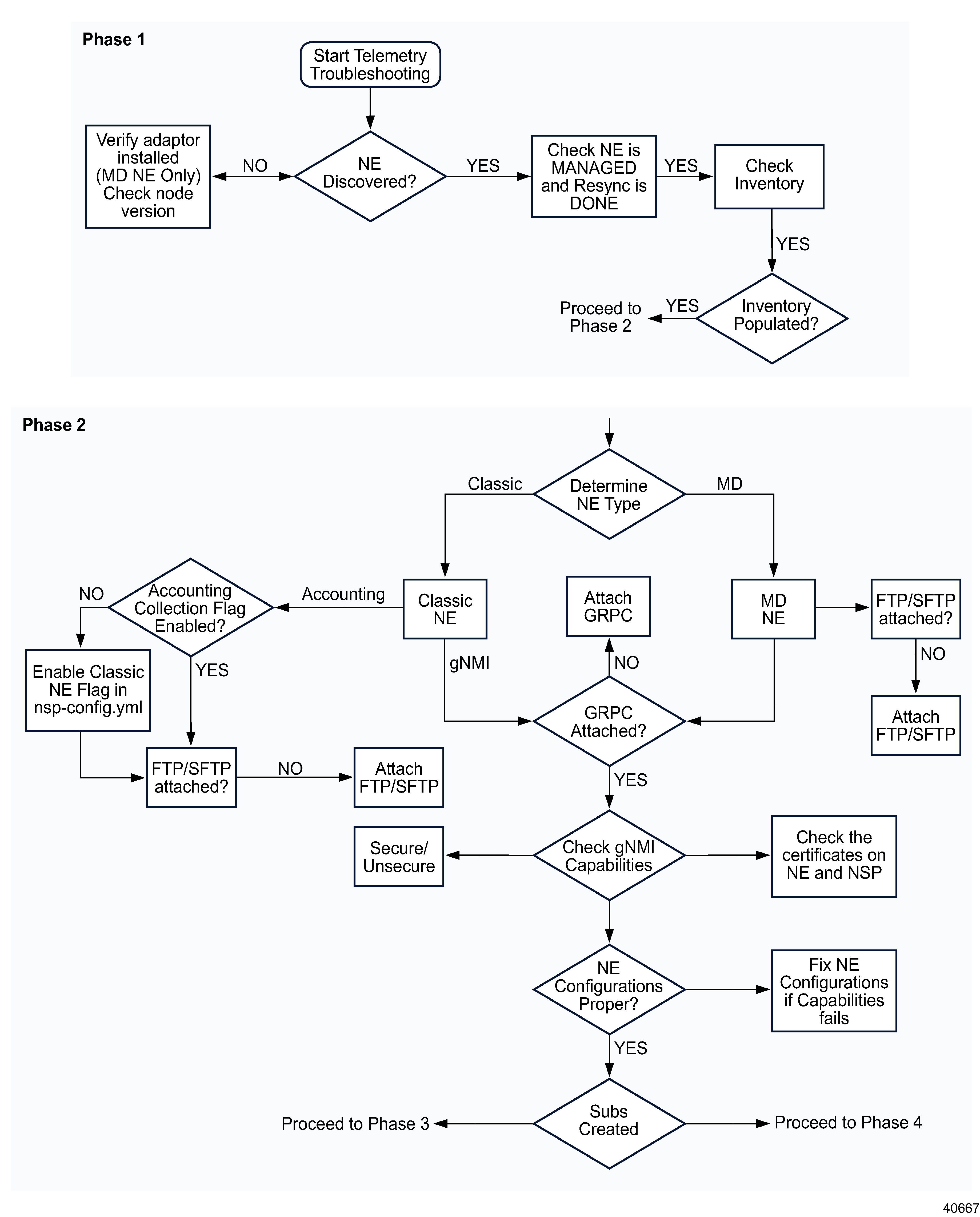
Phase 1: Start NE telemetry troubleshooting
|
| |
|
9 |
Open Device Management, Managed Network Elements to see if the NE appears in the list, that is, if the NE is discovered.
Is the NE discovered?
-
YES:
-
Open Device Management, Managed Network Elements.
-
For classic devices, verify that the Management State of the NE is Managed (management state is not applicable to model-driven NEs).
-
For all devices, verify that the correct NE version is displayed, and that the Resync Status is Done.
Proceed to
Stage 10.
-
NO:
For a model-driven NE, check that the required adaptors are installed for the NE version from which telemetry statistics are being collected.
-
Log in as the root or NSP admin user on the NSP deployer VM in the standalone or primary NSP cluster.
-
Open a console window.
-
Enter the following to navigate to the MDM scripts directory:
# cd /opt/nsp/NSP-CN-DEP-release-ID/NSP-CN-release-ID/tools/mdm/bin ↵
-
Enter the following to list the installed adaptors:
# ./adaptor-suite.bash --user <username> --pass <password> --list ↵
where username and password are the NSP admin user credentials.
At minimum, the following adaptors must be installed to support telemetry on an SR OS NE:
-
sros-common
-
sros-originalSF
-
sros-NE version
|
10 |
Select the NE from the Device Management, Managed Network Elements list and click (Table row actions), View NE Inventory. At minimum the chassis, shelves, and cards should display in the equipment tree.
Is the NE Inventory populated?
-
YES:
Proceed to
Stage 11.
-
NO:
Perform an NE resync and try again:
-
Return to Device Management, Managed Network Elements.
-
Select the NE and choose Manage, Resync from the table row actions menu ().
Proceed to
Stage 11.
See
What can I see in the NE Inventory view? in the NSP Device Management Guide for more details.
|
Phase 2: Determine if the NE is configured correctly
|
| |
|
11 |
Select the NE in the Device Management, Managed Network Elements and check the NE Mode parameter.
Is the NE mode classic or model driven?
-
CLASSIC:
Proceed to
Stage 12.
-
MODEL DRIVEN:
Proceed to
Stage 14.
|
12 |
Do you need to collect accounting statistics?
-
YES:
Proceed to
Stage 13.
-
NO:
Proceed to
Stage 15.
|
13 |
Check the
NSP configuration file on the NSP deployer host for the accounting collection flag.
Is the Accounting Collection flag enabled?
-
YES:
Proceed to
Stage 14.
-
NO:
Enable the collectFromClassicNes flag in the NSP configuration file; see
What are the best practices for telemetry data collection? in the NSP Data Collection and Analysis Guide for more information.
Proceed to
Stage 14.
|
14 |
Verify whether a file transfer policy is in place:
Select the NE in the Device Management, Managed Network Elements view and choose  (Mediation Policies) in the Summary panel. Click a policy name to view the details. (Mediation Policies) in the Summary panel. Click a policy name to view the details.
For a model-driven NE, the file transfer policy appears in the mediation policies list in the Summary panel. For a classic NE, click a policy name and scroll down in the Summary panel to view the file transfer information.
Is an FTP or SFTP file transfer policy in place?
-
YES:
Proceed to
Stage 15.
-
NO:
Edit the NE’s discovery rule to add an SFTP policy; see
How do I edit or delete a discovery rule? in the NSP Device Management Guide.
Proceed to
Stage 15.
|
15 |
Select the NE in the Device Management, Managed Network Elements and choose (Mediation Policies) in the Summary panel. Click a policy name to view the details.
Is a gRPC mediation policy in place?
-
YES:
Proceed to
Stage 17.
-
NO:
Edit the NE’s discovery rule to add a gRPC policy; see
How do I edit or delete a discovery rule? in the NSP Device Management Guide
Proceed to
Stage 16.
|
16 |
Access the gnmic tool to check that the NE is responding correctly to gNMI communication.
-
Log in as the root or NSP admin user on the NSP cluster host.
-
Open a console window.
-
Enter the following to navigate to the folder hosting the gnmic tool:
# kubectl -n nsp-psa-restricted exec -it tlm-gnmi-collector-0 -- bash ↵
# cd /app ↵
Proceed to
Stage 17.
|
17 |
Verify whether the NE is using secure telemetry. Perform one of the following:
-
Use the gnmic tool to check for insecure capabilities:
# ./gnmic -a NE IP:NE-gnmi-port --insecure -u NE User -p NE password capabilities ↵
where the username and password are the credentials in the gRPC mediation policy in the NE discovery rule
-
Enter the following from the NE:
# show system grpc ↵
If the configuration shows allow-unsecure=true, the telemetry connection is insecure.
-
SECURE TELEMETRY:
Proceed to
Stage 18.
-
UNSECURE TELEMETRY:
Proceed to
Stage 19.
|
18 |
Perform a capability check for secure telemetry.
Errors or timeouts indicate an NE configuration problem; see the NE documentation for information on how to proceed.
-
Log in as the root or NSP admin user on the NSP cluster host.
-
Open a console window and navigate to the gnmic tool folder, see
Stage 16.
-
Enter the following:
# ./gnmic -a NE IP:NE-gnmi-port --tls-ca CAcert.pem -u NE User -p NE password capabilities ↵
where the username and password are the credentials in the gRPC mediation policy in the NE discovery rule
|
Sample Reply from NE:
gNMI version: 0.7.0
supported models:
- nokia-conf, Nokia, 22.10.R1
- nokia-state, Nokia, 22.10.R1
- nokia-li-state, Nokia, 22.10.R1
supported encodings:
- JSON
- BYTES
- PROTO
- JSON_IETF |
Update NE configuration if needed.
Proceed to
Stage 20.
|
19 |
Perform a capability check for insecure telemetry.
Errors or timeouts indicate an NE configuration problem; see the NE documentation for information on how to proceed.
-
Log in as the root or NSP cluster host.
-
Open a console window and navigate to the gnmic tool folder, see
Stage 16.
-
Enter the following:
# ./gnmic -a NE IP:NE-gnmi-port --insecure -u NE User -p NE password capabilities ↵
where the username and password are the credentials in the gRPC mediation policy in the NE discovery rule
|
Sample Reply from NE:
gNMI version: 0.7.0
supported models:
- nokia-conf, Nokia, 22.10.R1
- nokia-state, Nokia, 22.10.R1
- nokia-li-state, Nokia, 22.10.R1
supported encodings:
- JSON
- BYTES
- PROTO
- JSON_IETF |
Update NE configuration if needed.
Proceed to
Stage 20.
|
20 |
From the System Health dashboard, click Grafana to open the Grafana dashboards. View the Telemetry Request Processor Metrics dashboard.
If failed subscriptions are present, subscriptions are not created correctly. Check the following to find subscription creation issues:
-
Required CRs and helpers are present:
Stage 21
-
Object filters are correct:
Stage 22
-
Required mediation and file transfer policies are present:
Stage 15 and
Stage 14
-
Alarms: open Current Alarms to see if telemetry alarms are present and view the remedial actions
Proceed to
Stage 23.
|
21 |
Check that required CRs are installed:
-
Open Artifacts, Artifact Bundles.
-
Select the NE adaptation bundle and choose (Table row actions) View Artifacts.
-
In the Artifact List, verify that the status of the transformer and device helper CRs is Installed.
-
If the status of the required CR artifacts is not Installed, enable automated retry or reinstall the adaptation bundle; see
How do I retry a failed artifact operation? and
How do I install an artifact bundle? in the NSP Network Automation Guide.
Return to
Stage 20 or proceed to
Stage 23.
|
22 |
Use gnmic to verify that the NE is returning the expected data for the object filter used in the subscription.
-
Log in as the root or NSP admin user on the NSP deployer VM in the standalone or primary NSP cluster.
-
Open a console window.
-
Enter the following:
# gnmic -a NE IP:NE-gnmi-port --tls-ca CAcert.pem -u NE User -p NE password \ sub \ --path "object_filter/xpath \ log --timeout 1m --encoding json ↵
where xpath is the Device XPath for the telemetry type, as shown in the Telemetry Statistic Search Tool.
If the command executes successfully, the output will list the encoding types supported by the device. Example:
supported encodings:
- JSON_IETF
- ASCII
- PROTO
The presence of the supported encodings list indicates that the gNMI connection to the device was established successfully.
If the command fails, an error message will be displayed. Example:
target "IP address:port", capabilities request failed: failed to create a gRPC client for target "IP address:port" : IP address:port: context deadline exceeded
Error: one or more requests failed
Return to
Stage 20 or proceed to
Stage 23.
|
23 |
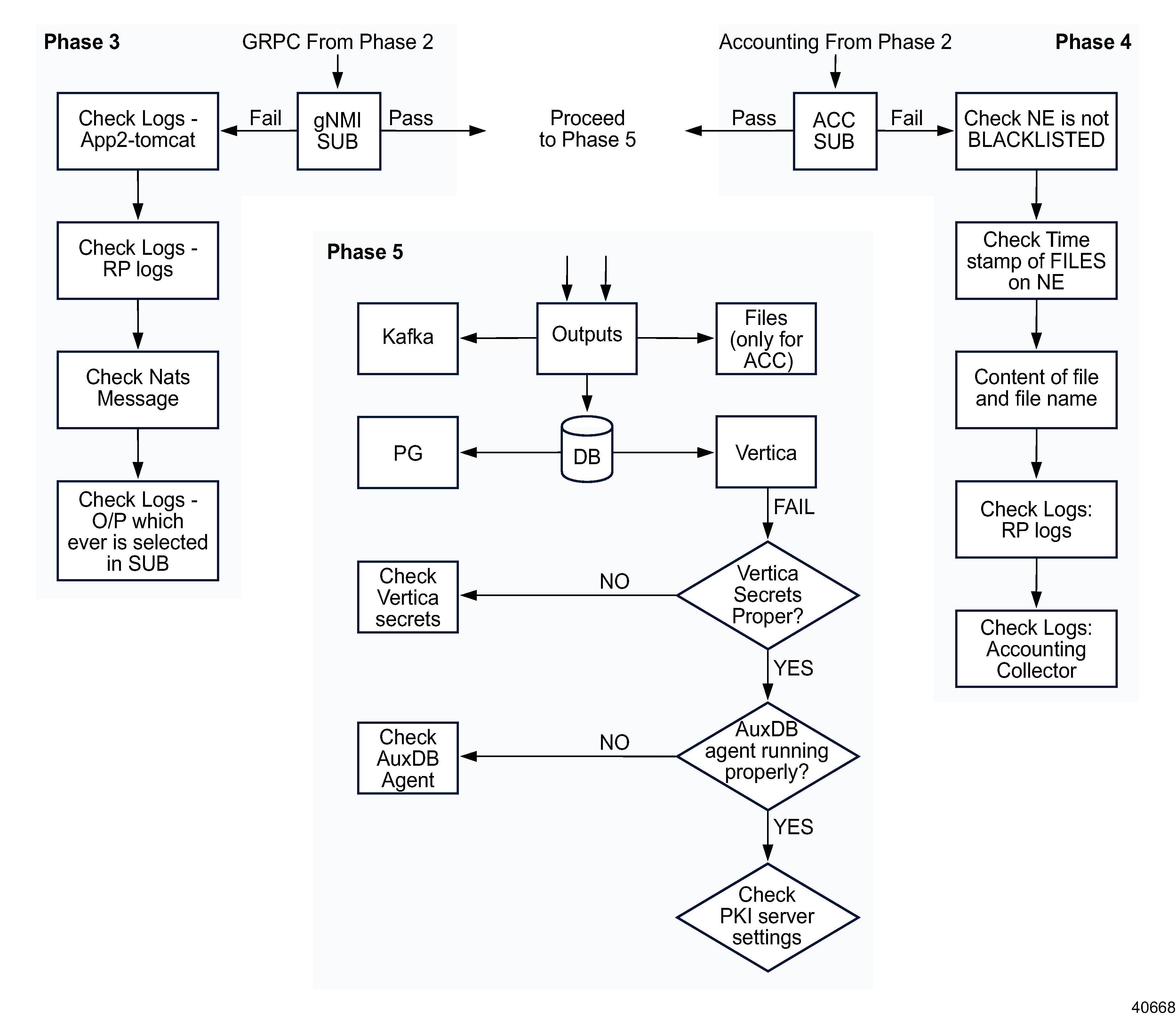
Are you investigating a failed gNMI subscription or a failed accounting subscription?
-
GNMI:
Proceed to
Stage 24.
-
ACCOUNTING:
Proceed to
Stage 25.
|
Phase 3: troubleshoot gNMI subscription issues
|
| |
|
24 |
From the System Health dashboard, open Log Viewer and click Discover.
Checking logs for each phase of subscription processing can help to isolate where a problem occurred.
Telemetry pod log names begin with tlm-.
-
In the search field, enter nspos-app2-tomcat-logs
-
In the nspos-app2-tomcat log, search for the text “No change in RP server status detected” to verify that the request processor is running without problems or restarts.
-
Check the logs for messages that indicate the subscription has been forwarded to collectors.
-
"Forwarding subscription info"
-
"Creating new subscription"
-
"Received unsubscribe request for subscription"
-
"Received Json request"
-
Check the Collector logs for relevant messages:
-
"Scheduled event cache clean up task for subscription”
The collector has forwarded the subscription for transformation.
-
"Context Deadline exceeded"
A certificate issue has occurred: you need to use gnmic capabilities commands to correct the problem.
-
"Context cancelled"
The subscription has been cancelled by a user.
-
Check the logs for the output destinations selected in the subscription.
Proceed to
Stage 26.
|
Phase 4: troubleshoot accounting subscription issues
|
| |
|
25 |
Check for accounting-specific problems:
-
Verify that the NE is not blacklisted. Perform one of the following.
-
From the System Health dashboard, open Log Viewer and click Discover. Search tlm-accounting-processor-log ,and select the Log message and Log level column to open the accounting processor pod log.
Search the accounting processor pod logs for a message similar to “NE is blacklisted, not polling NE”.
-
Check the Blacklisted NEs dashlet in the Telemetry Accounting Processor Metrics dashboard in Grafana.
-
Check the time stamp, file name and contents of the accounting files on the NE.
-
Files may be found in any of the following directories: cf3, cf2, cf1, uf
-
Verify that the file name matches the NSP subscription.
-
Download and unzip a sample file. Verify that the file size is expected, the file is not empty, and the contents are valid.
-
Verify that the time stamp is valid. If NTP is not present, the time stamp may start with 1970.
The NSP accounting processor only pulls files that are no more than 2 h old.
-
Check the nspos-app2-tomcat-logs-viewer and RP logs; see
Stage 24 for information on opening the Log Viewer.
-
Check the accounting processor pod logs for relevant messages:
-
Open File Server and verify that the accounting files are present in the NSP.
Proceed to
Stage 26.
|
Phase 5: troubleshoot output issues
|
| |
|
26 |
Is an auxiliary database in use?
-
NO:
Verify that the Postgres pod is present.
-
YES:
Proceed to
Stage 27.
|
27 |
Check for auxiliary database problems:
-
Verify Vertica secrets.
-
Run the following command to list Kubernetes secrets:
# /kubectl get secrets ↵
-
Identify the Vertica-related secret.
-
Decode the secret values and confirm that they contain the correct credentials.
-
Verify that the auxdb agent is running correctly.
Log in to the AuxDb cluster and enter:
# /opt/nsp/nfmp/auxdb/install/bin/auxdbAdmin.sh status ↵
-
Confirm the auxdb PKI server configuration.
-
Check the configuration file:
# /opt/nsp/nfmp/auxdb/install/config/install.config ↵
-
Verify the expected values; see the Configure TLS steps in the procedure
“To upgrade a standalone auxiliary database” in the NSP Installation and Upgrade Guide. |