
CPIOM redundancy
This chapter provides information about configuring CPIOM redundancy.
File synchronization
The 7705 SAR-10x uses a 1:1 redundancy scheme. CPIOM redundancy requires file synchronization between the active and standby CPIOM compact flash drives so that they maintain identical system files to prevent inconsistencies in the event of a CPIOM failure.
If synchronization fails, alarms and log messages that indicate the type of error that caused the failure of the synchronization operation are generated. When the error condition ceases to exist, the alarm is cleared.
Only files stored on the router are synchronized. If a configuration file or image is stored in a location other than on a local compact flash, the file is not synchronized (for example, storing a configuration file on an FTP server).
Two types of synchronization are supported:
-
automatic
Automatic synchronization is set to config by default on systems with CPIOM redundancy. You can configure automatic synchronization for all files required for the boot process, or you can configure it for only the configuration files. Use the following command to configure which type of automatic synchronization to perform.
configure redundancy synchronizeWhen automatic synchronization is set to config, the following files are synchronized if they have been modified:
- the configuration files (config.cfg) and their backups in the primary, secondary, and tertiary configuration locations
- the model-driven commit history and incremental saved configuration files in the .commit-history directory when the system is in model-driven configuration mode
- the persistent index file (config.ndx) and its backups when the system is in classic or mixed configuration mode
- SSH key files in the .ssh directory
- the password history file (passwd/history)
When automatic synchronization is set to boot-env, the following files are synchronized if they have been modified and are applicable to the platform:
- the configuration files (config.cfg) and their backups in the primary, secondary, and tertiary configuration locations
- the BOF configuration file (bof.cfg) and its backups
- the model-driven commit history and incremental saved configuration files in the .commit-history directory when the system is in model-driven configuration mode
- the persistent index file (config.ndx) and its backups when the system is in classic or mixed configuration mode
- the boot loader file (boot.ldr)
- all SR OS image (.tim) files in the primary, secondary, and tertiary image locations
- signature (.txt) files (for example, sha256sum.txt)
- the nvsys file (nvsys.info)
- SSH key files in the .ssh directory
- the password history file (passwd/history)
- classic CLI rollback files (.rb) and their backups
- the license file (licence.txt) in the license location
BOF configuration file (bof.cfg) and file synchronization also occurs when the following BOF parameter values are changed:
- the configuration files (config.cfg) and their backups in the primary, secondary, and tertiary configuration locations
- all image (.tim) files in the primary, secondary, and tertiary image locations
- the license file (licence.txt) in the license location
Configuration file (config.cfg) synchronization also occurs when the configuration is committed in model-driven interfaces if the auto-config-save command is enabled, or is saved with the admin save command.
The debug configuration file (debug.cfg) and its backups are not synchronized, because the debug configuration is not automatically loaded after a CPIOM switchover. These files must be manually copied to standby CPIOM using the following command, if needed:
file copy manual
You can manually synchronize all files required for the boot process, the configuration files, or PKI certificate files in the system-pki directory. Manual synchronization synchronizes all files regardless whether or not they have been modified, which takes a significantly longer time than automatic synchronization. Use the following commands to perform manual synchronization.admin redundancy synchronize
- See "Configuration rollback" in the 7705 SAR Gen 2 Classic CLI Command Reference Guide for more information about classic CLI configuration rollback file synchronization.
- See the configure redundancy cert-sync command in the 7705 SAR Gen 2 Classic CLI Command Reference Guide and 7705 SAR Gen 2 MD-CLI Command Reference Guide for more information about PKI certificate synchronization.
Active and standby designations
Typically, the first CPIOM card installed in a redundant 7705 SAR-10x chassis assumes the role as active, regardless of whether it is inserted in Slot A or B. The next CPIOM installed in the same chassis then assumes the role as standby. If two CPIOMs are inserted simultaneously (or almost simultaneously) and are booting at the same time, preference is given to the CPIOM installed in Slot A.
If only one CPIOM is installed in a redundant router device, it becomes the active CPIOM regardless of the slot it is installed in.
To visually determine the active and standby designations, the Status LED on the faceplate is lit green (steady) to indicate the active designation. The Status LED on the second CPIOM faceplate is lit green (slow blink) to indicate the standby designation.
show cardshow card
The following example output shows that the CPIOM installed in Slot A is acting as the active CPIOM, and the CPIOM installed in Slot B is acting as the standby.
===============================================================================
Card Summary
===============================================================================
Slot      Provisioned Type                         Admin Operational   Comments
              Equipped Type (if different)         State State
-------------------------------------------------------------------------------
1         iom-sar-x                                up    up
2         iom-sar-x                                up    provisioned
A         cpiom-sar-x                              up    up/active
B         cpiom-sar-x                              up    down/standby
===============================================================================
Console message
The following is an example console message which displays when a CPIOM boots in Slot B, sees an active CPIOM in Slot A, and becomes the standby CPIOM.
...
Slot A contains the Active CPM
When the active CPIOM goes offline
When an active CPIOM goes offline (because of reboot, removal, or failure), the standby CPIOM takes control without rebooting or initializing. It is assumed that the CPIOMs are synchronized; therefore, there is no delay in control plane operability.
When the CPIOM that went offline boots and comes back online, it comes online as the standby CPIOM.
Output displayed when the standby CPIOM comes online
Active CPM in Slot A has stopped
Slot B is now active CPM


Attempting to exec configuration file:
'cf3:/config.cfg' ...

...

Executed 49,588 lines in 8.0 seconds from file cf3:\config.cfg
OOB management Ethernet port redundancy
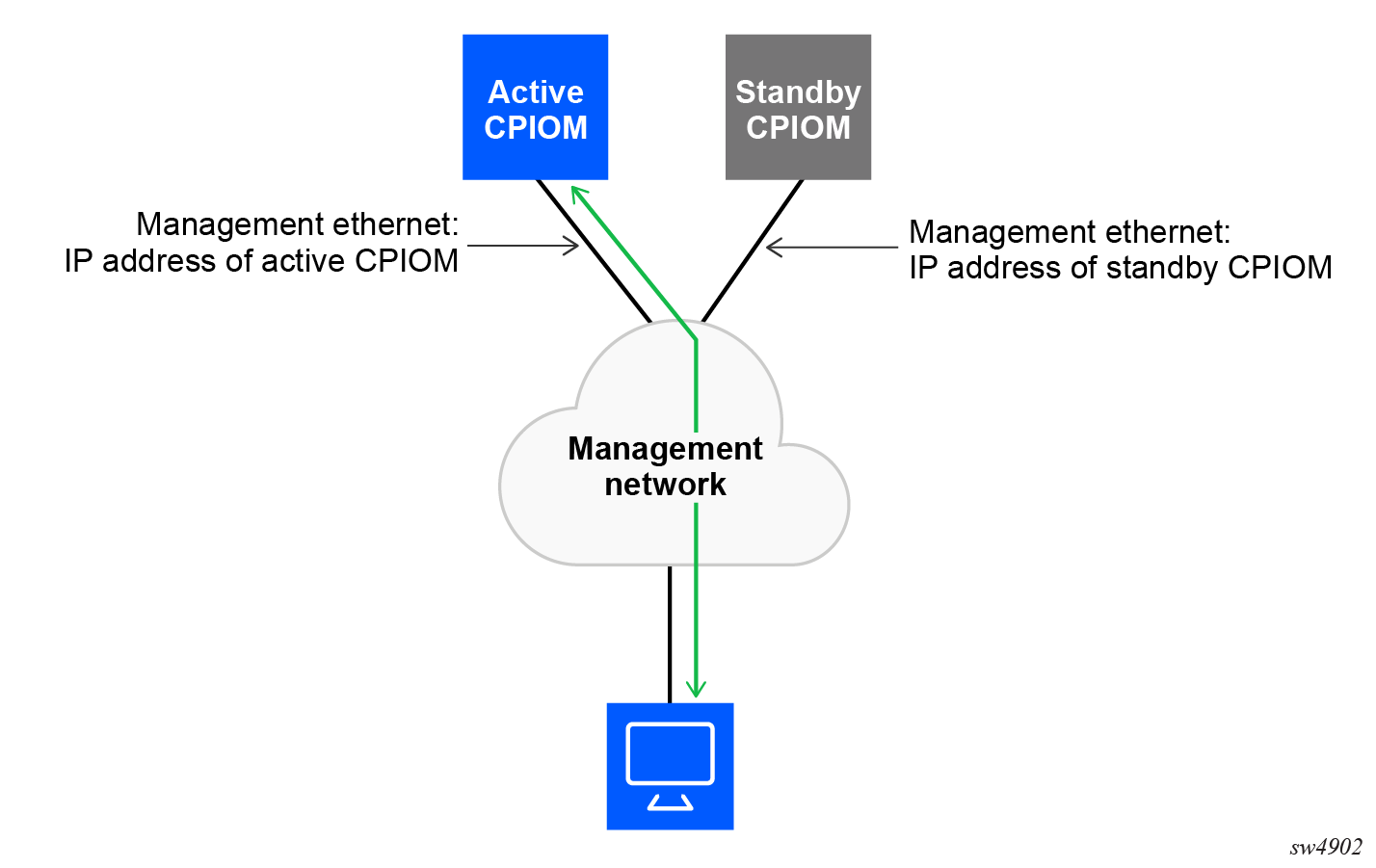
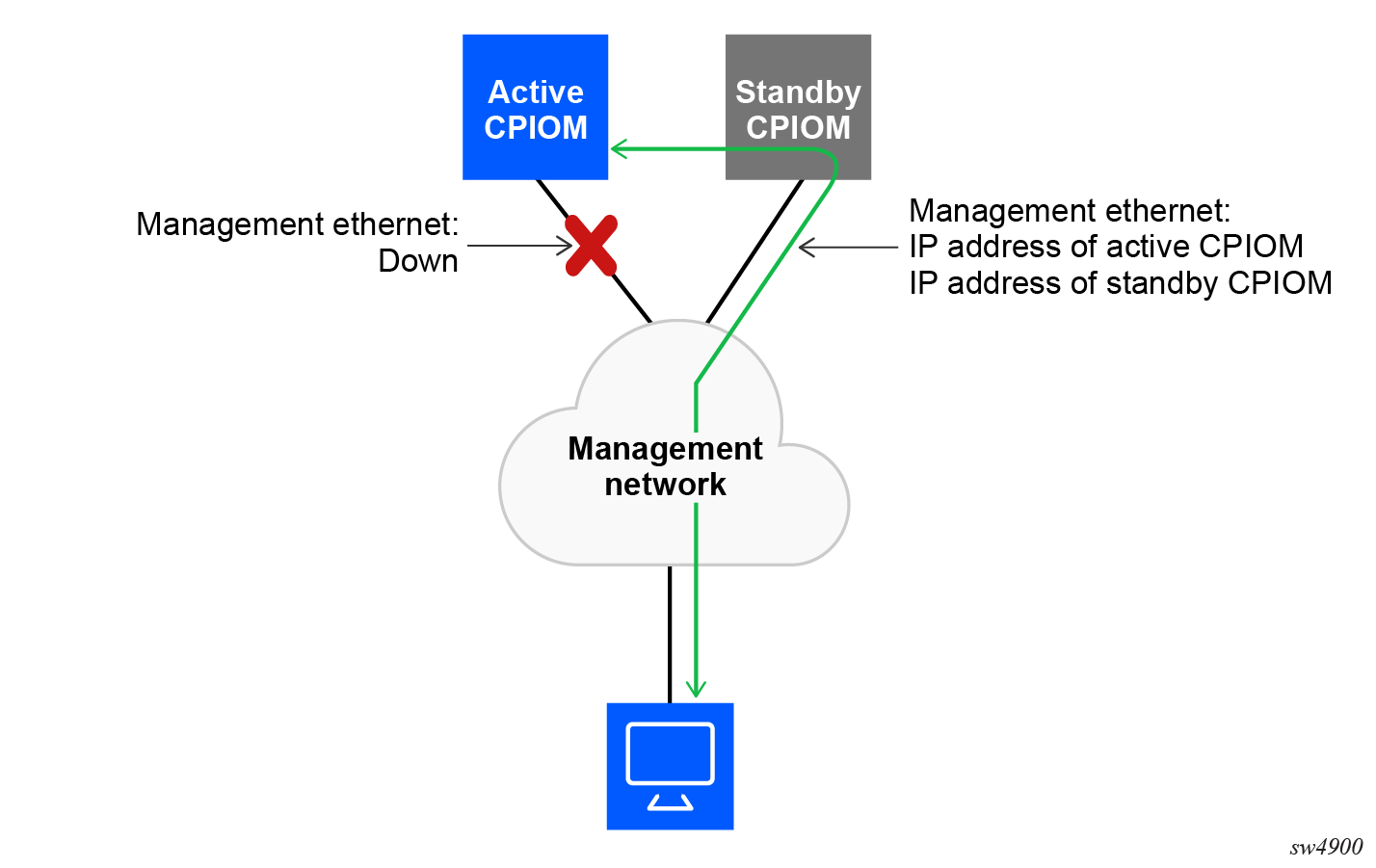
SR OS provides a resilient out-of-band (OOB) management Ethernet redundancy mode for system management.
Use the following command to enable OOB management Ethernet port redundancy.
configure redundancy mgmt-ethernetWhen the management Ethernet port is down on the active CPIOM, the OOB Ethernet redundancy feature allows the active CPIOM to use the management Ethernet port of the standby CPIOM, as shown in the following figures.
Configuration guidelines for synchronization of active and standby CPIOM
The following configuration guidelines apply for synchronization of active and standby CPIOM:
The active CPIOM and standby CPIOM should boot from the same drives. For example, if active is booted from cf3:/, standby must use cf3:/ to start up. Even though it is possible to make the CPIOM operational by booting them using any drive on active and standby, Nokia recommends using the same drives for booting the system.
The user should ensure that a valid bootstrap image file (boot.ldr) and BOF (bof.cfg) exist in the cf3:/ drive of both active and standby CPIOM cards. The user should verify that bof.cfg resides at the same drive as the boot.ldr. Only booting from cf3:/ is supported.
The TiMOS application image (both.tim) and the configuration file can reside in any location (local or remote), but the locations in the BOF should be configured identically on both active and standby CPIOM for primary, secondary, or tertiary locations.
-
Boot environment synchronization must be executed before config synchronization.
Synchronization can only occur locally between compact flash drives cf2:Active to cf2:Standby and cf3:Active to cf3:Standby. Synchronization across different drives is not supported.
-
If the active and standby are not synchronized for some reason, the user can manually synchronize and then reboot the standby CPIOM by executing the following commands.
admin redundancy synchronize boot-envadmin reboot standby