
CPM redundancy
This chapter provides information about configuring CPM redundancy parameters.
File synchronization
7450 ESS, 7750 SR, and 7950 XRS routers that support CPM redundancy use a 1:1 redundancy scheme. CPM redundancy requires file synchronization between the active and standby CPM compact flash drives so that they maintain identical system files to prevent inconsistencies in the event of a CPM failure.
If synchronization fails, alarms and log messages that indicate the type of error that caused the failure of the synchronization operation are generated. When the error condition ceases to exist, the alarm is cleared.
Only files stored on the router are synchronized. If a configuration file or image is stored in a location other than on a local compact flash, the file is not synchronized (for example, storing a configuration file on an FTP server).
Two types of synchronization are supported:
-
automatic
Automatic synchronization is set to config by default on systems with CPM redundancy. You can configure automatic synchronization for all files required for the boot process, or you can configure it for only the configuration files. Use the following command to configure which type of automatic synchronization to perform.
configure redundancy synchronizeWhen automatic synchronization is set to config, the following files are synchronized if they have been modified:
- the configuration files (config.cfg) and their backups in the primary, secondary, and tertiary configuration locations
- the LI configuration file (li.cfg) and its backups
- the model-driven commit history and incremental saved configuration files in the .commit-history directory when the system is in model-driven configuration mode
- the persistent index file (config.ndx) and its backups when the system is in classic or mixed configuration mode
- SSH key files in the .ssh directory
- the password history file (passwd/history)
When automatic synchronization is set to boot-env, the following files are synchronized if they have been modified and are applicable to the platform:
- the configuration files (config.cfg) and their backups in the primary, secondary, and tertiary configuration locations
- the BOF configuration file (bof.cfg) and its backups
- the LI configuration file (li.cfg) and its backups
- the model-driven commit history and incremental saved configuration files in the .commit-history directory when the system is in model-driven configuration mode
- the persistent index file (config.ndx) and its backups when the system is in classic or mixed configuration mode
- the boot loader file (boot.ldr)
- all SR OS image (.tim) files in the primary, secondary, and tertiary image locations
- signature (.txt) files (for example, sha256sum.txt)
- the nvsys file (nvsys.info)
- SSH key files in the .ssh directory
- the password history file (passwd/history)
- classic CLI rollback files (.rb) and their backups
BOF configuration file (bof.cfg) synchronization also occurs when the BOF configuration is committed in model-driven interfaces or is saved using the following command:
- MD-CLI
admin save bof - classic
CLI
bof save
Configuration file (config.cfg) synchronization also occurs when the configuration is saved with the admin save command.
The debug configuration file (debug.cfg) and its backups are not synchronized, because the debug configuration is not automatically loaded after a CPM switchover. These files must be manually copied to standby CPM using the following command, if needed:
- MD-CLI
file copy - classic
CLI
file cp
LI configuration file (li.cfg) synchronization also occurs when the LI configuration is committed in model-driven interfaces or is saved using the following command:
- MD-CLI
admin save li - classic
CLI
li save
manual
You can manually synchronize all files required for the boot process, the configuration files, or PKI certificate files in the system-pki directory. Manual synchronization synchronizes all files regardless whether or not they have been modified, which takes a significantly longer time than automatic synchronization. Use the following commands to perform manual synchronization:- MD-CLI
admin redundancy synchronize boot-environment admin redundancy synchronize configuration admin redundancy synchronize certificate - classic CLI
admin redundancy synchronize boot-env
admin redundancy synchronize config
admin redundancy synchronize cert
- MD-CLI
- See "Configuration rollback" in the 7450 ESS, 7750 SR, 7950 XRS, and VSR Classic CLI Command Reference Guide for more information about classic CLI configuration rollback file synchronization.
- See the configure redundancy cert-sync command in the 7450 ESS, 7750 SR, 7950 XRS, and VSR Classic CLI Command Reference Guide and 7450 ESS, 7750 SR, 7950 XRS, and VSR MD-CLI Command Reference Guide for more information about PKI certificate synchronization.
Active and standby designations
Typically, the first Switch Fabric (SF)/CPM card installed in a redundant 7450 ESS, 7750 SR, 7950 XRS, and VSR router chassis assumes the role as active, regardless of whether it is inserted in Slot A or B. The next CPM installed in the same chassis then assumes the role as the standby CPM. If two CPM are inserted simultaneously (or almost simultaneously) and are booting at the same time, then preference is given to the CPM installed in Slot A.
If only one CPM is installed in a redundant router device, then it becomes the active CPM regardless of the slot it is installed in.
The active and standby designations can be visually determined by LEDs on the CPM/CCM faceplate. See the appropriate platform Installation Guide for LED indicator details.
The following example shows the output when the CPM installed in Slot A is acting as the active CPM and the CPM installed in Slot B is acting as the standby.
Show card command output on the 7950 XRS
===============================================================================
Card Summary
===============================================================================
Slot   Provisioned Type                            Admin Operational   Comments
           Equipped Type (if different)            State State
-------------------------------------------------------------------------------
1      xcm-x20                                     up    provisioned
A      cpm-x20                                     up    up/active
B      cpm-x20                                     up    up/standby
===============================================================================
The following example shows the console message when a CPM boots, sees an active CPM, and becomes the standby CPM.
Console message for CPM switch to standby
...
Slot A contains the Active CPM
This CPM (Slot B) is the Standby CPM
When the active CPM goes offline
When an active CPM goes offline (because of reboot, removal, or failure), the standby CPM takes control without rebooting or initializing itself. It is assumed that the CPMs are synchronized, therefore, there is no delay in operability. When the CPM that went offline boots and then comes back online, it becomes the standby CPM.
When the standby CPM comes online, the following output is shown.
Active CPM in Slot A has stopped
Slot B is now active CPM


Attempting to exec configuration file:
'cf3:/config.cfg' ...

...

Executed 49,588 lines in 8.0 seconds from file cf3:\config.cfg
OOB management Ethernet port redundancy
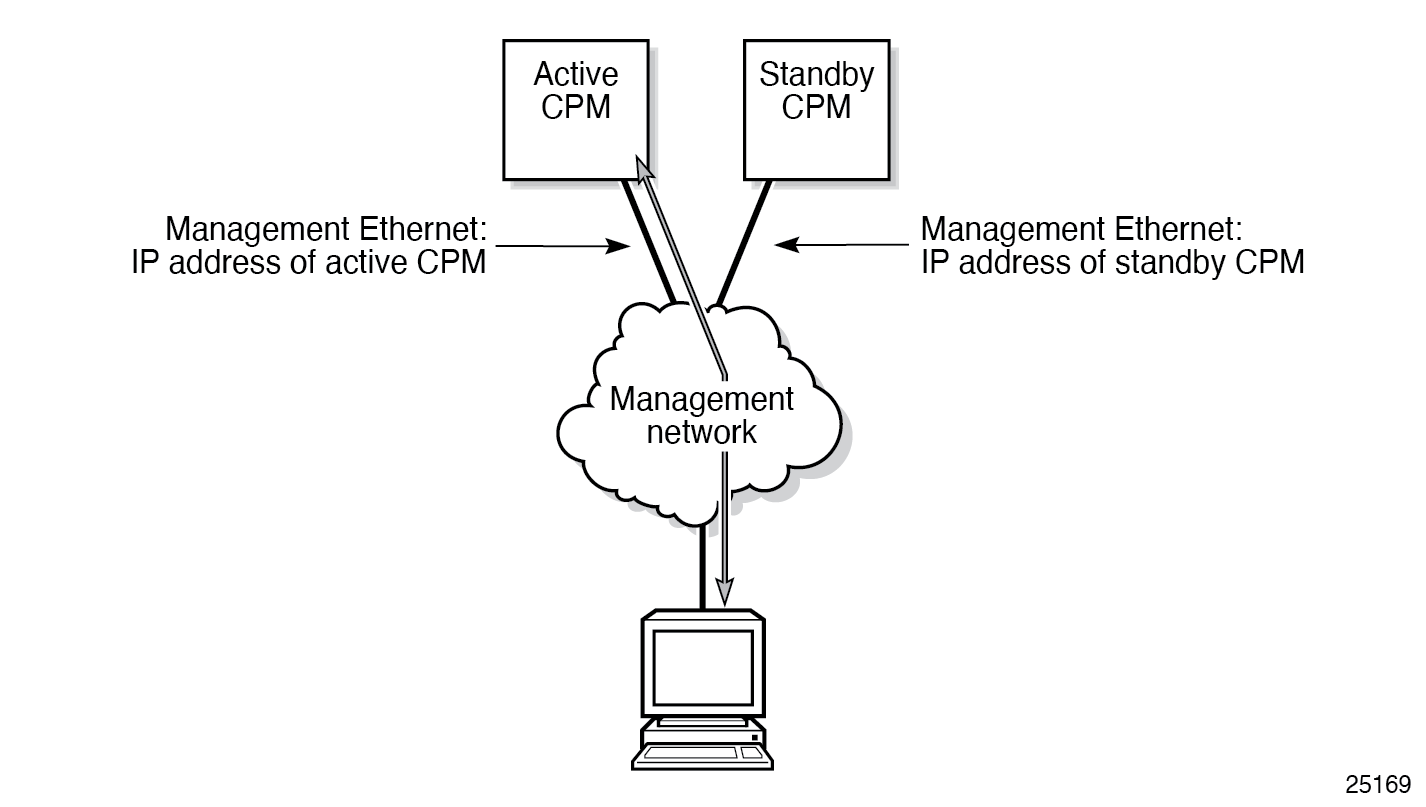
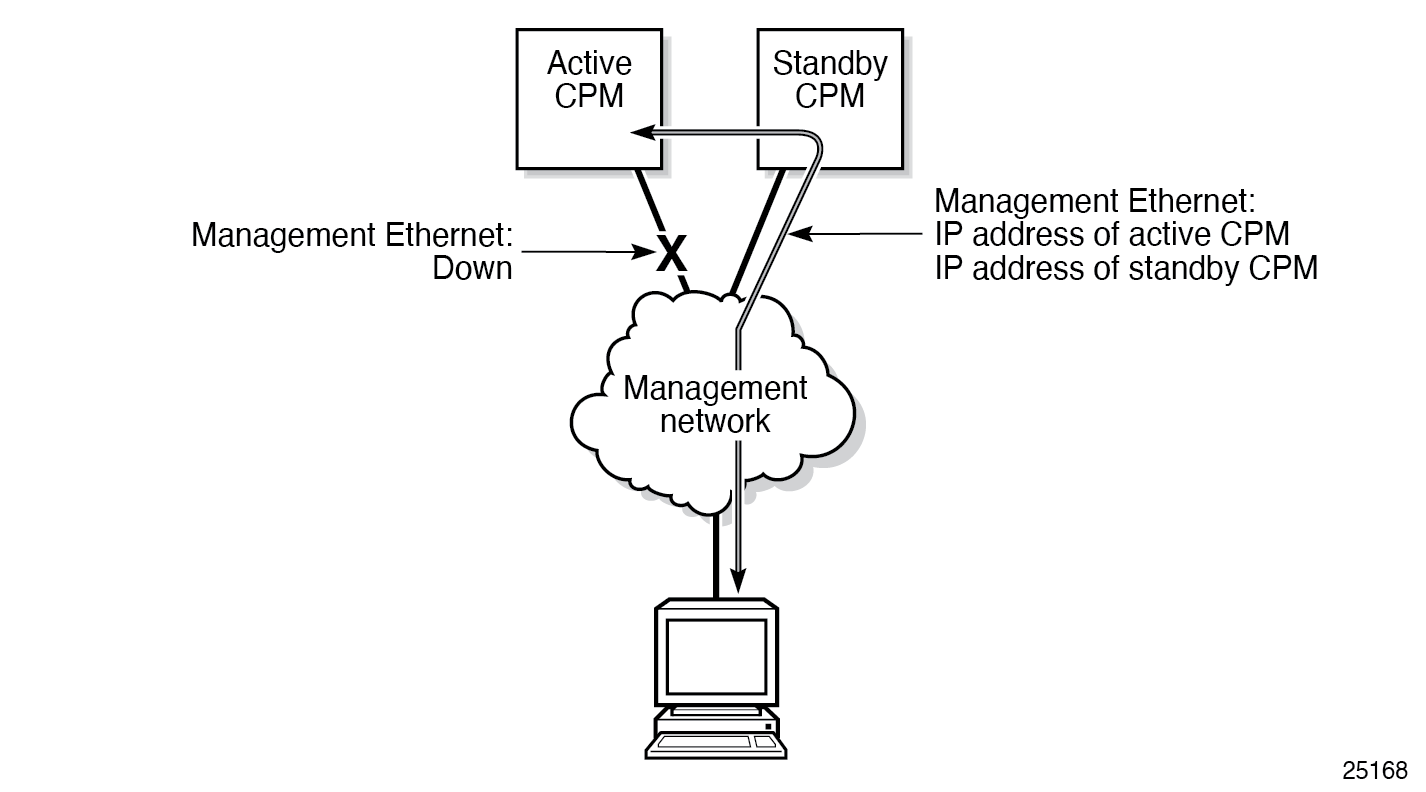
SR OS provides a resilient out-of-band (OOB) management Ethernet redundancy mode for system management.
Use the following command to enable OOB management Ethernet port redundancy.
configure redundancy mgmt-ethernetWhen the management Ethernet port is down on the active CPM, the OOB Ethernet redundancy feature allows the active CPM to use the management Ethernet port of the standby CPM, as shown in the following figures.
DHCP persistence
The DHCP persistence feature on the 7750 SR allows information learned through DHCP snooping across reboots to be kept. This information can include data such as the IP address, MAC binding information, lease length information, and ingress SAP information (required for VPLS snooping to identify the ingress interface). This information is referred to as the DHCP lease-state information.
When a DHCP message is snooped, there are steps that make the data persistent in a system with dual CPMs. In systems with only one CPM, only Step 1 applies. In systems with dual CPMs, all steps apply.
When a DHCP ACK is received from a DHCP server, the entry information is written to the active CPM Compact Flash. If writing was successful, the ACK is forwarded to the DHCP client. If persistency fails completely (bad cflash), a trap is generated indicating that persistency can no longer be guaranteed. If the complete persistency system fails the DHCP ACKs are still forwarded to the DHCP clients. Only during small persistency interruptions or in overload conditions of the Compact Flash, DHCP ACKs may get dropped and not forwarded to the DHCP clients.
DHCP message information is sent to the standby CPM and also there the DHCP information is logged on the Compact Flash. If persistency fails on the standby also, a trap is generated.
DDP access optimization for DHCP leases
A high rate of DHCP renewals can create a load on the compact flash file system when subscriber management and DHCP server persistence is enabled. To optimize the access to the Dynamic Data Persistency (DDP) files on the compact flash, a lease-time threshold can be specified that controls the eligibility of a DHCP lease for persistency updates when no other data other than the lease expiry time is to be updated.
The following example shows the configuration of a DHCP lease-time threshold.
MD-CLI
[ex:/configure system persistence]
A:admin@node-2# info
    dhcp-server {
        location cf2
    }
    subscriber-mgmt {
        location cf2
    }
    options {
        dhcp-leasetime-threshold 90061
    }
classic CLI
A:node-2>config>system>persistence# info
----------------------------------------------
            subscriber-mgmt
                location cf2:
            exit
            dhcp-server
                location cf2:
            exit
            options
                dhcp-leasetime-threshold days 1 hrs 1 min 1 sec 1
            exit
----------------------------------------------
When the offered lease time of the DHCP lease is less than the configured threshold, the lease is flagged to skip persistency updates and is installed with its full lease time upon a persistency recovery after a reboot.
The dhcp-leasetime-threshold command controls persistency updates for:
-
DHCPv4 and DHCPv6 leases for a DHCP relay or proxy (enabled with persistence subscriber-mgmt)
-
DHCPv4 leases for DHCP snooping in a VPLS service (enabled with persistence subscriber-mgmt)
-
DHCPv4 and DHCPv6 leases for a DHCP server (enabled with persistence dhcp-server)
To check if a DHCP relay or proxy lease is flagged to skip persistency updates, use the tools dump persistence submgt record record-key CLI command. When flagged to skip persistency updates, the persistency record output includes ‟Skip Persistency Updates: true”.
To check if a DHCP server lease is flagged to skip persistency updates, use the tools dump persistence dhcp-server record record-key CLI command. When flagged to skip persistency updates, the persistency record output includes ‟lease mode : LT” (LT = Lease Time) and a ‟lease time : …” field. When not flagged to skip persistency updates, the persistency record output includes ‟lease mode : ET” (ET = Expiry Time) and an ‟expires : …” field.