
Namespaces
A namespace is a logical partition within a cluster that provides a mechanism for isolating sets of resources from each other. Such resource segmentation allows multiple teams or applications to share the same cluster without conflict, because each has its own set of resources in its own namespace.
Using namespaces, you can use a single EDA instance to manage multiple sets of resources. Each EDA user can be granted resource access to specified namespaces, or cluster-wide. A common real-world case for such system is an operator with regional operations teams, where a single controller instance supports all of the regions, but users within a region can only see the resources and states relating to their region.
The base namespace
EDA always includes one built-in namespace; by default, this is
eda-system. The default can be modified during EDA
installation.
All EDA core services run in the base namespace, including pods for NPP and CX-simulated TopoNodes. Unnamespaced resources (those with "namespaced" set to false in their manifest) also exist in the base namespace.
In the API responses, this base namespace is included in the .metadata.namespace field for non-namespaced resources and workflows.
In the UI, the .metadata.namespace value appears in the schema form split view (YAML/JSON) for non-namespaced resources and workflows.
Namespaces in the EDA GUI
- a member of a group with a ClusterRole resourceRule for any namespaced resource
- a member of a group with a ClusterRole urlRule for any namespaced API endpoint (that is, any API that takes namespace in the query parameter or path)
- a member of a group with any ClusterRole tableRule
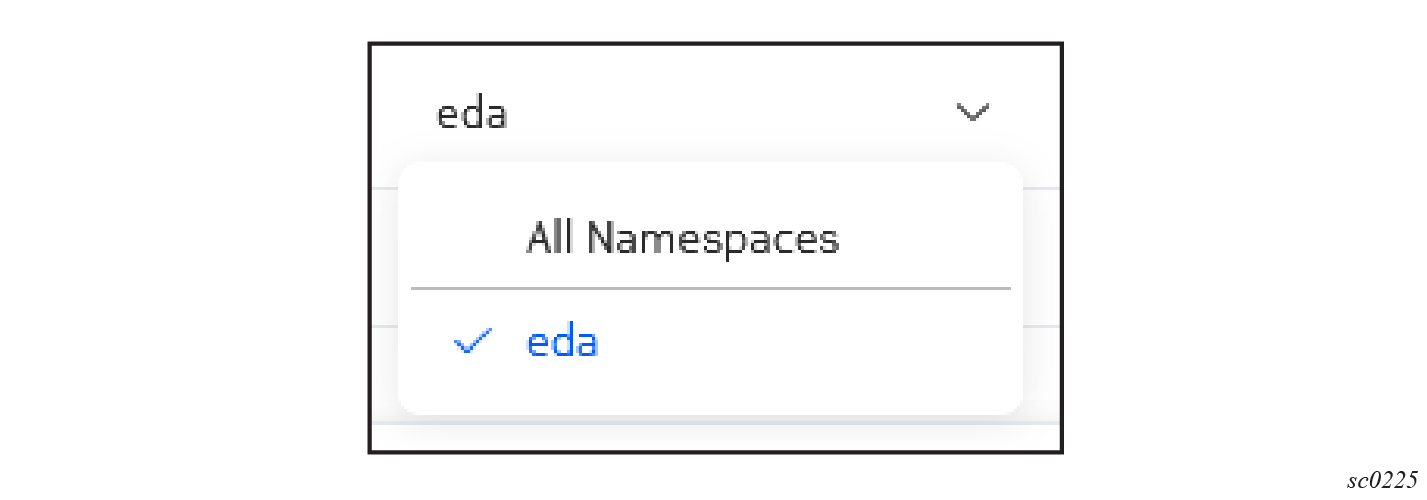
- If you have selected All Namespaces, then data grids contain data from all namespaces. You must have permissions defined in a cluster role to access data in this view.
- If you have selected a specific namespace, then data grids contain data exclusively from that namespace. You must have permissions defined in either a cluster role or a namespace role to access data in this view.
- If you have permission for non-namespace resources, these are displayed in
the EDA GUI for any selected namespace.Note: For EQL queries, All Namespaces must be selected to see results from the base namespace.
The currently selected namespace is automatically used as the Namespace value for any resource you create in the GUI. To create a resource in a different namespace, you must select the intended namespace in the selector.
When creating a resource, if a namespace is not selected, a message prompts you to select one for the autocomplete guidance to function.
Creating a namespace
- From the System Administration navigation panel, click Namespaces.
- On the Namespaces page, click Create.
-
Provide the following details for the namespace:
- Name
- Namespace (if none is selected)
- Labels
- Annotations
- Click Commit to commit your change immediately or click Add To Transaction to add this item to transactions to commit later.