
Transactions
In EDA, a transaction is a set of changes that must succeed or fail together. If one item in a transaction fails, the whole transaction is deemed to have failed and any successful changes within the transaction are rolled back to their previous state.
Any resource configurations you create, change, or delete in EDA must be committed in order for those changes to be applied to the participating resources.
- Any single configuration change can be committed immediately on its own, in which case it constitutes a transaction consisting of just that change.
- However, you do not need to commit each configuration individually as you create it.
EDA allows you to add any new, changed, or removed configuration to a growing set of
configuration changes that you want to commit together as one collective
transaction. When you are ready you can then commit the whole transaction, applying
the entire set of configuration changes together.
The complete transaction, including all of its constituent configuration changes, then succeeds or fails as a unit. If any part of the transaction fails, the whole transaction is rolled back. You can then resolve the blocking issue, and apply the transaction again.
Within EDA, ConfigEngine is the main service behind transactions. Its job is to compute the complete set of resources that must be modified, deleted, or created as part of the transaction; ensure all dependencies and outputs are captured; and then transact the updates, thereby generating changes for NPPs and other controllers.
After a transaction has been successfully processed, it is written to EDA's Git repo for persistence, becoming the new accepted state of the infrastructure.
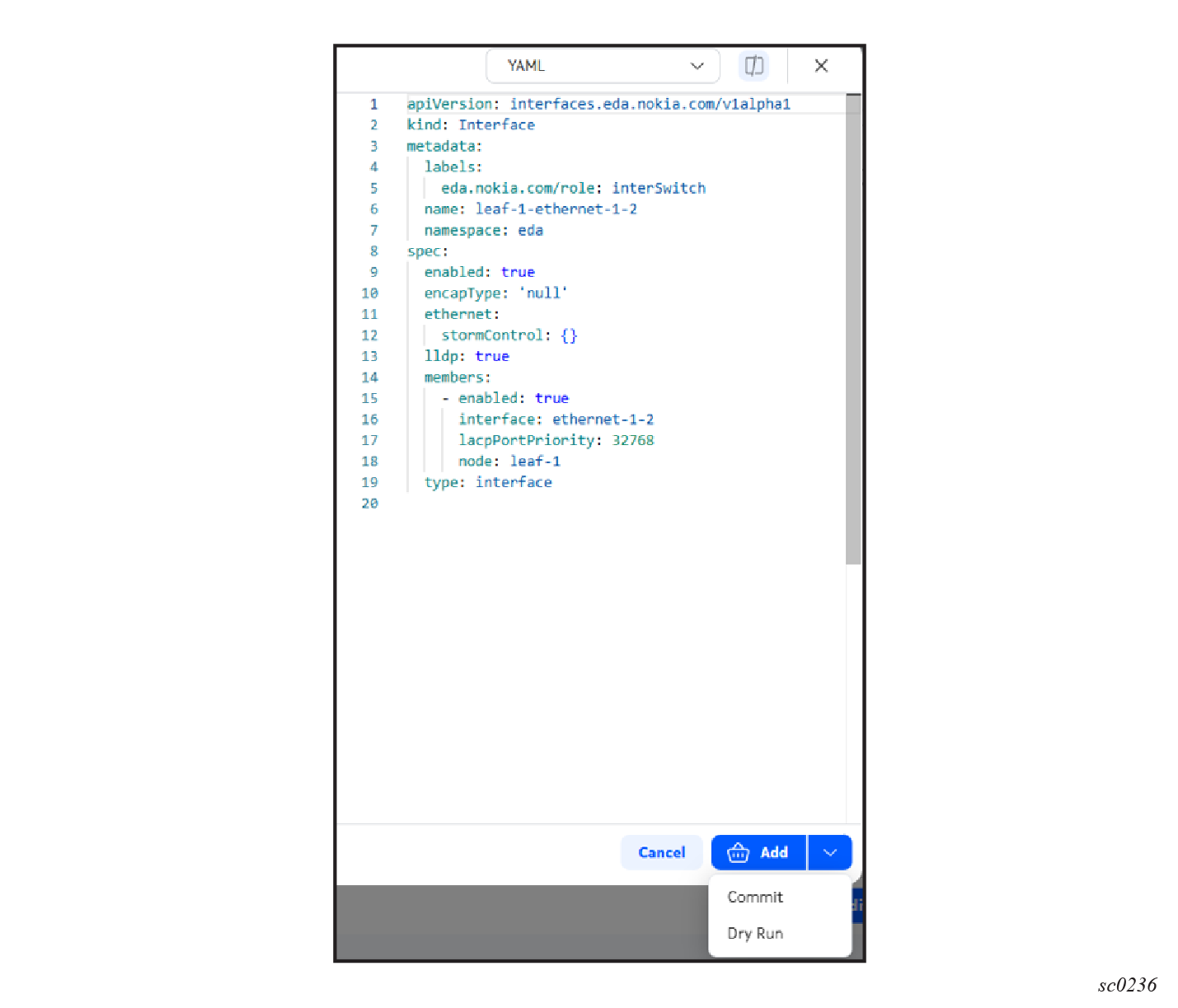
Commit options for a typical resource
- Add: add the change to a pending transaction for committing later
- Commit: commit the change by itself, immediately
- Dry Run: perform a dry run of the commit, to see what the results would look like if you were to proceed with committing this change
Transaction status bar
Every committed resource configuration is associated with a particular transaction. As you alter the resource over time, it accumulates a permanent commit history representing all the versions of itself that were ever committed as part of a transaction.
By default, any page in EDA that shows a configured resource shows its latest version. But you can view past versions of the same resource using the transaction status bar at the top of the page.
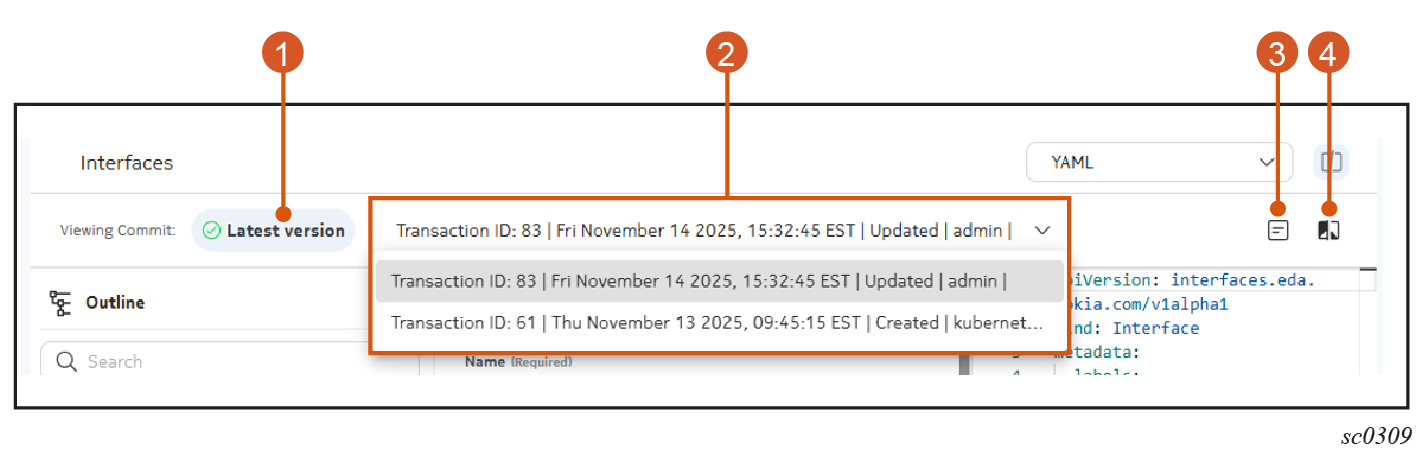
| # | Name | Function |
|---|---|---|
| 1 | Version indicator | Shows whether the currently displayed configuration is the latest version, or some previous version. |
| 2 | Transaction selector | Displays a list of every transaction that includes a change to
this resource's configuration. Select a past transaction to see a
previous version of this resource. Note: When
you select a past transaction, the option to Revert is displayed
as a button at the bottom of the page. Clicking
Revert opens an editing window
showing the modifications that reversion would make to the
current version of the resource. You can then proceed with those
changes, or alter them further. When the changes are correct,
you can Dry Run, Commit, or Add the changes to the current
transaction, just like any other change to a
resource. |
| 3 | Navigate to Transaction button | Click to view details about the transaction currently show in the Transaction selector drop-down. |
| 4 | Diffs view button | Click to see a before-and-after comparison showing the specific changes that were applied by the resource as part of the selected transaction. |
Transactions drop-down panel
The Basket icon is displayed at the top of every page in the EDA GUI. It indicates when a transaction is pending, and can be used to open the Transaction drop-down.

You can open the Transactions drop-down panel by clicking the Basket icon.
- review the contents of any pending transactions
- perform a dry run of any pending transaction
- add a commit message to a pending transaction
- commit any pending transaction
- discard any pending transaction
- view a list of recently completed transactions
- edit a single resource
- remove a resource from the transaction
- restore a removed resource back into the transaction
You also use this drop-down panel to view the EDA Transaction Log.
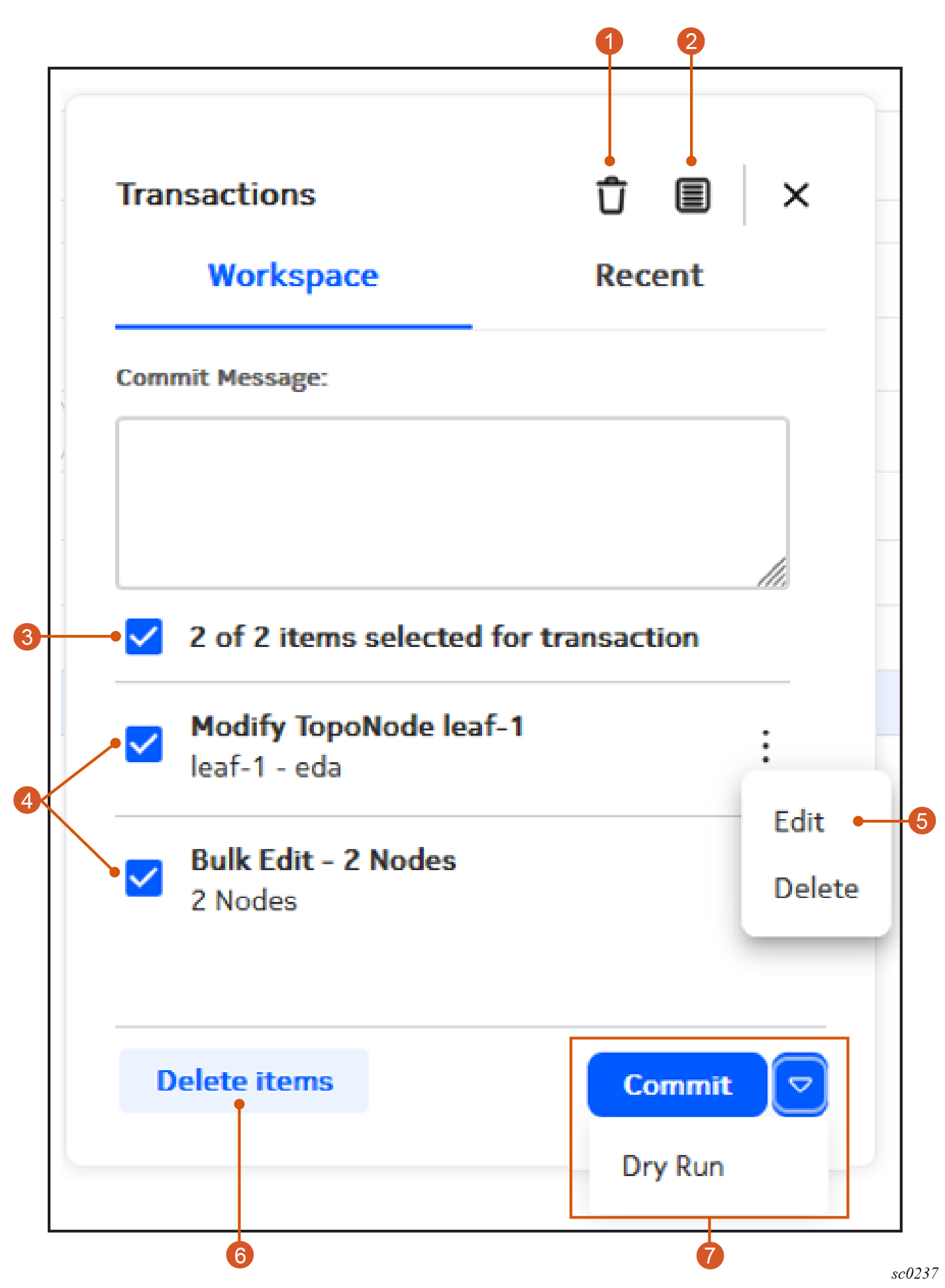
| # | Description |
|---|---|
| 1 | Clear Workspace button: click to clear all configurations from the Transactions workspace. |
| 2 | Log button: click to open the Transactions log. |
| 3 | Select All button: use to select all configurations within this transaction. |
| 4 | Configuration selectors: Check or un-check to
include a configuration within, or exclude a commit from, the current
transaction. Use the main check box at the top of the list to include or exclude all configurations together. |
| 5 | Configuration Menu button: use to access the Edit or Delete actions for this configuration. |
| 6 | Delete items button: click to clear only the selected configurations from the transaction. |
| 7 | Transaction options:
|
Dry runs
In EDA, you can perform a dry run of any pending transaction. A dry run can reveal anticipated configuration issues if the transaction were to proceed normally, and allow you to troubleshoot any errors before committing the transaction on actual resources.
In a dry run, the system does not send any of the configuration changes to the managed nodes. However, it executes the transaction against EDA's stored information about each participating resource, and validates the transaction against that data. The result of the dry run is displayed within the drop-down form.
During a dry run, you cannot make changes to the commit. After the dry run is complete, transaction details and diffs are available just as with a normal commit.
Closing the transaction basket dismisses the Transactions form, but retains information about the most recent dry run. If changes occur to the basket contents while the form is closed, dry run information is cleared and it is restored to the normal list view.
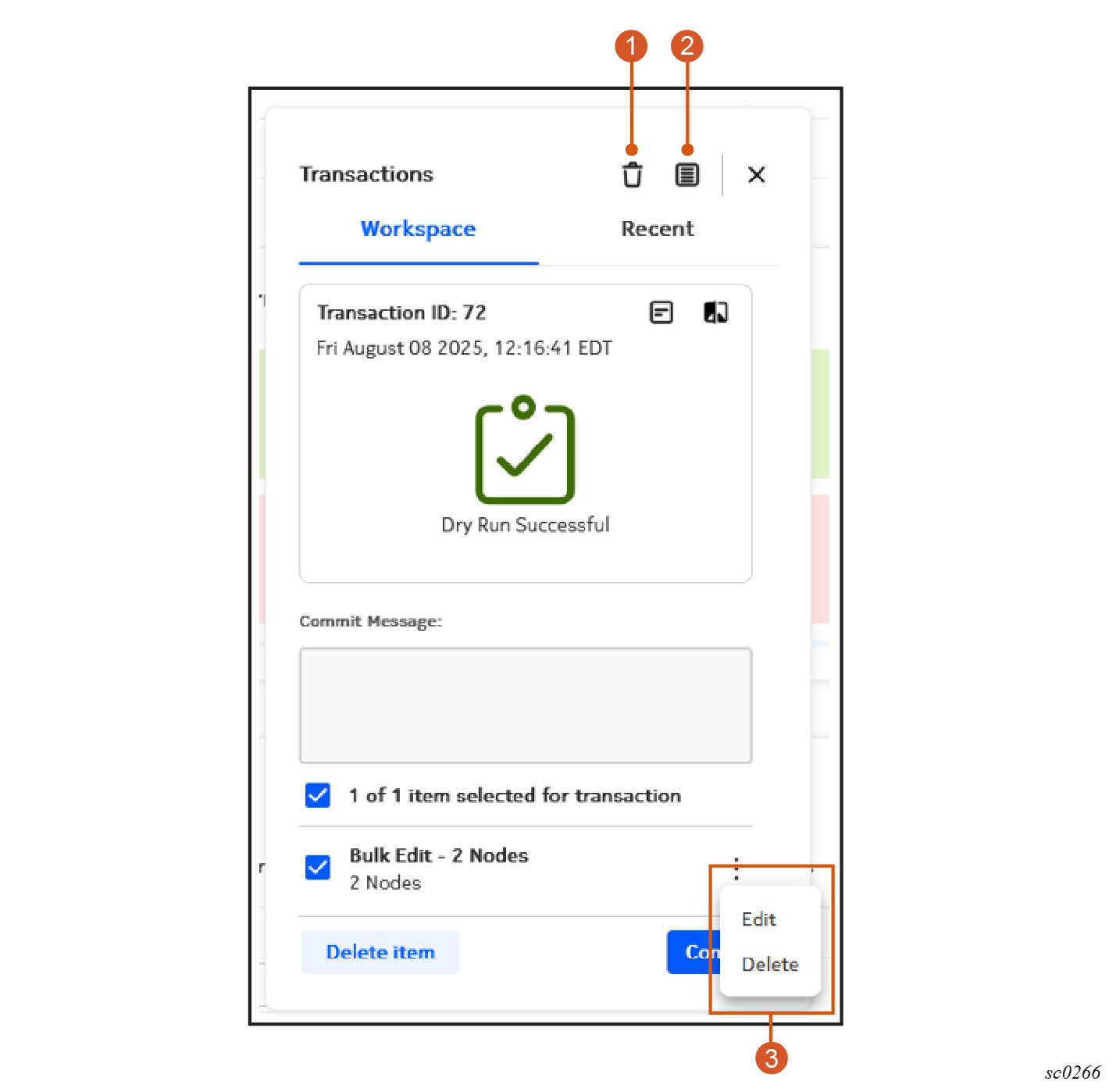
| # | Description |
|---|---|
| 1 | Details button: click to open the Details view for this transaction. |
| 2 | Diffs button: click to open the Diffs view for this transaction. |
| 3 | Actions menu for each row: use to edit or remove resource configurations within the transaction. |
Commit
Clicking Commit commits the entire transaction. The complete transaction, including all of its constituent configuration changes, then succeed or fail as a unit. If any part of the transaction fails, the whole transaction is rolled back. You can then resolve the blocking issue, and commit the transaction again.
Whether the transaction succeeds or fails, you can view the details for the transaction, and the diffs that resulted from it. For a failed transaction, you can edit each row within the transaction to revise the configuration changes in support of another attempt.
Closing the transaction basket dismisses the Transactions form, but retains information about the most recent commit. If changes occur to the basket contents while the form is closed, commit information is cleared and it is restored to the normal list view.
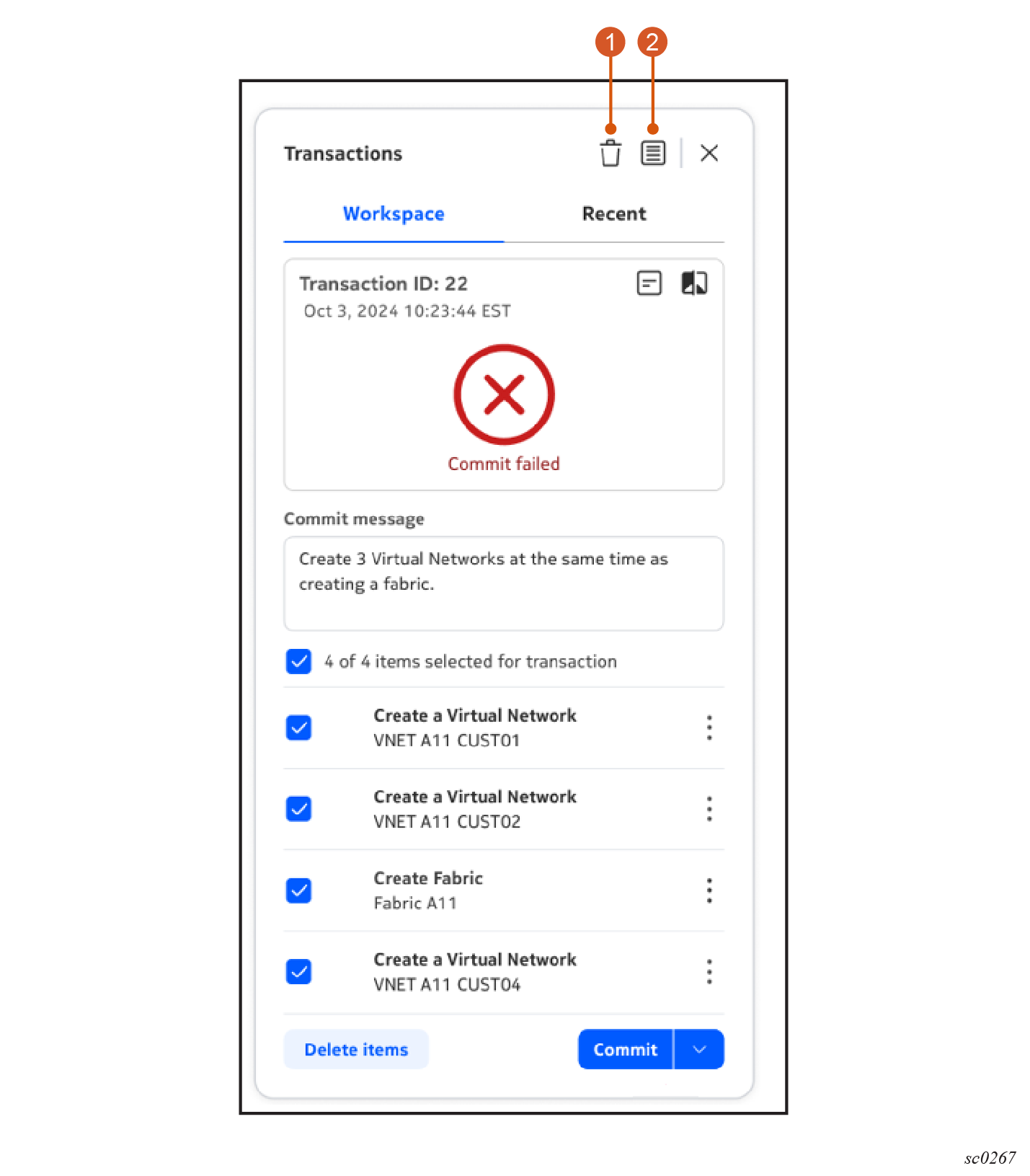
| # | Description |
|---|---|
| 1 | Details button: click to open the Details view for this transaction. |
| 2 | Diffs button: click to open the Diffs view for this transaction. |
Recent
Click on the Recent tab to view a list of the most recent transactions from the current user. A more complete list of transactions is available from the Transactions log.
From the Recent view, you can view the details or diffs view for any listed transaction.
Configuration actions
The following actions are available for each configuration within the transaction:
- Edit the configuration: Click the Edit icon to open the original resource configuration page so that you can modify the configuration details.
- Remove the configuration: Un-check the Configuration selector check box beside any configuration to remove it from the overall transaction.
- Restore the configuration: Re-check the Configuration selector check box beside any unchecked configuration to restore it to the overall transaction.
Additional actions
- Discard Transaction: empties the basket. This can be done before any commit/dry run, in which case nothing is in the transaction log.
- Transaction log: select this action to open the Transactions page, showing a list of recent transactions.
Transactions page
The Transactions log displays all of the transactions recorded in the Transactions log, providing an overview of transactions performed in the EDA system.
The Transaction log is visible to all authenticated users.
- View the list of transactions
- View a detailed summary of individual transactions
- View the precise configuration changes ("Diffs") that were included in any transaction
- revert a successful transaction
- restore configurations to a specific transaction
The following information displayed in the transactions log:
| Column | Description |
|---|---|
| ID (hidden by default) | A unique ID for the transaction assigned internally. |
| Transaction ID | An identifier for the transaction, in the form "Transaction <number>". |
| Transaction type | Whether the transaction was a Dry Run or commit. In a Dry Run, the system does not send any of the configuration changes to the managed nodes. However, it executes the transaction against EDA's stored information about each participating node, and validates the transaction against that data. |
| Status | Whether the transaction was successful, or failed. |
| Description | An optional description provided at the time the transaction is committed. |
| Created by | The user who executed the transaction. |
| Completion Timestamp | The date and time the transaction was completed. |
| State | The state of the completed transaction. |
| Commit Hash | A unique string that identifies this transaction in the EDA repository. |
Transaction row actions
- Details, which opens the EDA Transaction Summary page showing detailed information for one transaction.
- Diffs, which opens the EDA Transactions Diffs page.
- Revert, which creates a new transaction that
effectively undoes the selected transaction. The result is to set the
resources affected by the commits in this transaction to their state before
the transaction took place.Note: Executing a Revert operation requires Read-Write permission for all input resources in the transaction.
- Restore: a powerful command that restores all
resources to their state at the completion of the selected transaction. A
confirmation dialog displays before the Restore operation proceeds.Note: Executing a Restore operation requires readWrite permission for the transaction restore API endpoint.
- Add to Transaction: adds the transaction's input resources to the transaction basket. This allows you re-try the transaction (or a modified version of a previous transaction).
Reverting a transaction
When you choose to revert a transaction, EDA creates a new, additive commit that applies a set of changes that are opposite to those in the transaction being reverted. Committing this change has the effect of undoing the reverted transaction.
However, if there have been additional changes to the affected resources, subsequent to the transaction being reverted, this can produce unexpected results. To avoid this, EDA always causes such a revert action to fail.
To revert such a transaction, first revert any subsequent transactions that affected the same resources.
Transactions summary
The Transaction Summary page shows detailed information about a single transaction.
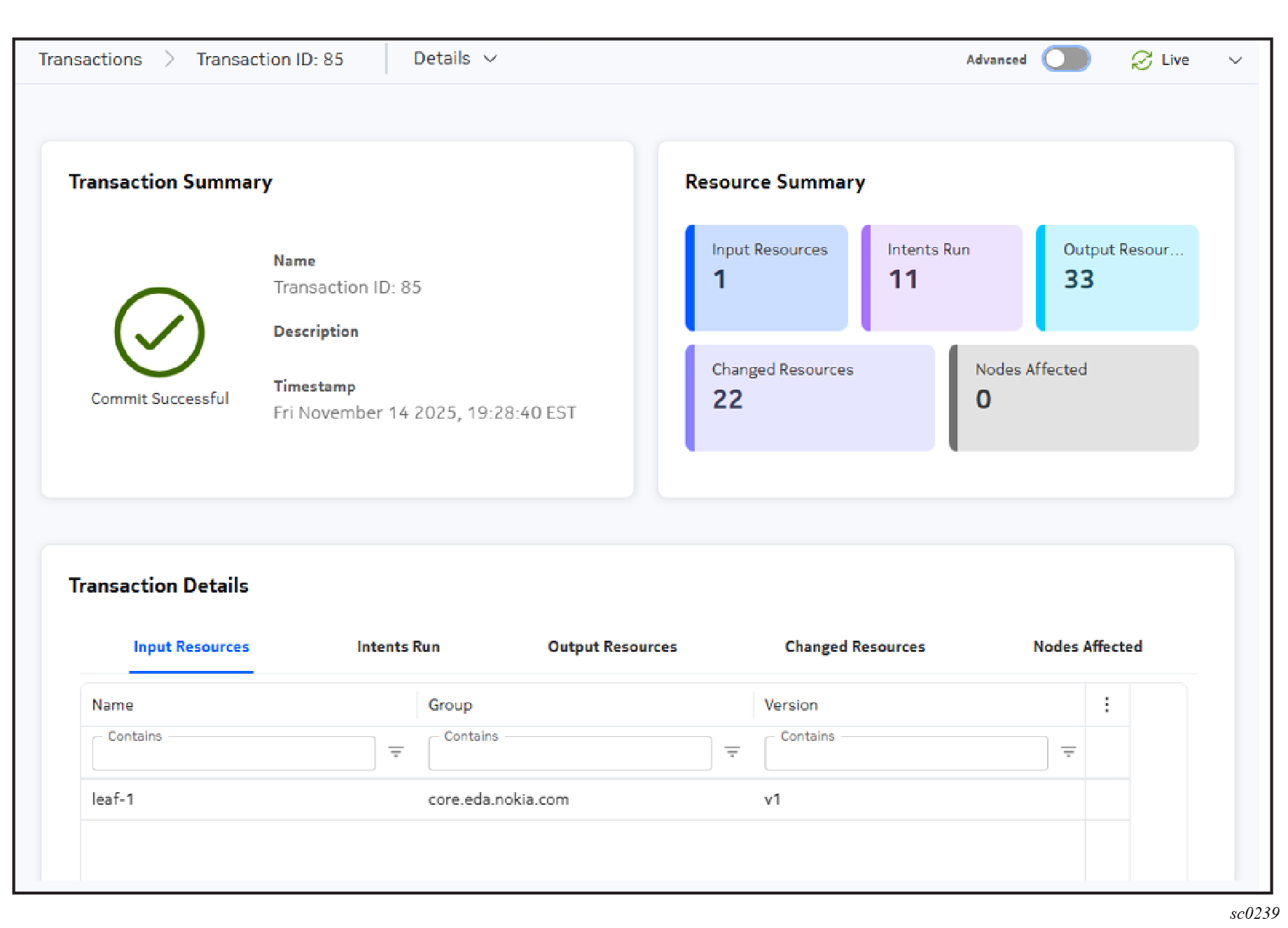
- The completion status, the name of the transaction, any description provided, and a timestamp for its completion.
- If there were errors, an Error Summary panel showing the number of:
- General errors: errors related to the EDA environment
- Intent errors: errors returned by an intent script
- Node configuration errors: Errors in YANG schema validation, or errors returned by the node when pushing configuration
- A Resource Summary panel, showing the number of:
- Input Resources: resources created, updated or deleted by the user
- Intents Run: configuration scripts executed during the transaction)
- Output resources: resources derived from the intent run
- Changed Resources: input and output resources that are changed, compared to the previous committed transaction
- Nodes Affected: nodes which are impacted by this transaction. This includes node configuration changes, node version changes, or changes to the associated TopoNode resource in EDA
Transaction details
The errors and resources that are summarized at the top of the Summary page can be viewed in detail in the Transaction Details panel. Different tabs display lists of input resources, changed resources, intents run, nodes affected, and errors.
Some details of the transaction results, such as node configuration diffs, are stored in memory for a limited time.
Initially, all transactions include either a 'standard' or 'detailed' set of results. Transactions created via EDA UI always use 'detailed', whereas 'standard' is the default for transactions submitted via the EDA API or Kubernetes interfaces.
- Basic results include:
- Input Resources
- Input Resource diffs
- Standard results include all basic results, plus:
- Errors
- Intent Runs
- Output Resources
- Nodes Impacted
- Detailed results include all standard results, plus:
- Changed Resources
- Changed Resource diffs
- Node Configuration Diffs
When only Basic or Standard results are available, a banner at the top of the Transaction Details page explains that this limitation is in effect.
EDA uses the following rules for reducing transaction result details:
-
Keep details for each users 25 most recent transactions. Reduce details from any older transactions.
-
When more than 10000 resource diffs are in memory, reduce details from the oldest transactions until there are less than 10000 resource diffs.
Transaction Output Resources often include internal EDA resource that are not user-facing. For example, an EDA configuration intent may create a "state" resource that initializes the process for reporting operational status.
You can use the Advanced toggle at the top of the Details page to control what level of detail is displayed regarding transactions:
Transaction diffs
From the breadcrumb at the top of the Transactions page you can select Diffs to view the precise details of the configurations changed as part of this transaction.
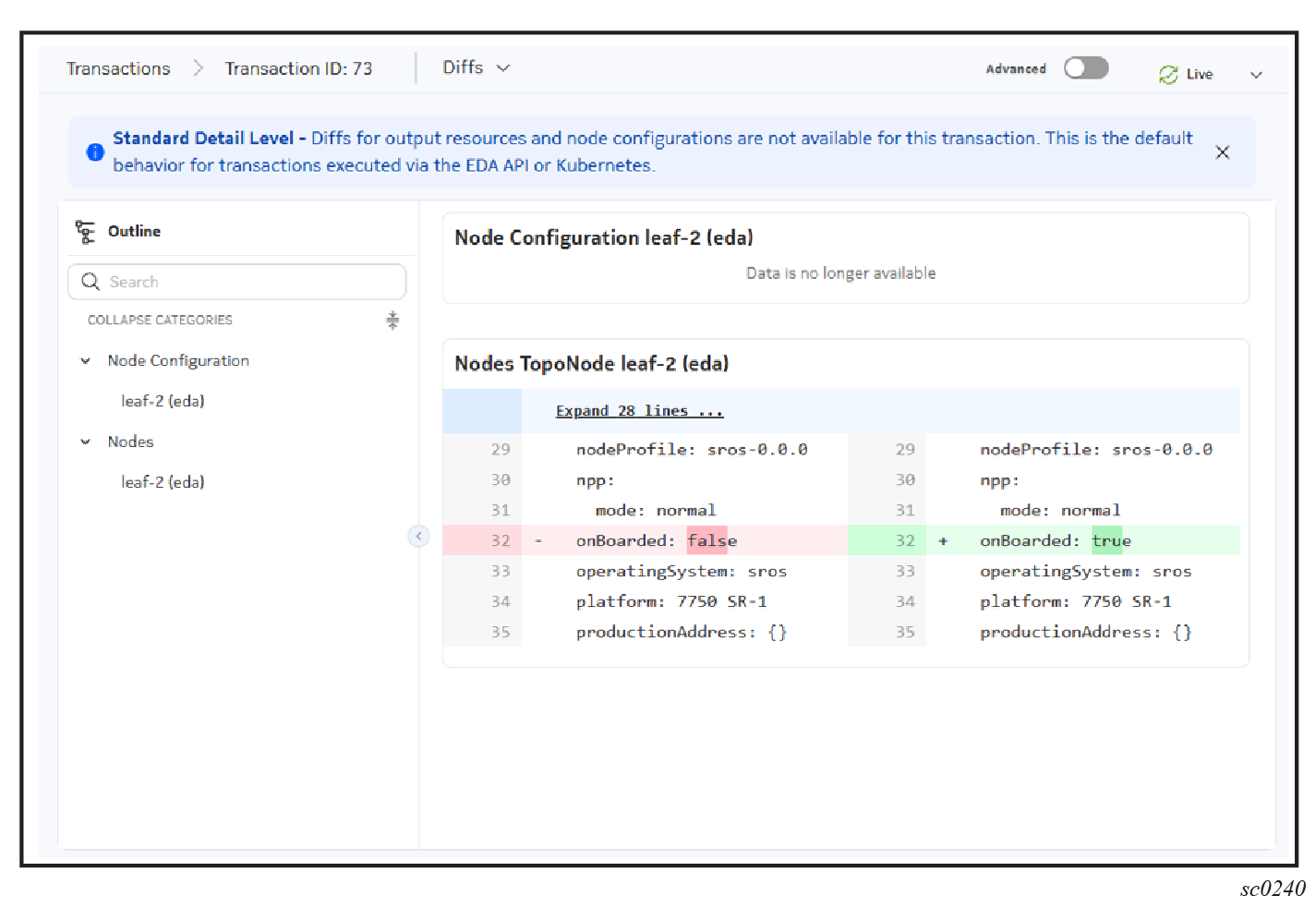
Each changed CR and resulting node configuration change as part of this transaction is displayed, along with a diff view representing the new or changed lines in the respective configuration data.
Transaction topology
The Transaction Topology page displays all of the input resources and output resources that are involved in a transaction. It graphs the relationship between derived and parent resources.
Resources and node configurations are displayed as nodes within the topology.
- endpoint A represents the resource which triggered the intent script
- endpoint B represents the resource that was updated or created by the intent script
Changed resources are shaded yellow in the topology.
If an intent error occurred during the transaction, the resource that triggered the intent script is shaded red.
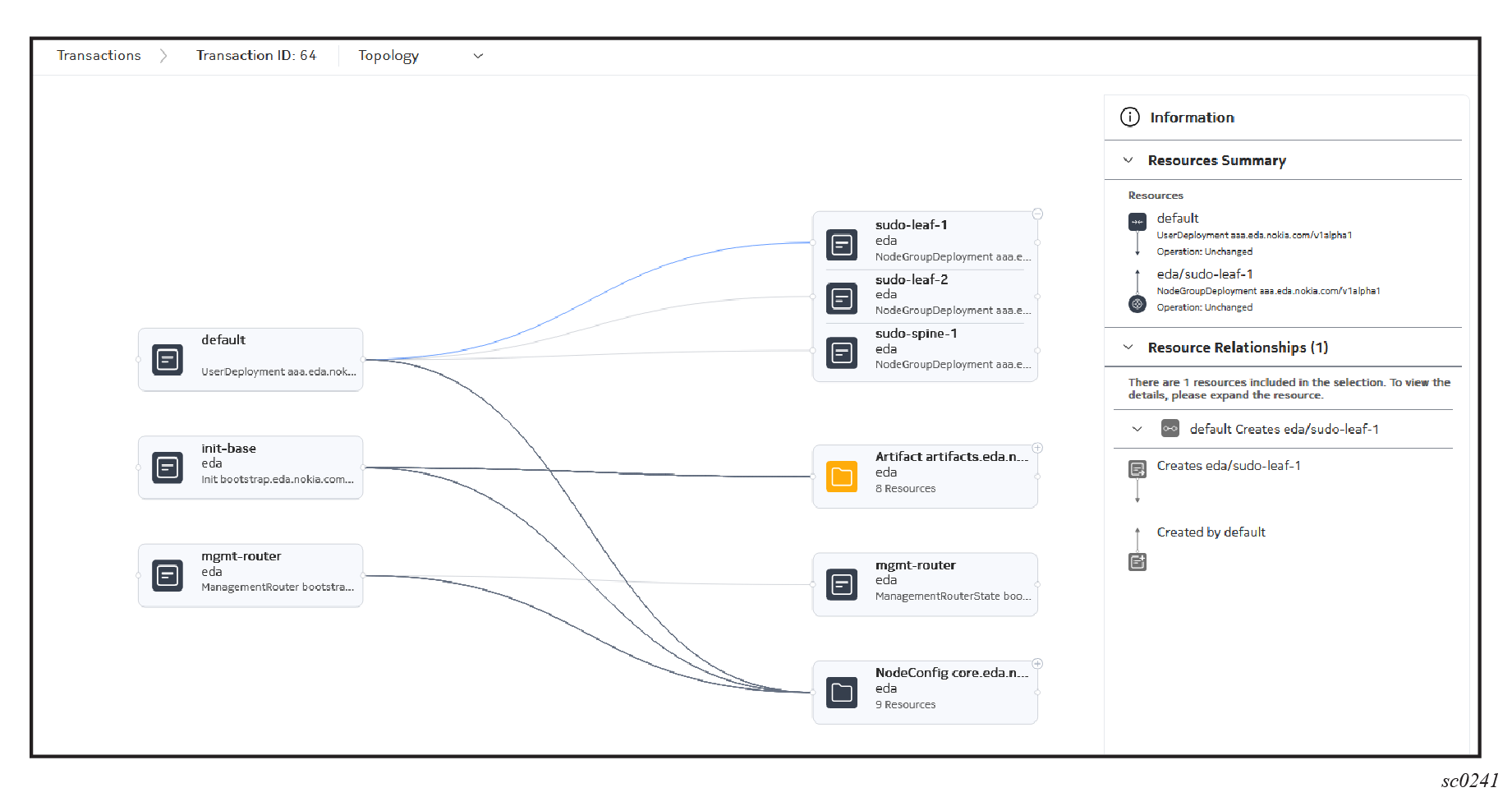
The Transaction Topology page does not graph Read relationships. So, for example, when a fabric intent reads information from allocation pool resources, the links between the fabric resource and allocation pool resources are not illustrated in the Transaction Topology page.
Some elements in the illustration represent a group of resources. Click the + at the upper right of such elements to expand the group and see the complete set of individual resources.
Additional information about any selected element or connection within the transaction topology is available from the Information panel.
Adding a resource configuration to a transaction
- Create any resource in the EDA GUI.
- Click Add at the bottom of the configuration page.
Committing a transaction
-
Click the Basket icon at the top of any page in the EDA
GUI.
Note: When at least one resource is in the basket, the basket icon is highlighted and displays a count of the pending resource changes available to commit.
-
Optionally, click the action drop-down list and click
Dry Run to perform a dry run of this
transaction.
Note: In a dry run, the system does not send any of the configuration changes to the managed nodes. However, it executes the transaction against EDA's stored information about each participating node, and validates the transaction against that data.
- Optionally, edit any resource configuration that is part of the current transaction by clicking the Edit icon to the right of the transaction. This opens the original resource configuration page so that you can modify the configuration details.
- Optionally, remove any resource configurations that are currently part of the transaction that you do not want to commit at this time. Remove a resource by clicking the Minus icon to the right of the transaction.
- Click Commit.