
Workflows
A workflow is a sequence of steps required to perform some process.
The concept of a workflow is typically used in automation platforms to make an operational task reproducible; it is the logic or code required to execute the task. It is not too much of an extrapolation from the concept of a workflow to a CI/CD pipeline, which describes a sequence of actions to run, with workflow semantics between them.
In EDA, workflows can define the steps required to upgrade a node, validate connectivity in a virtual network, or perform a simple ping operation.
A workflow in EDA is implemented via an orchestrated Kubernetes job. Workflows themselves
are container images that take some input, perform some work, and provide some output.
EDA uses CRDs to define the schema for the workflow input and output. EDA applications
manifest tagged the workflow Boolean and include the relevant workflow
to associate the CRD with the container image
EDA supports interactions with workflows through the following means:
- Through the EDA UI.
- The Workflows button allows you to interact with workflows from anywhere in the UI.
- Workflow Definitions List and Workflows Executions pages allow you to view and manage workflow definition lists and executed workflows.
- From target resources, you can create and run workflows from the row actions menu.
- Through the API.
- Through the edactl command.
- Through Kubernetes: creating a resource whose CRD is marked as a workflow.
FlowEngine
In EDA, workflows are supported through the FlowEngine - the controller behind the instantiation, status, and interaction with workflows.
- Validates the resources input against schema.
- Publishes a Kubernetes
Jobresource, which runs a container image provided in the correspondingWorkflowDefinition. - Assigns a Flow ID to the workflow.
- Updates the status of the flow based on gRPC interactions.
Flow IDs are incremental. In the event of FlowEngine restart, previously executed or currently running flows are lost and a new Flow ID restarts at 1.
FlowEngine supports the following:
- Loading of new workflow definitions via EDA apps.
- Manual triggering of workflows.
- Reporting the status of executed workflows.
- General user interactions with workflows - the ability to block a flow and wait for user input.
- Workflow hierarchy - one workflow may be a parent of another.
- Automatic creation of workflow IDs.
- Artifacts - a workflow may return artifacts, such as tech support files, to the FlowEngine.
- Non-blocking behavior; up to 256 workflows can be executing at the same
time.Note: To avoid excessive memory use by FlowEngine, EDA enforces the following:
- Only 256 parent workflows are persisted.
- New workflows push out old workflows.
- There is a limit of 256 concurrently running workflows. New workflows are rejected if the system has reached this limit; actively running workflows are never dropped.
- This history includes stages and logs.
This history persists for the lifetime of FlowEngine. It does not persist and does not remain after a restart.
Workflow Definition List page
The Workflow Definition List page shows all available workflow definitions provided from EDA apps. From the Main navigation panel, click Systems under the SYSTEM group. Then, select Workflow Definition List from the drop-down list.
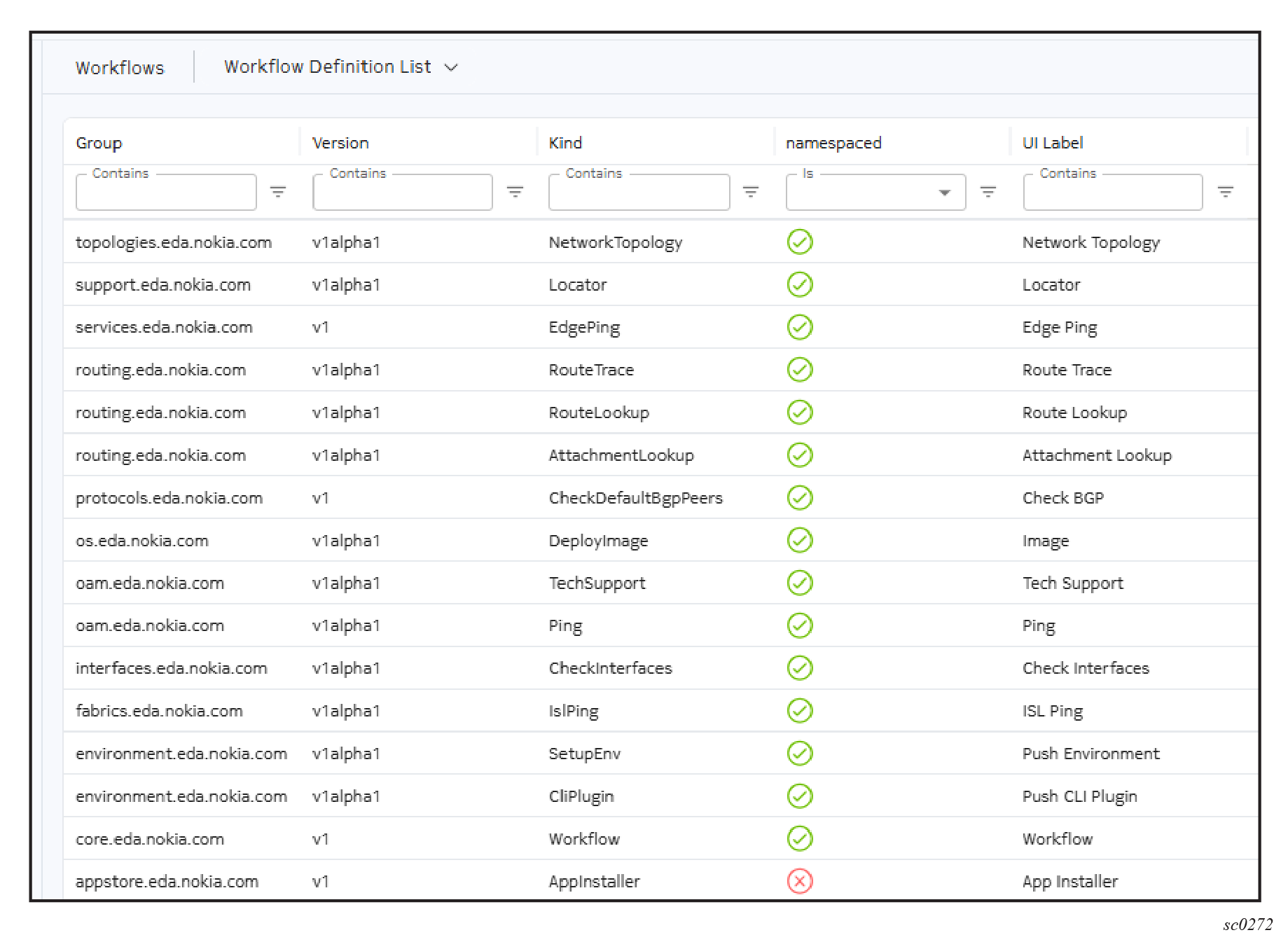
| Workflow definition | Purpose |
|---|---|
| App Installer | Used to install or delete apps. |
| Attachment Lookup | Used to look up attachments (where an address is attached in the network) on a set of nodes. The output shows the matching attachments, including the node, network instance, prefix, interface, and next hop group ID. |
| Check BGP | Checks the state and status of the BGP peers that match the selection criteria. |
| Check Interfaces | Used to check the state and status of the matched notes. Use interface selectors to select target interfaces on which to run this workflow. |
| Edge Ping | Used to initiate a ping to an edge interface resource; specify a gateway or edge mesh. |
| Image | Used to upgrade or downgrade software images on specified
targets. This workflow can be used directly on a target or list of
targets, or with selectors to select targets through labels. It also
supports tranches, which are groups of targets that can be upgraded
together. By default, the system runs a set of checks before and
after the image change; you can upgrade this behavior by setting the
Checks field. This workflow also supports canary nodes, which are used to test images before a broader roll out. Canary nodes are upgraded before any other targets. To identify the canary nodes, use node selectors that match labels on TopoNode resources, including those in the list of nodes to be imaged. |
| ISL Ping | Used to ping inter-switch links (ISLs) to verify connectivity within a fabric. You can specify a list of fabrics, ISLs, or selectors for both to match ISLs. This workflow shows the results of the pings, including the status of each ISL. |
| Locator | Typically used to guide on-site technicians to the correct target requiring maintenance; enables the LED locator for a target. |
| Network Topology | Allows you to perform create, replace, and delete operations on
the specified topology.
|
| Ping | Used to initiate a ping to an address on a node or a set of nodes |
| Push CLI Plugin | Used to push a CLI plug-in to a node. For SR Linux, the plug-in that you specify must include the .py extension, without leading slashes, for example, "myplugin.py". |
| Push Environment |
Used to set up the global environment on a node. For SR Linux, this results in an overwrite of the /etc/opt/srlinux/env file. |
| Route Lookup | Used to look up routes on a set of nodes. The output shows the matching route and the set of ingress interfaces used to reach it. |
| Route Trace | Used to trace routes for specified targets. |
| Tech Support | Used to generate technical support packages for a node or set of nodes; typically used for debugging. |
| Workflow | A generic workflow definition. This workflow is used by some workflows to create subflows without a predefined schema. |
Workflow Executions page
The Workflow Executions page shows all the workflows that have been executed.
From the Main navigation panel, click Systems under the SYSTEM group. Then, select Workflow Executions from the drop-down list.
Any workflow waiting for user input is highlighted in yellow.
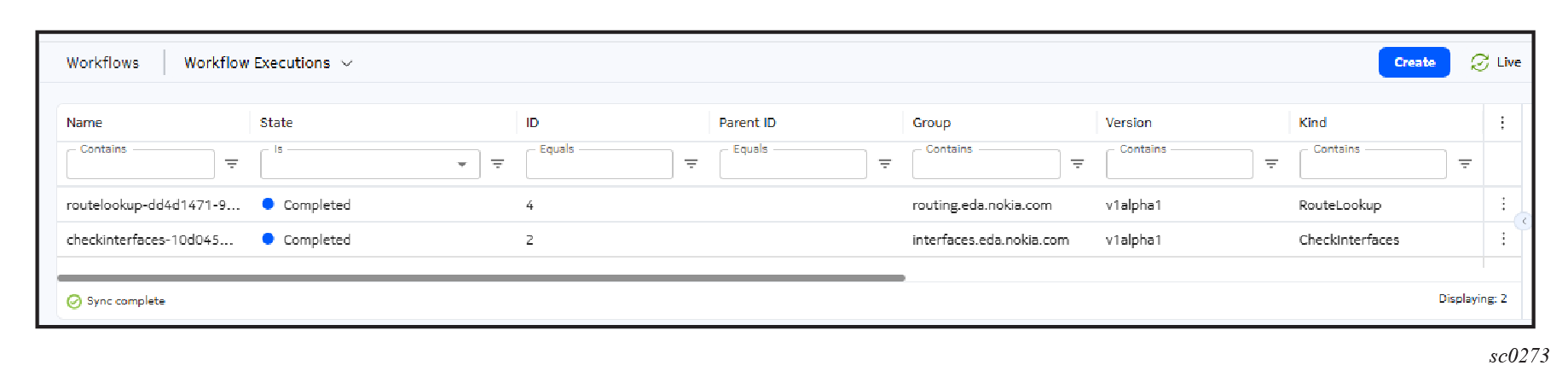
- provide additional input for a workflow, if user input is required
- create and run a new workflow
- cancel a running workflow
- display the Summary page for a workflow
Click the Table row actions menu for a workflow and select Details to display the Summary page for the workflow.
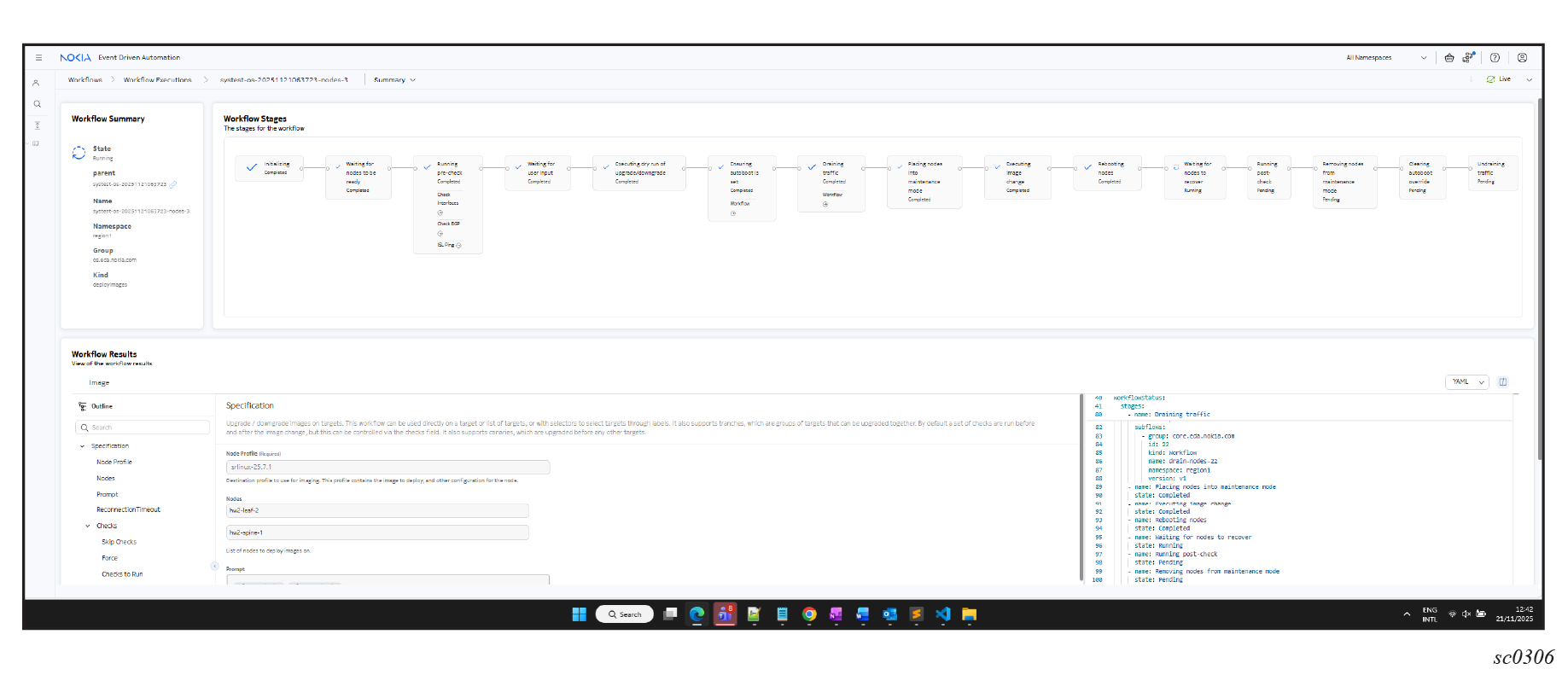
Displaying subflows
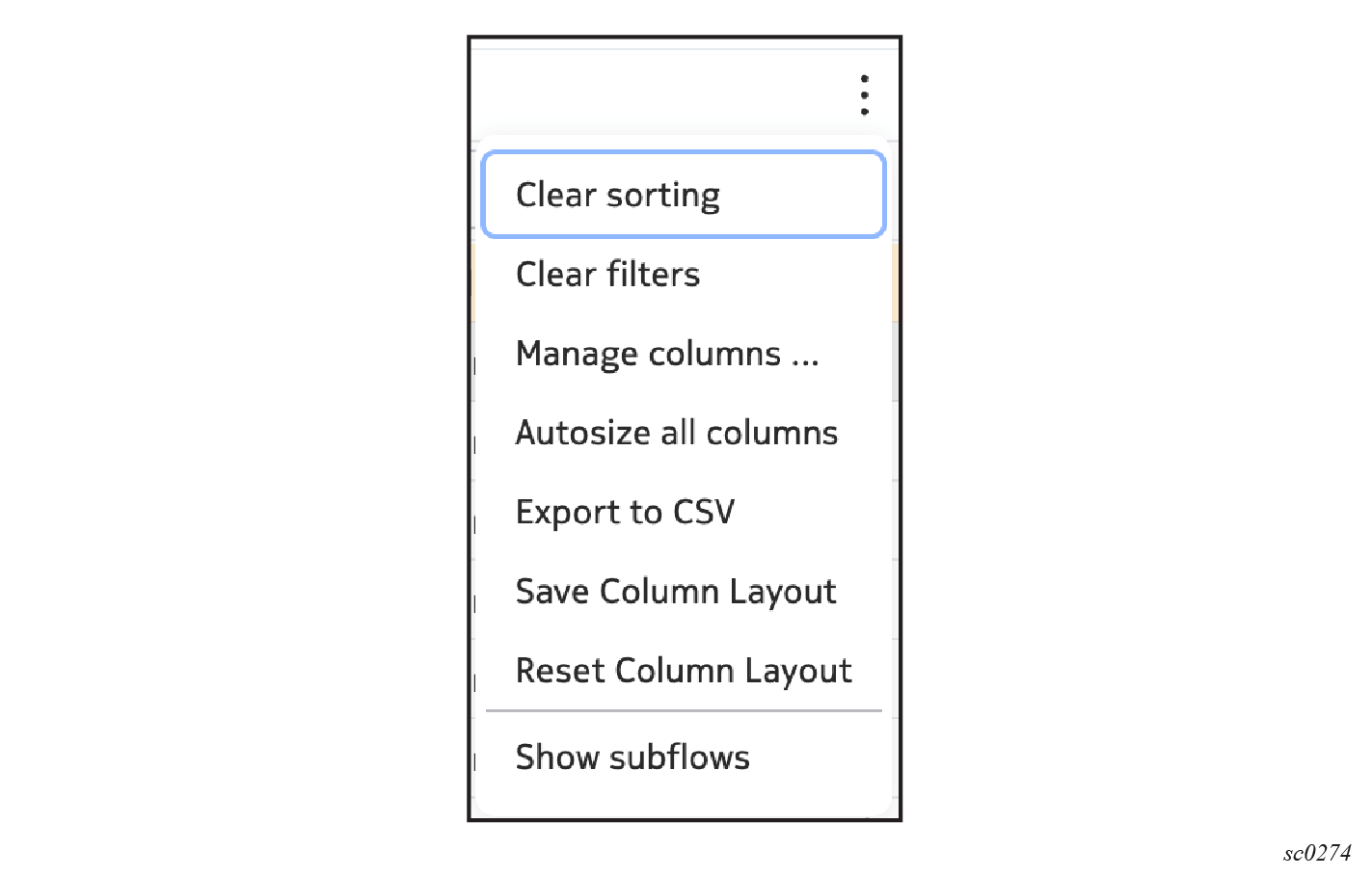
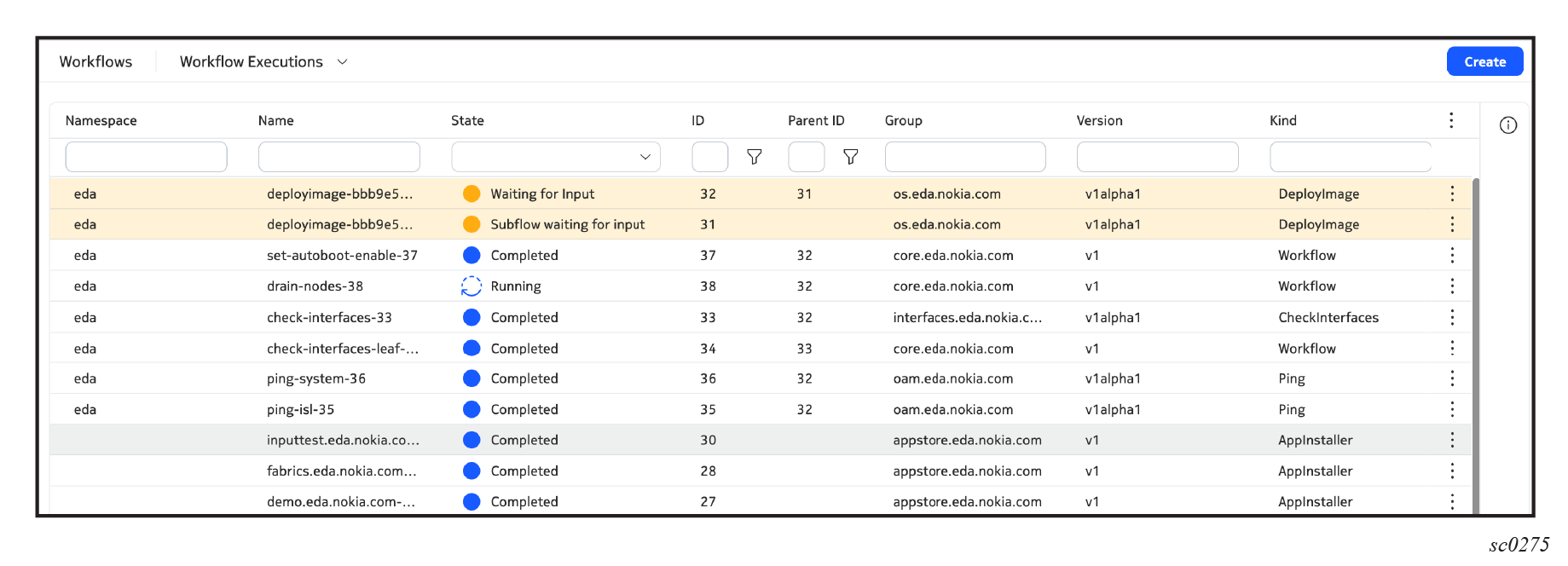
Workflow Summary page
The following example is for a DeployImage workflow.
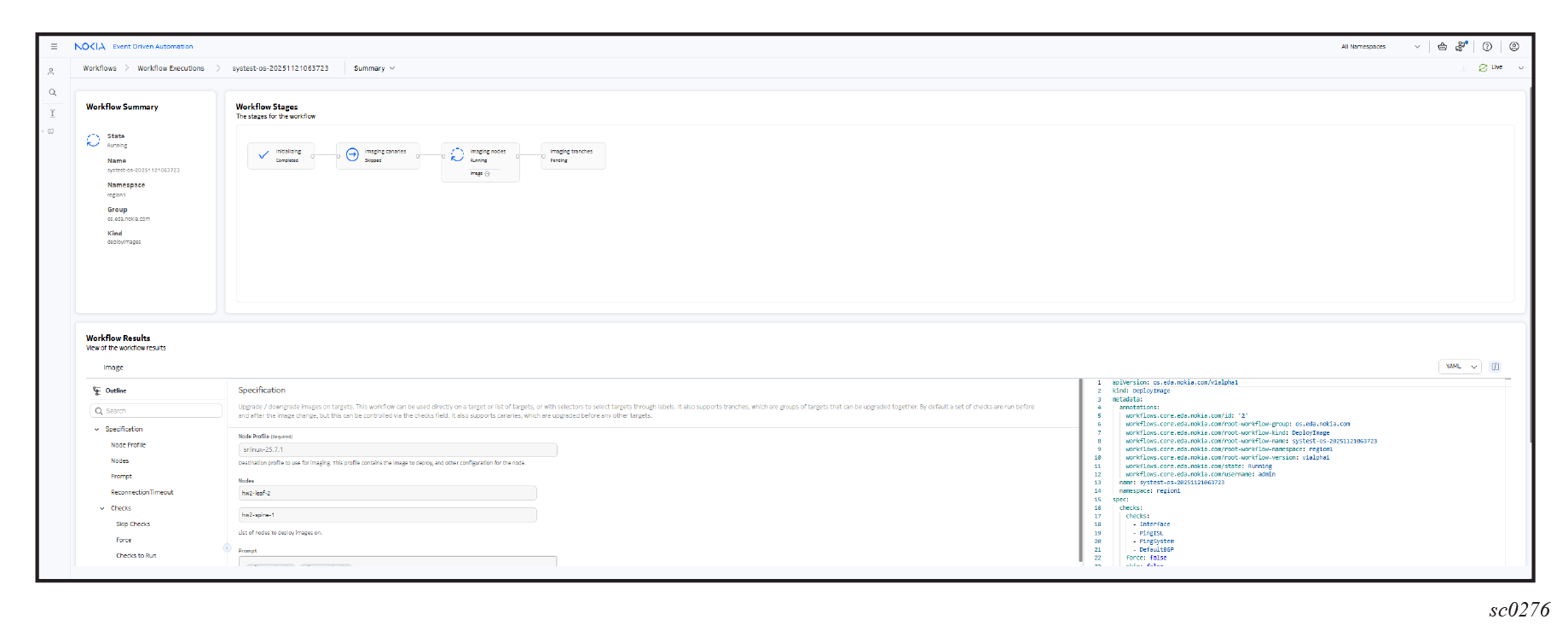
- Status of the workflow, which can be one of the following:
-
Waiting to start
-
Running
-
Completed
-
Failed
-
Terminated
-
Waiting for input
-
- Stages of the workflow.
The Workflow Stages panel shows the progress of workflow and the status of the workflow as it passes through the stages.
- The Workflows Results panel provides details of the workflow results, including the specification (input) and status (output) of the workflow that was executed.
Workflow logs
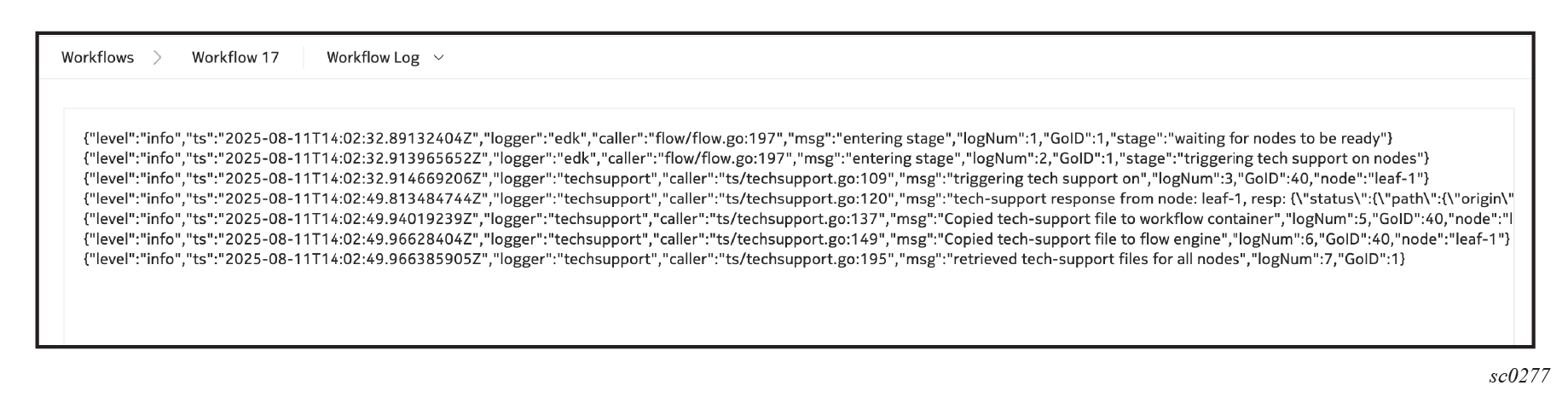
The Workflow Logs view display logs from the workflow container. From the Summary drop-down list, select Workflow Log. The logs are used for troubleshooting and debugging purposes.
Workflow artifacts for download
You can also download artifacts using the edactl command; see Managing workflows with edactl.
Workflow creation
Running a workflow from the Workflow Definition List page
- Select the workflow definition that you want to run by double-clicking it or clicking Run from the Table row actions icon.
-
In the form that displays, fill in the values for the workflow.
The contents of the form vary depending on the workflow definition selected. The EDA UI auto-generates a unique name for the workflow execution. You can override this name with a custom name.
- Click Run.
Running a workflow from the Workflow Executions page
- From the Main navigation panel, click Workflows.
- Click Workflows Executions from the Workflows drop-down list.
-
You can create a new workflow or duplicate an existing one.
- Create a new workflow.
- Click Create.
- Select the workflow that you want to run from the drop-down list.
- In the form that opens, enter the specifications for the workflow.
The contents of the form vary depending on the workflow definition that selected. EDA auto-generates a unique name for the workflow execution. You can override this name with a name of your choice.
- Duplicate an existing workflow.
- Locate the workflow that you want to duplicate and click
Duplicate from its Table row
actions menu.
The prepropulated form displays.
- Update the specifications for the workflow as needed.
- Locate the workflow that you want to duplicate and click
Duplicate from its Table row
actions menu.
- Create a new workflow.
- When you are finished entering specifications for the workflow, click Run.
Triggering a workflow from the resource action menu
Workflow definitions define some types of resources as subjects. These workflows are listed in the action menu of the relevant resources. For example, the Ping workflow accepts a node as subject and can be triggered from the node action menu:
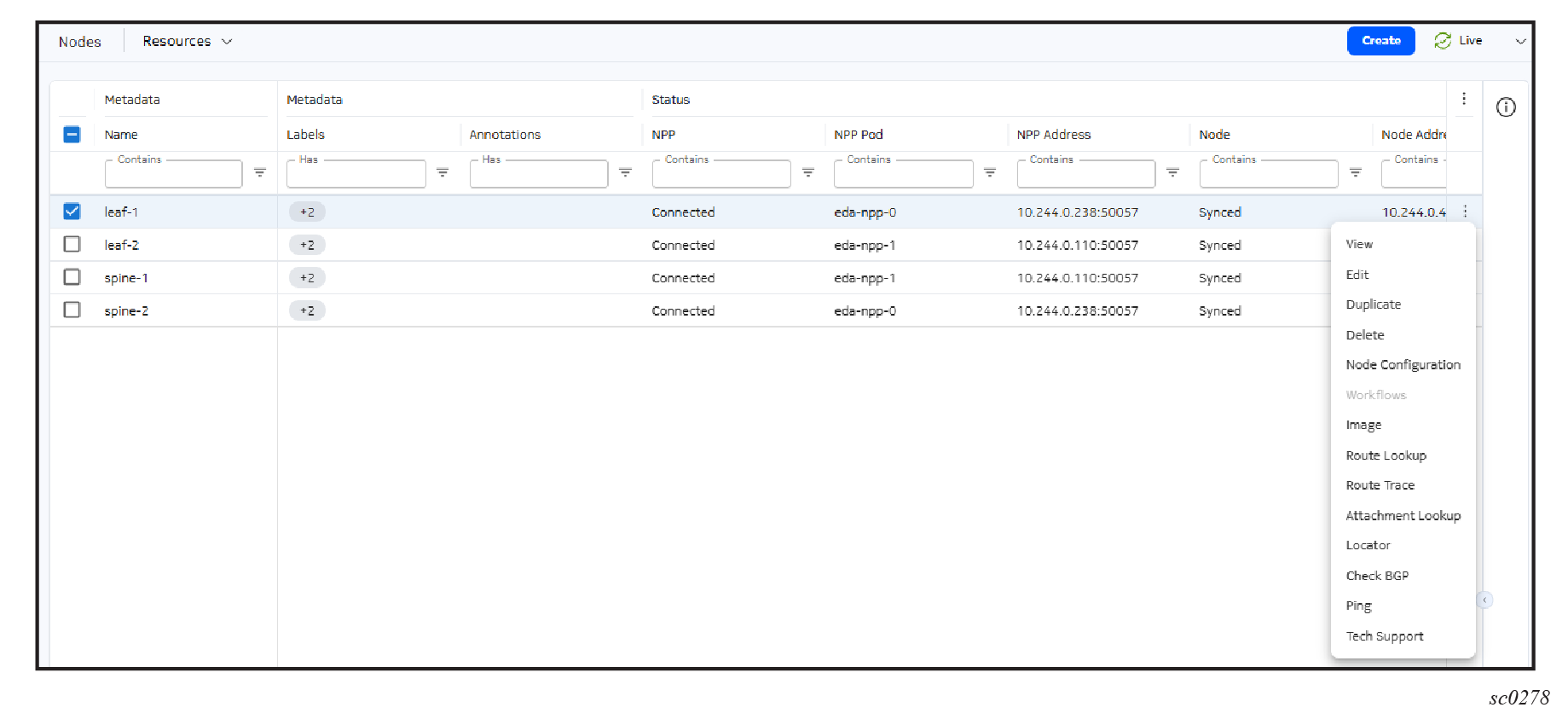
Some workflows allow you to select multiple resources in the same workflow. For example, for the Image workflow, you can identify multiple Node resources. You cannot include resources from multiple namespaces in the same workflow input. The bulk workflow actions function is disabled when the UI page is in set to All Namespaces.
The following example executes the Ping workflow.
Managing workflows with edactl
You can use the edactl command to provide input so a workflow can proceed or to query EDA about workflows.
Providing input to workflows
Some workflows may require user input to allow the workflow to proceed. You can use the following commands to handle workflows that require user input:
- To find workflows awaiting input, use the following command and look for status
'WAITING_FOR_INPUT':
edactl workflow get -A -a - To acknowledge a workflow and allow it to continue, use the following
command:
For example, to acknowledge the workflow whose ID is 10:edactl workflow ack <id>edactl workflow ack 10 - To terminate a workflow, use the following
command:
For example, to terminate the workflow whose ID is 20:edactl workflow nack <id>edactl workflow nack 20
Querying EDA
Use the following edactl commands to query EDA about workflows:
- To view all workflows, use the following command:
edactl workflow get -AFor example:edactl workflow get -A ID NAMESPACE NAME TYPE STATUS 1 eda-system bulkapps-eda.nokia.com app-installer COMPLETED 2 eda-system bulkapps-eda.nokia.com app-installer FAILED - To view details of a specific workflow, use the following
command:
For example:edactl workflow get <id>edactl workflow get 1 ID: 1 Namespace: eda-system Name: bulkapps-eda.nokia.com Status: COMPLETED Workflow Steps: ↓ init ↓ Fetching ↓ Verifying ↓ Committing ↓ Applying ↓ Installed - To view logs for a workflow, use the following
command:
edactl workflow logs <id>For example: edactl workflow logs 20
- To tail log
output of a running workflow, using following command:
edactl workflow logs <id> --follow - To list files associated with a specific workflow, use the following
command:
For example:edactl workflow artifacts <id>edactl workflow artifacts 2 Artifacts available for the workflow: tech-support-20250207_050610-mv1nd01-spine-1.zip root in on eda-toolbox-6f6c686487-xdks4 /eda - To download all files associated with the workflow in present working directory,
use the following
command:
For example:edactl workflow artifacts <id> downloadedactl workflow artifacts 2 download Downloading artifacts to: /eda - To download all the files associated with the workflow in the
/tmp/ directory, use the following
command:
For example:edactl workflow artifacts <id> download --to /tmp/edactl workflow artifacts 2 download --to /tmp/ Downloading artifacts to: /tmp tech-support-20250207_050610-mv1nd01-spine-1.zip 100% [===============] (5.9/5.9 MB, 98 MB/s) - To download a single file associated with the workflow in the
/tmp/ directory, use the following
commands:
oredactl workflow artifacts <id> download --to /tmp/ --from <file name>
For example:edactl workflow artifacts 2 download –from <file name>edactl workflow artifacts 2 download --from tech-support-20250207_050610-mv1nd01-spine-1.zip --to /tmp/ Downloading artifacts to: /tmp tech-support-20250207_050610-mv1nd01-spine-1.zip 100% [===============] (5.9/5.9 MB, 104 MB/s) root in on eda-toolbox-6f6c686487-xdks4 /eda