
Working with data grids
Many pages in the EDA GUI display lists of featuring rows and columns of data. The options described here for managing such data grids are common to most data grids in the EDA GUI.

| # | Name | Function |
|---|---|---|
| 1 | Row selectors | Use these to select one or more individual rows. Note: You can use the space key to
toggle the focused (active) check box in the row. |
| 2 | Multiple row selector | Use this to toggle between selecting all rows, and un-selecting all rows. |
| 3 | Text string filter | Enter an alphanumeric string to filter the list based on matching values in that column. |
| 4 | Selection filter | Select a value to filter the list based on matching values in that column. |
| 5 | Filter Applied indicator | When a dot is superimposed on the Filter icon, this field is currently applying a filter to the displayed list. |
| 6 | Table settings and actions button | Click to open the menu of standard table actions, as well as the list of multi-row actions available for this table. |
| 6 | Table row actions | An example of the actions menu that is displayed after clicking the Table row actions button. |
| 7 | Table settings and actions button | Click to open the menu of standard table actions, as well as the list of multi-row actions available for this table. |
| 8 | Information panel | Like other pages in EDA, this panel displays detailed information about the selected object – in this case, the row or rows that are selected in the data grid. |
| 9 | Table row actions button | Click to select from a set of actions specific to the data in that row. |
| 10 | Row and selection counter | Indicates the total number of rows, and the number of rows that are currently selected. |
| 11 | Category counter | The Alarms data grid shown as an example includes an indicator of how many alarms in the full list belong to each severity category. |
Nested columns
Columns may be collected into groups; in this case, individual columns are nested within a higher-level column for that group. For example, several columns pertaining to resource metadata are nested within a Metadata column.

Managing displayed columns
For any table, you can select which columns are displayed and which are hidden from view.
In the list of standard table actions, click Manage columns... to open a Manage Columns dialog. This dialog lists all available columns; those checked are included in the data grid, and those unchecked are excluded. By default, some possible columns may already be excluded from view.
Select or un-select the available columns and click Apply to close the dialog and update the data grid display based on your selections.
To rearrange the position of a column, click the column header and drag it to its new position.
To restore the default configuration for the data grid, click the Table settings & actions icon and select Reset Column Layout from the action list.
If the set of columns exceeds what can be shown at one time in the display area, the EDA UI adds a scroll bar to the bottom of the data grid. Scrolling horizontally moves all columns to the left or right as you would expect.
For most data grids, the Name and Namespace columns are pinned to the left by default. When scrolling horizontally, these columns remain visible at the left edge of the display.
Dynamic display for namespace column
Many data grids include a column for Namespace, which identifies the particular namespace associated with each row.
However, if you have selected a single namespace in the Namespace selector on the top bar, then the Namespace column is automatically hidden on the data grid. Because all namespace values would match the selected namespace, displaying the column is not useful.
Pinning columns
You can pin one or more columns to the left or right side of a data grid. Pinned columns continue to display even as the rest of the data grid scrolls to the left or right.
The set of pinned columns are bounded by a vertical gray line on their right edge.
In most data grids, the Name column is pinned by default. However, the default pinned columns can vary by page.
To pin additional columns, click any column header and drag it into the pinned area. To un-pin a column, click the column header and drag it out of the pinned area.
Sorting
For any table, you can sort the row order based on the values in any column by clicking on the title for that column. EDA displays a sorting icon next to the column title to indicate that sorting is active.
Clicking on the title again toggles between ascending and descending order.
- adds each successive column to the sort order
- displays the sorting icon next to each column title
- displays a number next to each column title to indicate its rank in the overall sorting order
To clear all sorting from the data grid, click the Table settings & actions icon and select Clear sorting from the action list.
Filtering
You can filter the displayed data to include only those with specific values in one or more columns:
- For columns that display text, you can type any alphanumeric string in the field at the top of the column. The list is filtered only to show rows with the selected value in that column.
- For columns that display only a predetermined set of values, you can use a drop-down list to click a value. The list is filtered only to show rows with the selected value in that column.
- For columns that display numbers, you can click the Filter icon to build a logical filter. The filter menu allows you to choose an operator and a value, and then add additional operator/value combinations to create a complete logical expression. The list is filtered only to show rows with the selected value in that column.
To clear all filtering from the data grid, click the Table settings & actions icon and select Clear filters from the action list.
Multi-row actions
Some tables support actions that can be simultaneously applied to all selected rows. When available, these actions are displayed under a sub menu of the Table settings and actions menu.
Some tables also support the option to Revert multiple deleted resources simultaneously. For more information on the Revert button, see Transactions.

Special actions
Some tables support special actions appropriate to the particular data displayed in the list. When available, these actions are displayed under a sub menu of the Table settings and actions menu.

Counters
Many data grids throughout the EDA UI contain counters for alarms and deviations. Each of these counters appears as a column in the data grid.
- critical
- major
- minor
- warning
The Deviation column displays the number of deviations associated with the specified resource.
For Node resources, the alarm counters include both alarms raised against the resource and alarms where the node is listed as an affected target.
Bulk edits
To aid on those occasions where you need to make the same change to multiple items, some data grids include a Bulk Edit option.
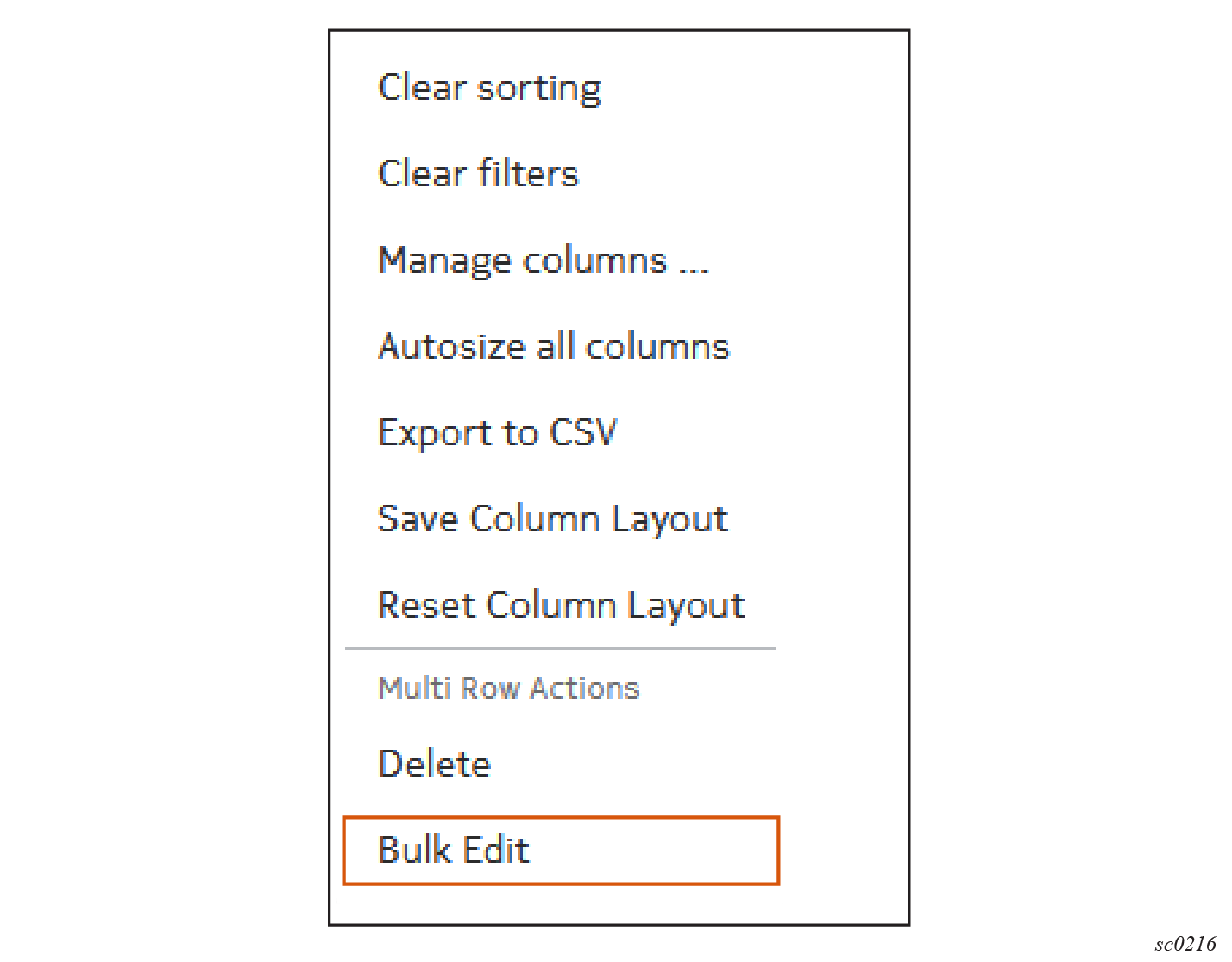
- Select a set of objects in a list.
- Configure a set of properties they all share in common to be removed, added, or replaced.
- Apply those same changes to all of the selected objects (immediately as a commit, or later as part of a transaction).
After you select all of the objects that are the subject of your change (using the check box at the left of each row), selecting the Bulk Edit option opens the Bulk Edit page.
The Bulk Edit page indicates the number of objects selected, and lists all of the editable properties those objects share. For each property, a check box allows you to select it for modification.
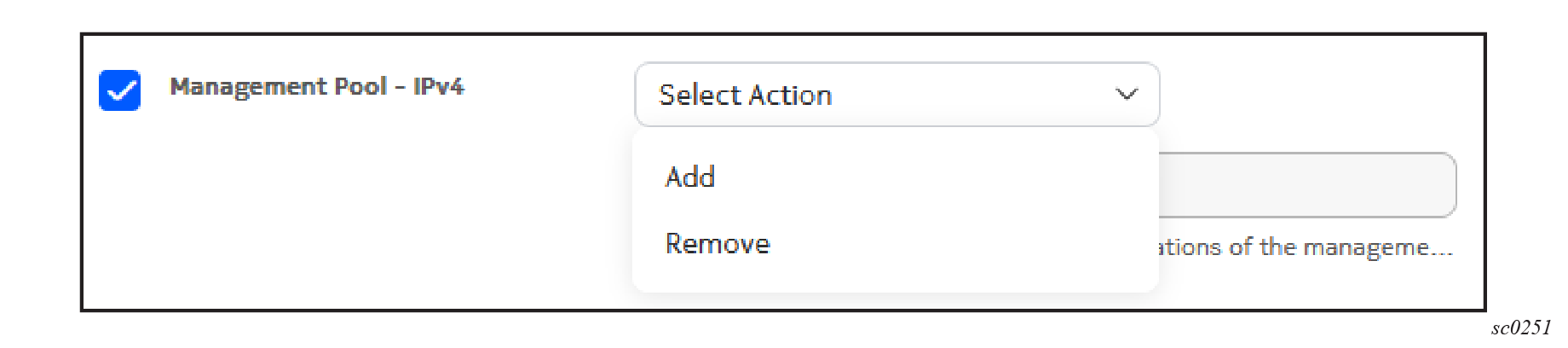
After an item has been selected for editing, a drop-down control allows you to choose the type of change to make, and a field displays the specific changes you have indicated for that property.

| Item | Description |
|---|---|
| 1 | The page name and an indication of the number of selected objects that are subject to these bulk changes after they are committed. |
| 2 | A list of modifiable properties for the selected objects. |
| 3 | In this case the Labels field is selected for modification. Because the field has been selected for modification, the actions drop-down list is displayed. Available options are specific to the Labels field. |
| 4 | After configuring the set of changes for all parameters, choose from
among the standard Commit options for this bulk edit:
|
The actions available for a specific parameter as part of a bulk edit depend on the type of data being modified.
Bulk edits for single-value fields
Single-value fields are those that contain integers, strings, or enums (single selections from a drop-down list).
- Add: the new value supplied as part of the edit is written to the selected field.
- Remove: any current values in the selected field are deleted.
Bulk edits for maps
- Replace all overwrites the current set of objects with the values supplied as part of the edit.
- Remove all removes all objects in the array. This is only available for optional arrays.
- Add by key appends new values supplied as part of the edit to the current set. If a key used in the new values matches that of an existing key-value pair, the existing value is overwritten with the new value.
Bulk edits for labels
Labels are a special case of maps with support for "Remove by key" in addition to the other map actions.
- Replace all overwrites the current set of objects with the values supplied as part of the edit.
- Remove all removes all objects in the array. This is only available for optional arrays.
- Add by key appends new values supplied as part of the edit to the current set. If a key used in the new values matches that of an existing key-value pair, the existing value is overwritten with the new value.
- Remove by key removes objects from the current set that match the specified key.
