
Installing an application
Use this procedure to install an app or execute a dry run of the app installation. The steps for the installation and dry-run installation are similar. An app installation dry run downloads the application image and applies the app manifest as a dry run transaction; this allows users to review the transaction result before proceeding with the app installation.
You can monitor the progress of the installation on the UI or the API. If at any time the installation fails, the previous steps are rolled back, where possible.
- From the System Administration navigation panel, select Store.
- Click the app that you want to install.
-
In the app page that displays, you can install the app or a do a dry-run of the
app installation:
- To install the app, click Install.
- To do a dry-run, click the drop-down list and select Dry-run
-
If the app is available from more than one catalog, a form displays from which
you can select the catalog. After making a selection, click
Install.
The flow of the installation varies depending on whether the app has requirements or associated settings:
- If the app has no outstanding requirements or associated settings, the system displays a Summary page with installation details and the procedure is complete.
- If the app has associated settings, the screens that display are shown in step 5. Follow the prompts to complete the installation.
- If the app has requirements, the screens that display are shown in step 6. Follow the prompts to complete the installation.
-
If the app has settings associated with it, the system displays an
Installation Overview page that describes the
installation process for this app.
-
From the Installation Overview page, click
Next.
Figure 1. Installation Overview form 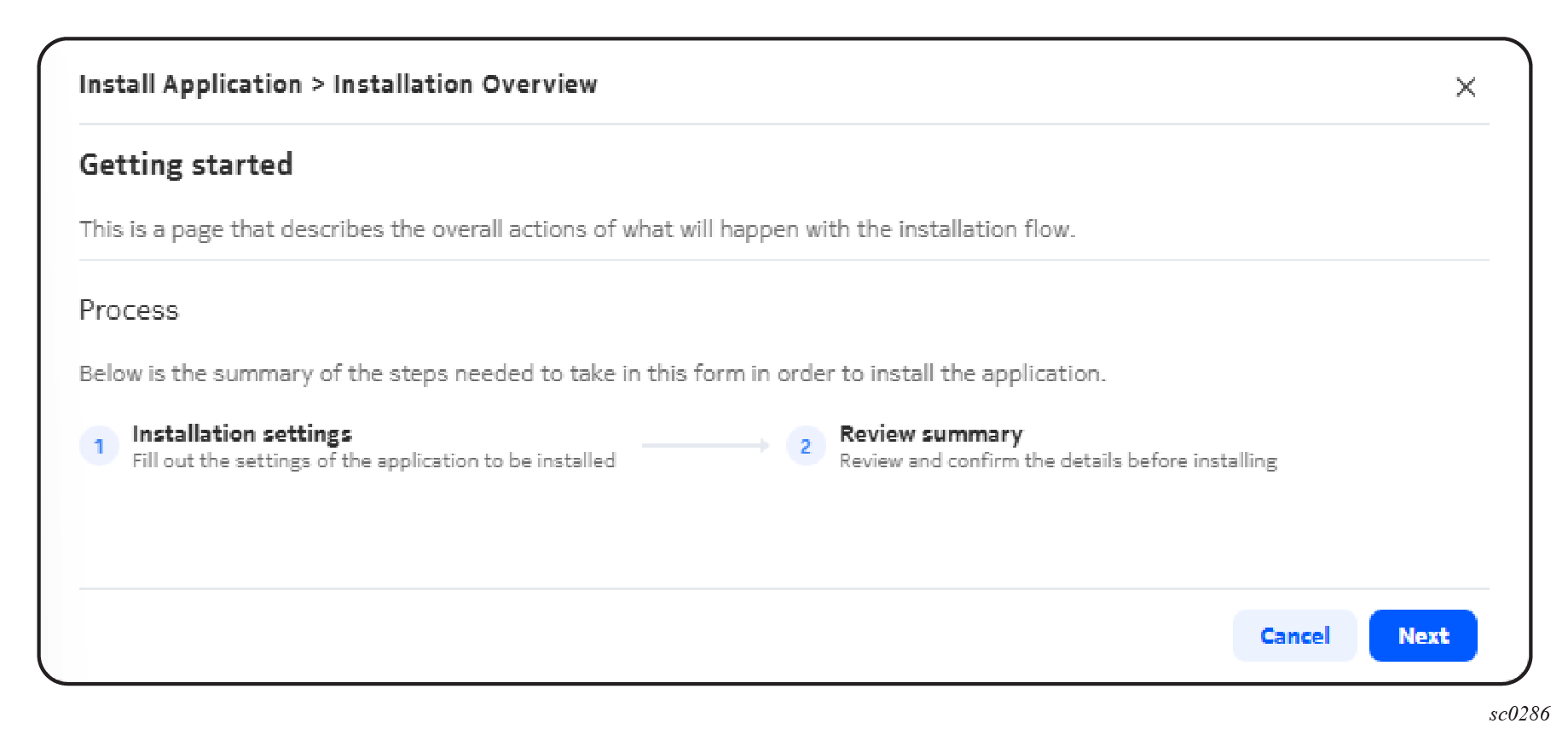
-
In the Installation settings page that displays,
set the fields for your app.
Figure 2. Installation settings page 
Click Next.
-
From the Summary page, click
Install to complete the installation.
Figure 3. Summary page for an app with settings 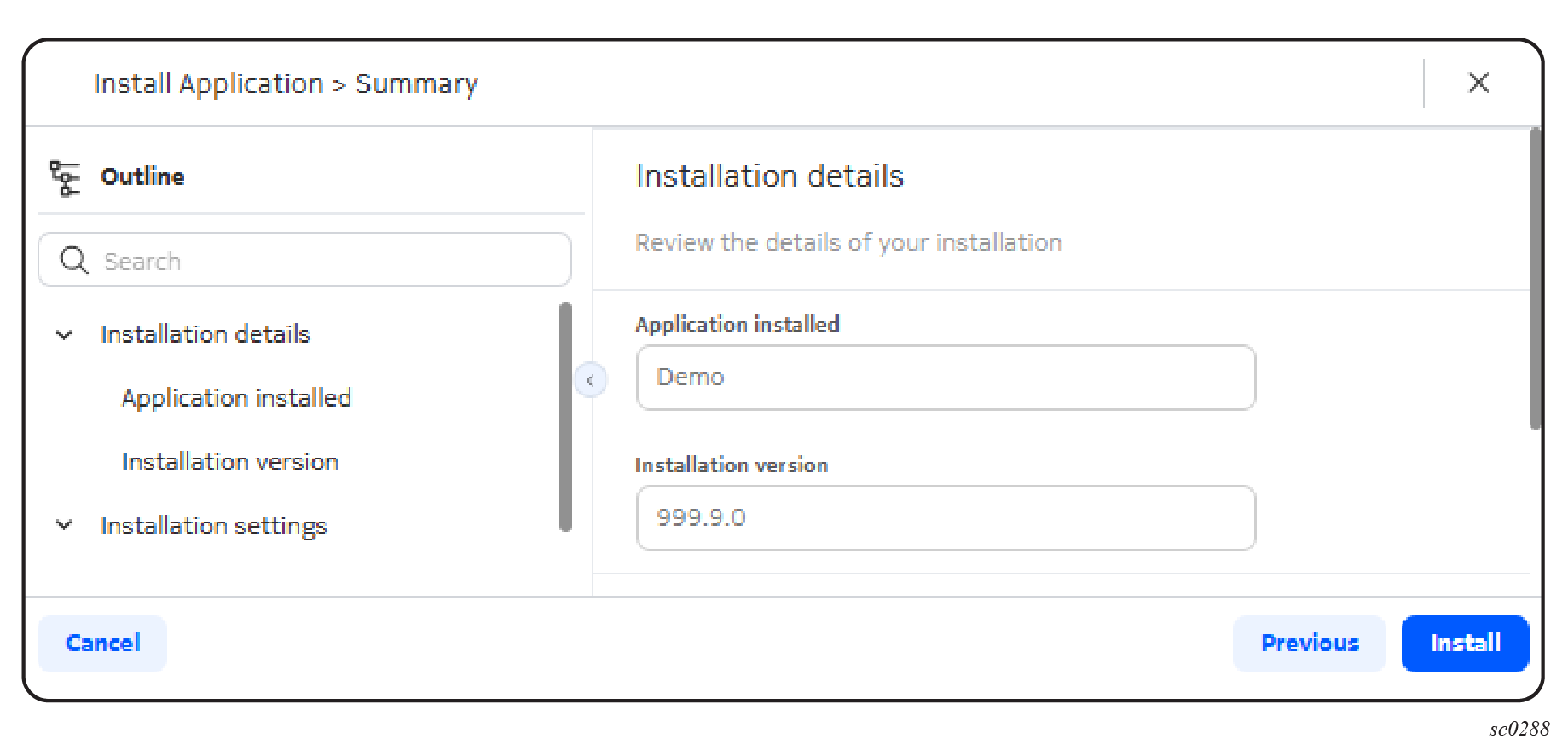
The procedure is complete at this point.
-
From the Installation Overview page, click
Next.
-
If an app has requirements associated with it, the
Summary page displays required apps. Click
Install or Dry Run Install to
complete the procedure.
Figure 4. Summary page for an app with requirements  The system installs the app and any app required identified in the Summary page.